The Godot Bridge sends a 3D asset from your PicoBerry workspace straight into your open Godot scene — one click, no file to download and re-import. Like the Blender and Unreal bridges, it runs entirely on your own machine: there's no API key and no paid lock, so anyone on any plan can use it.
Install the add-on
- Download the add-on (a
.zipfile). - Extract it at the root of your Godot project. It adds an
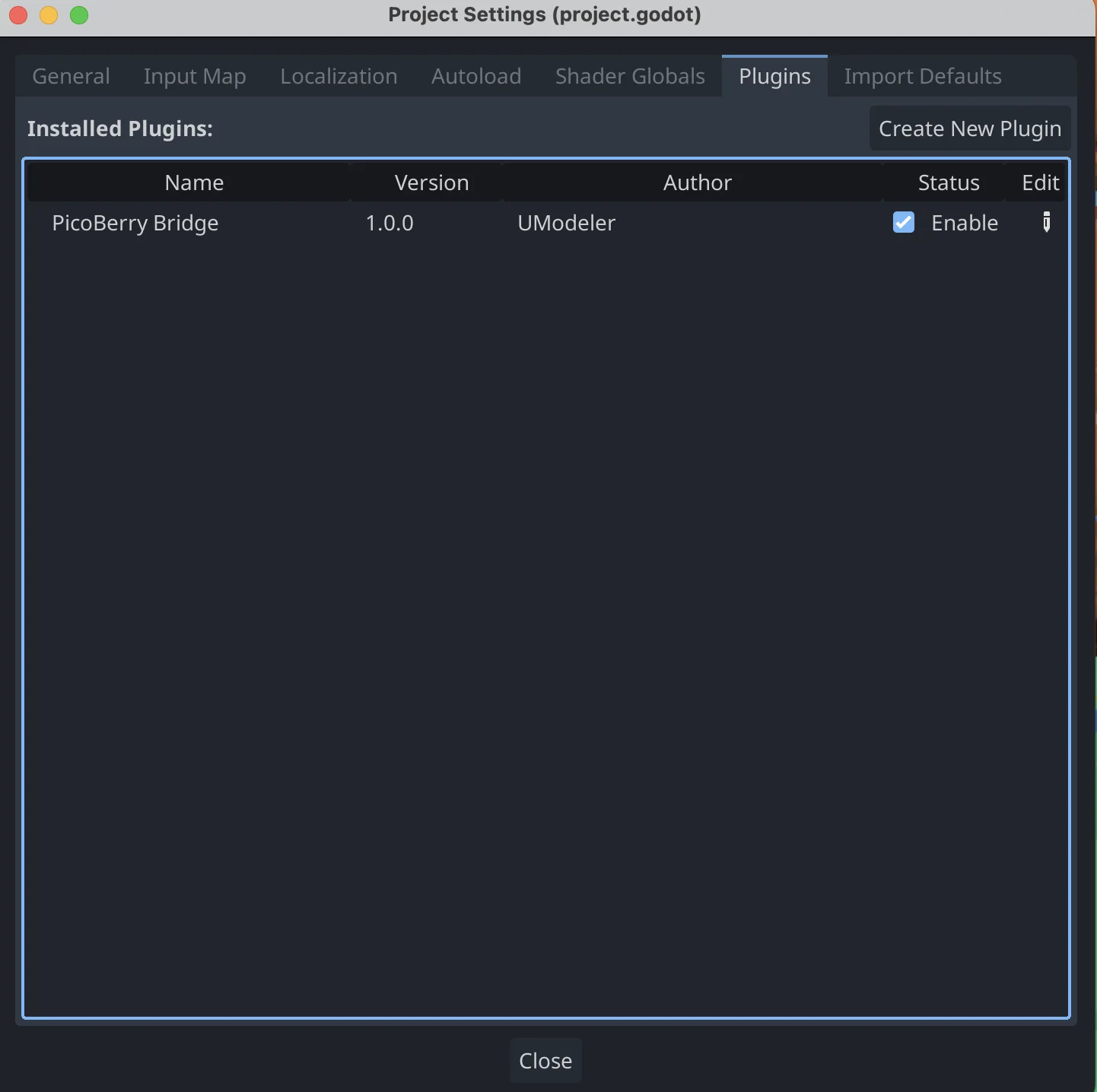
addons/picoberry_bridge/folder (it merges with any existingaddons/folder). - In Godot, open Project → Project Settings → Plugins and tick Enable next to PicoBerry Bridge.
- A PicoBerry Bridge dock appears in the bottom-right and reads Listening on 127.0.0.1:60621.
Connect Godot to PicoBerry
The add-on starts a local listener automatically when you enable it (and every time the editor loads).
- In Godot — the bridge listens on your machine (ports
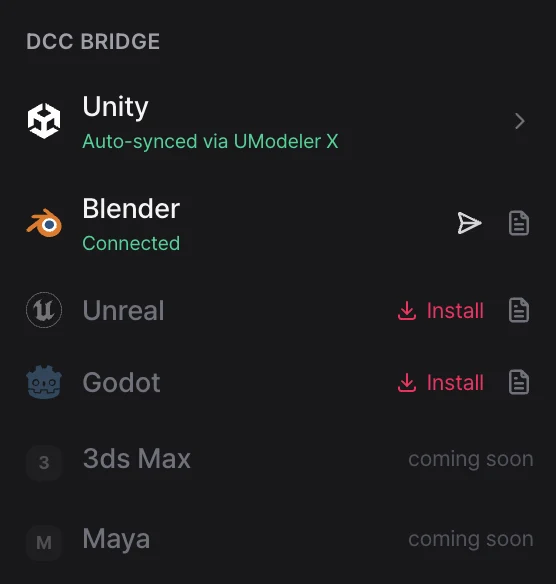
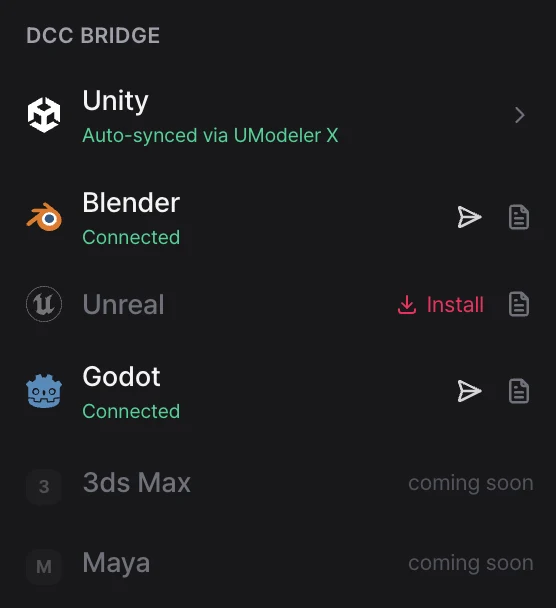
60621–60630). No window or sign-in is needed; the dock shows its status. - In PicoBerry (your browser) — open a 3D asset and click Send to a 3D tool (the paper-plane icon) in the toolbar under the 3D viewer to open the DCC Bridge menu. When the Godot row reads Connected (green), you're ready to send. Until it connects, that row reads Not connected and shows an Install link instead.
Send an asset to Godot
- Open a finished 3D model in your PicoBerry workspace.
- Click Send to a 3D tool (the paper-plane icon) in the toolbar under the 3D viewer to open the DCC Bridge menu.
- When the Godot row reads Connected, click that row (or the paper-plane icon on the right).
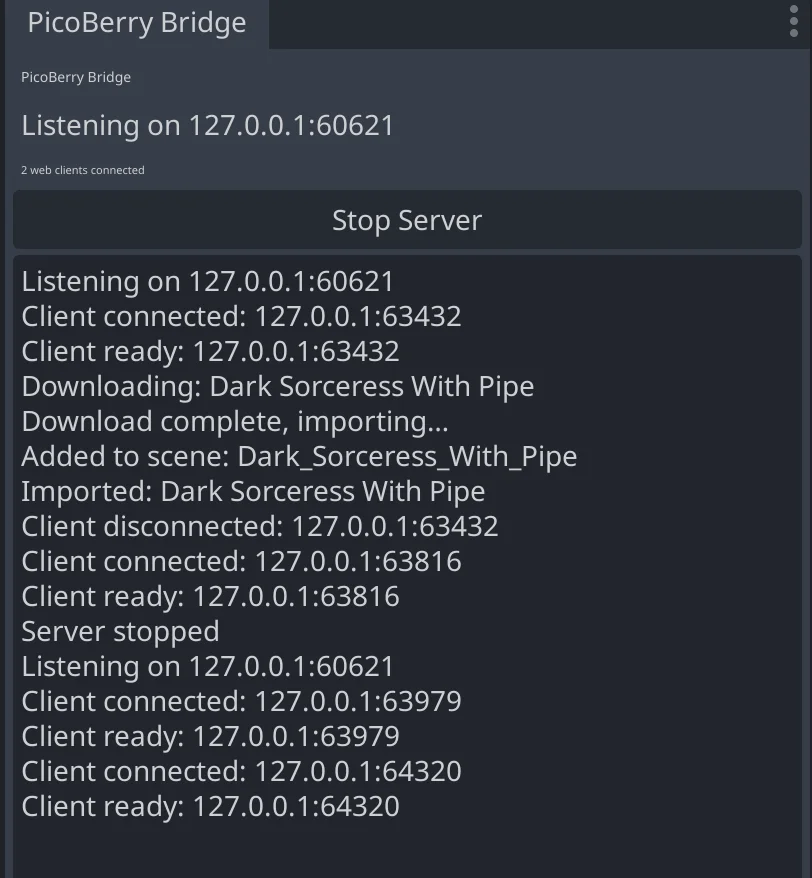
- A progress toast appears while the asset downloads and imports — the dock mirrors the same progress.
- The model is imported to
res://PicoBerry/<name>/— mesh, materials, and textures in a single GLB — and added as a node to your currently open scene (or a brand-new 3D scene if none is open). The new node is selected automatically.
The dock logs each step, so you can confirm a send end-to-end — download, import, and the node added to your scene:
Troubleshooting
The send menu never shows Connected / it won't connect.
- Make sure the PicoBerry Bridge plugin is enabled in Project → Project Settings → Plugins, and that the dock reads Listening on 127.0.0.1:60621.
- If you opened PicoBerry before enabling the add-on, the page may take a moment to find it on its own. Switch to another tab and back, or reload the page, to rescan right away.
- Confirm you're on Godot 4.2 or newer.
- Check that no other program is using ports
60621–60630.
Still stuck?
- Open the PicoBerry Bridge dock and read its log (every step is recorded there), then reach out to support with that detail.