PB Palette is one of the engines inside the Texture tool (alongside Tripo and Meshy). Instead of generating a new texture, it recolors the model's existing texture — mapping its colors to a palette you choose. It never touches the shape or the UVs.
Its biggest use is unifying the colors across many assets. When you generate a barrel, a sword, a tree, and a character separately with AI, their color moods don't match and they don't read as one game. Apply the same palette to all of them and they snap together as a set. It's also great for a limited-color flat / low-poly look or a retro aesthetic.
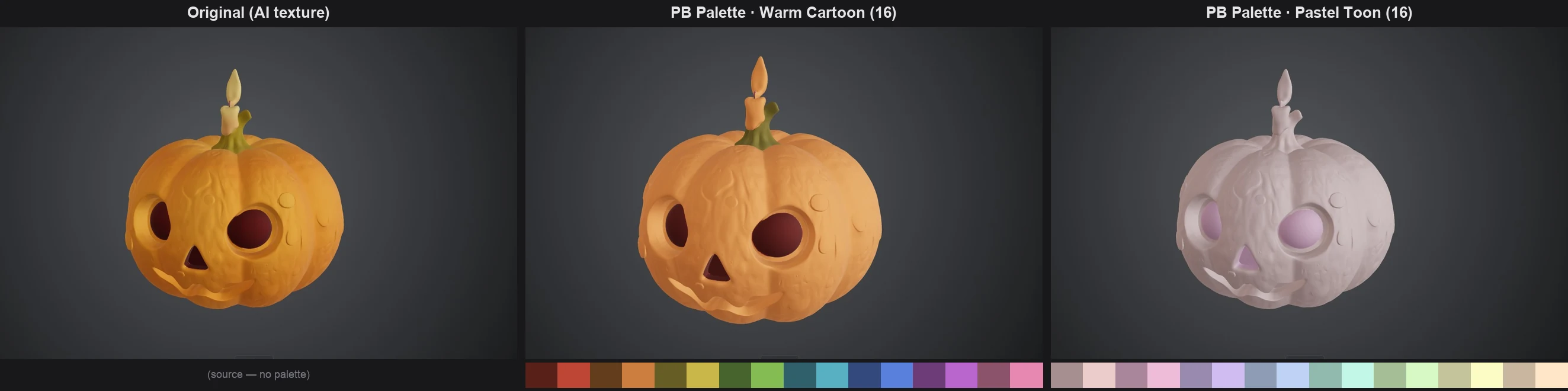
How it works
PB Palette maps every pixel of the texture to the nearest color in the palette. It matches by how different colors look to the human eye — so a pixel lands on a color that looks natural, not just one that's numerically close. There's no dithering, so color boundaries stay crisp.
- No shape or UV change — the mesh and UV coordinates stay exactly as they were; only the colors change.
- Only the base color (Albedo) changes — normal, roughness, and metallic maps are kept as they were. A rigged model keeps its rig, too.
- Textured models only — it recolors an existing texture, so picking a model without textures shows a notice and locks the Generate button. Texture it first.
- The result's textures are saved at up to 4K (4096px), and (Palette) is added to its name.
How to use it
- Choose Texture in the left tool bar and set the model you want to recolor as the Source Model (click it in the library, or click the card to pick it).
- Pick PB Palette as the engine. It's available on the Free plan too.
- Choose a Palette Source (the four options below). For PB Preset, click one of the presets to select it.
- Set the Palette Size (colors).
- Check the final color set in the Result palette preview.
- Press Generate.
Four palette sources
- PB Preset — palettes curated by PicoBerry (e.g. Warm Cartoon, Pastel Toon, Muted Noir). Just pick one and go.
- My Palette — choose from palettes you've saved. (See "Make a palette from an image" below.)
- Image — pull colors from a single reference image and use them as the palette. Upload one or pick from your generations or collections in the Select Media window. Great for stamping the color mood of your concept art or mood board onto your assets.
- Auto — build the palette automatically from the model's own texture colors. Use this when you just want to reduce that model's colors to a fixed count.
Color count
Palette Size (colors) sets how many colors go into the palette. The default is 64; pick from the 16 / 64 / 128 / 256 buttons, or use Custom to open a slider and dial in any number from 2 to 512. With My Palette the saved palette is used as-is, so this control doesn't appear.
- Fewer (e.g. 16–32) — a flatter, more stylized look with simpler colors.
- More (e.g. 128–256) — more faithful to the original colors, with smoother transitions.
Change any input and the Result palette preview updates instantly, so you can eyeball and tune the color set before generating.
Make a palette from an image (Image feed)
You can also pull a palette out of a generated image. In the image feed, open an image's More actions menu (⋯) → Extract Palette, choose how many colors to pull (32 by default), and extract — the menu shows the credits it needs. The palette rides along at the image's bottom-left as a small color-grid thumbnail (up to three are shown), and it's saved into My Palette so you can reuse it on any model.
Click that palette thumbnail and a menu appears.
- Send to PB Palette — jumps straight to the Texture tool's PB Palette (My Palette) with that palette pre-selected.
- Delete — removes the palette.
Use palettes made this way as your own "art palette" to give the same color mood to many models.
Result palette preview
The Result palette in the panel shows, as a grid, the color set your current settings (source + color count) will apply. Similar colors are arranged next to each other, so you can judge the final look before generating. For PB Preset and My Palette it's exactly what will be applied; for Image and Auto it's a close estimate that can shift slightly at generation time. There's no separate "build palette" button — the preview follows your inputs live.
The credits required are shown on the Generate button once you pick the engine.
Next steps
A recolored model can be downloaded via Export or sent to Animation. For polygon cleanup or other texturing approaches, see Remesh & Retexture.