Parts Breakdown takes a single image and has the AI lay it out as an exploded parts sheet. Feed that sheet into Image to 3D and you get a 3D model with its parts separated.
Create a parts sheet
- Open the image you want to break apart in the image feed — one you generated in PicoBerry or one you uploaded.
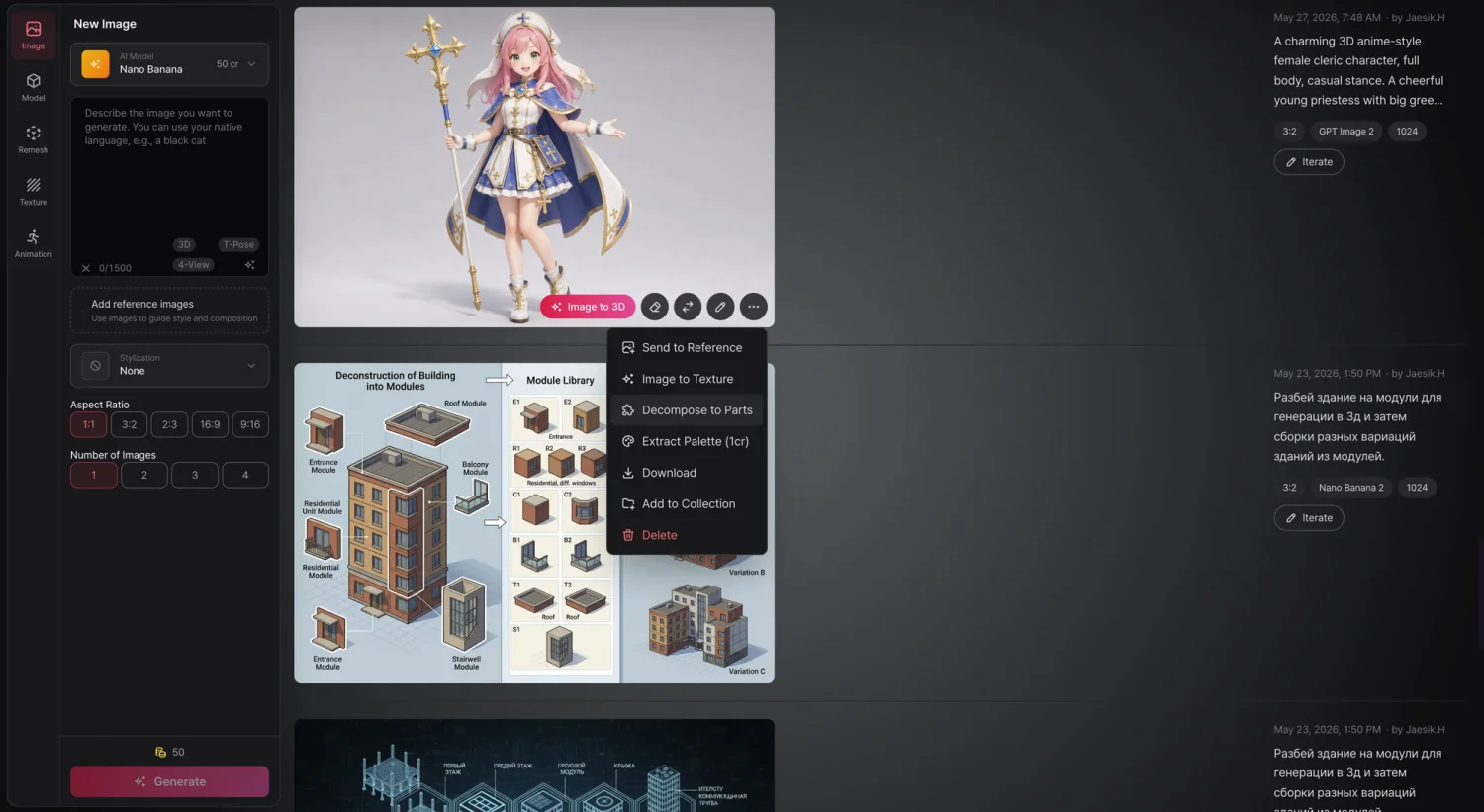
- From the image's More actions menu (⋯), choose Decompose to Parts. The menu shows the credits it needs.
- The parts sheet is generated as a new image in the feed, tagged with a Parts Breakdown badge.
It takes about 2–4 minutes.
The AI automatically detects what kind of subject the image is (mech, vehicle, character, creature, and so on) and lays the parts out accordingly. The engine and the breakdown style are chosen for you — there's nothing to pick. The finished sheet lays the subject out neatly, part by part.
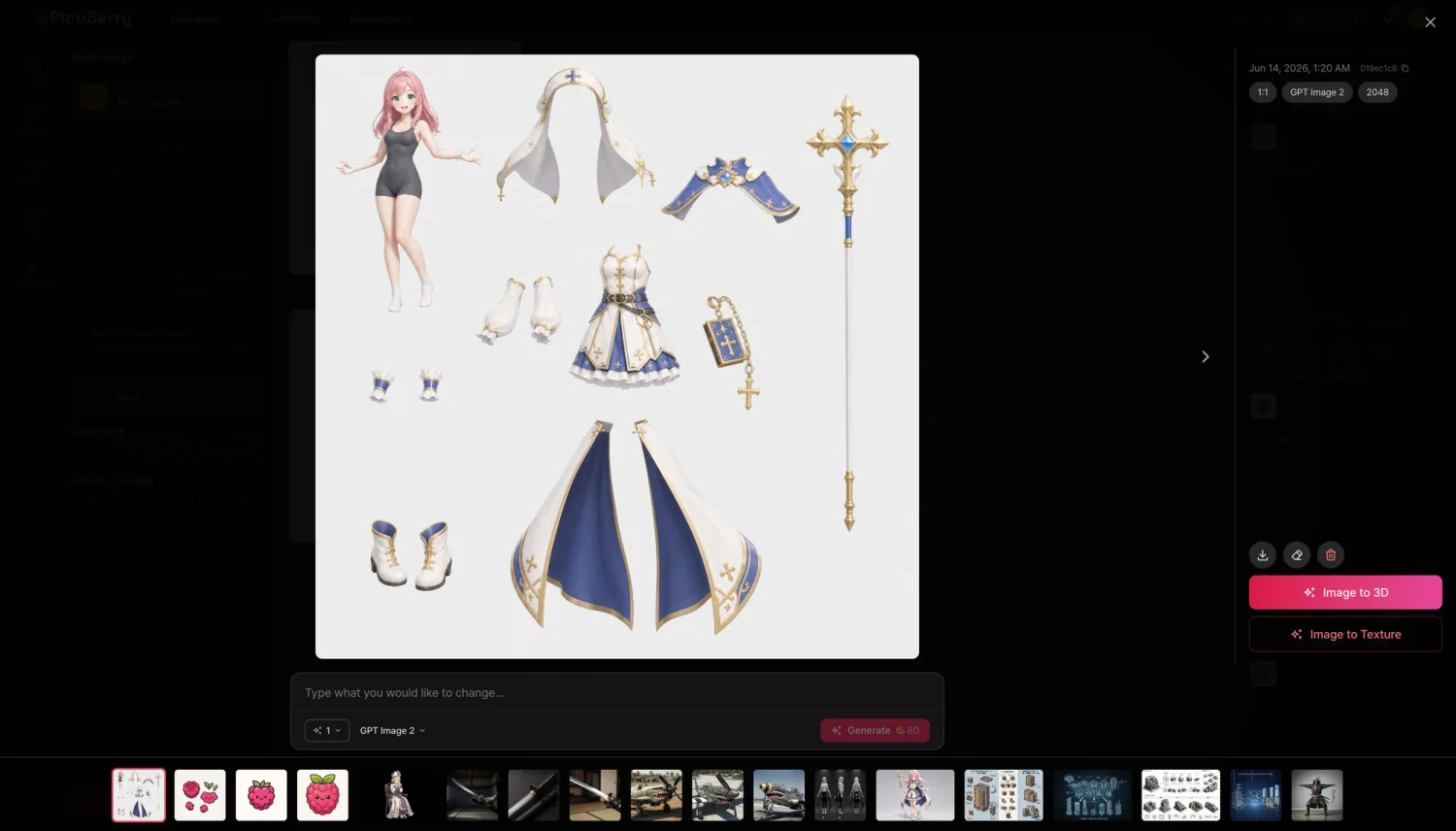
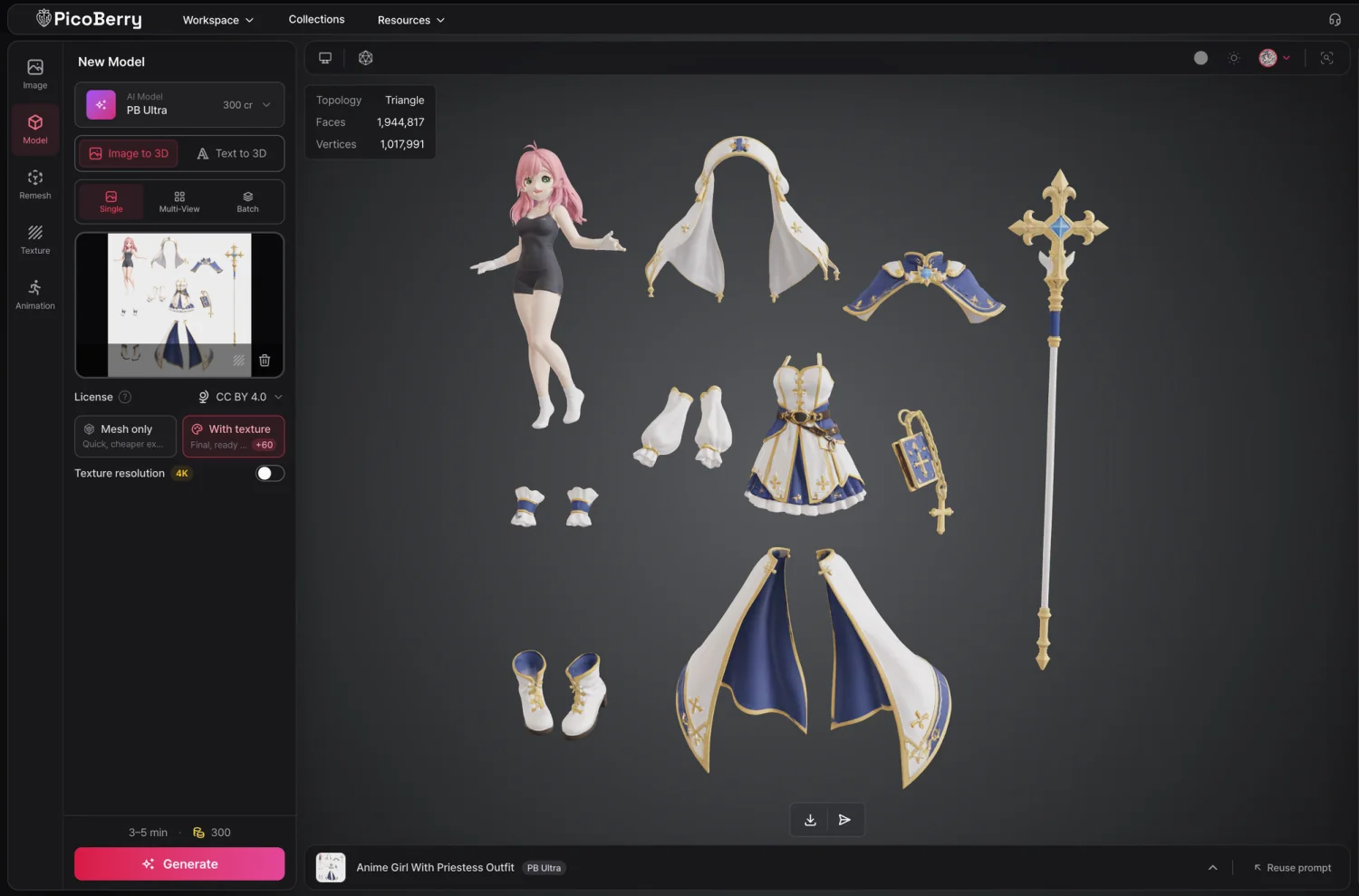
Turn the sheet into 3D
Once the sheet is ready, run Image to 3D on it. The model comes back with its parts separated rather than fused into one mesh.
One 3D model per part
To get a separate 3D model for each part, follow these steps:
- From the parts sheet's More actions menu (⋯), choose Split into Part Images. The sheet is cut into one image per part, which arrive as a new row in the feed.
- Press Generate all as 3D on that row. The Model tool opens on the Batch tab of Image to 3D, already filled with every part image.
- Pick a model and your texture, polygon, and license options, then press Generate — each part becomes its own 3D model.
How many parts fit in one go follows your plan's 3D concurrent-generation limit. If there are more parts than that, a notice tells you only the first ones were added; send the rest separately.
For the best results
- Subjects with clear part structure work best — robots, mechs, vehicles, armored characters.
- Keep a single subject on a plain background. A busy background or multiple objects hurt the breakdown. Remove the background first if needed.
- Front or 3/4 angles work well. Extreme angles make parts harder to identify.