Segmentation splits one 3D model into parts you can pick one by one — a head, an arm, a backpack. Afterwards you can pick parts, name them, move them, refine only the picked ones, or take them out as a new asset. Use it when a model needs to move per part in a game engine, or be worked on part by part in a DCC.
How to split a model
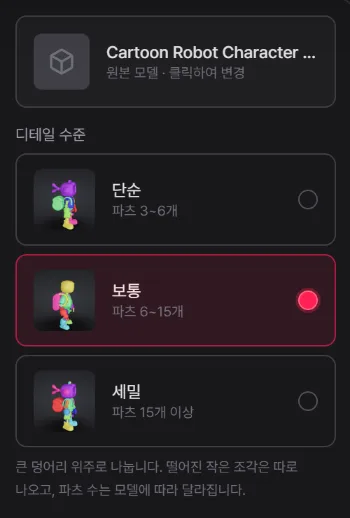
- Pick Segmentation in the left toolbar and choose the model with the source model card at the top of the panel.
- Choose a detail level (see below). Balanced is the one to start with.
- Press Split into parts. The price (240 credits) and the expected time are shown above the button.
The result is a new asset under the source, named with (Parts); the source stays as it is. It took about a minute in our tests.
Generations, remesh / texture / UV results and uploaded models can all be split. A model that was not made by Tripo is uploaded to Tripo for the split, and the result is put back at the source's size and place. Uploaded files can be up to 100 MB; animated models can't be split.
Detail levels
- Simple — fewer, bigger chunks.
- Balanced (default) — a split that suits most models.
- Detailed — down to small features.
The part count depends a lot on the model: the same robot came out as 22 (Simple), 35 (Balanced) and 44 (Detailed) parts, and a helmet gave 64 at Balanced. Loose small pieces (buttons, seams) come out on their own.
Picking and viewing parts
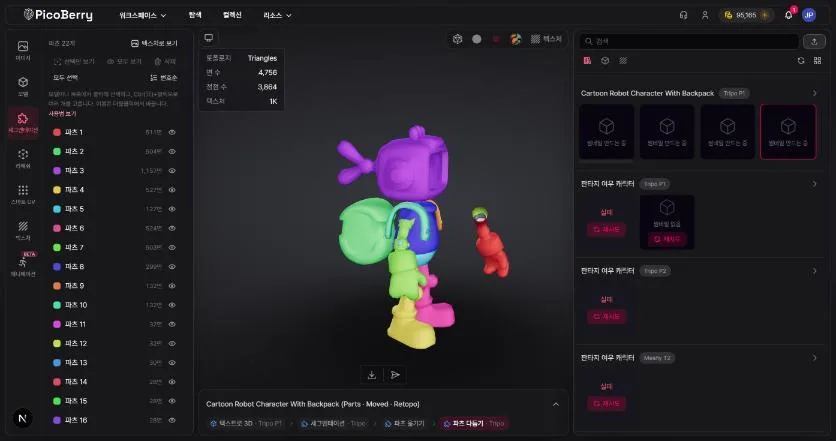
- Click picks one part; Ctrl(⌘)- or Shift-click picks several — in the viewer or in the part list.
- With parts picked, the stats above the viewer show faces / vertices of the picked parts out of the total.
- The eye icon hides a part; Alt(⌥)+eye shows only that part (press again to show all).
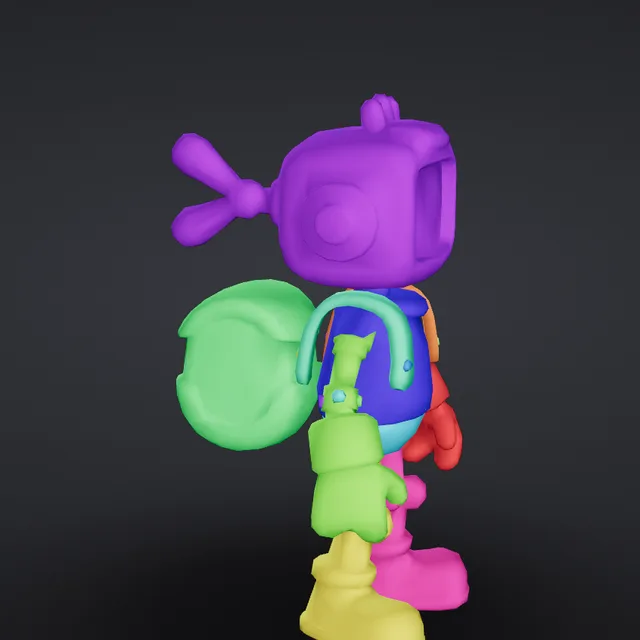
- Part colors / Texture view switches the look. In part colors, the parts you did not pick fade.
- Sort the list by number or by size; small pieces (under 0.5% of the model's faces) are folded away.
Naming parts
Double-click a name in the part list to rename it (Enter saves, Esc cancels). Names carry over to part edits, and become the node names inside the file when you download or send to Blender / Unity.
Moving parts
Change the position, rotation and scale of the picked parts (free).
- Pick parts and press Move · Rotate · Scale under Move parts — a gizmo appears in the viewer.
- Drag the gizmo. With one part picked you can also type its Position · Rotation (°) · Scale (about the part's center).
- Undo (Ctrl+Z) and Reset work until you save.
- Save as new asset stores the result as a new asset under the source, named with
Moved.
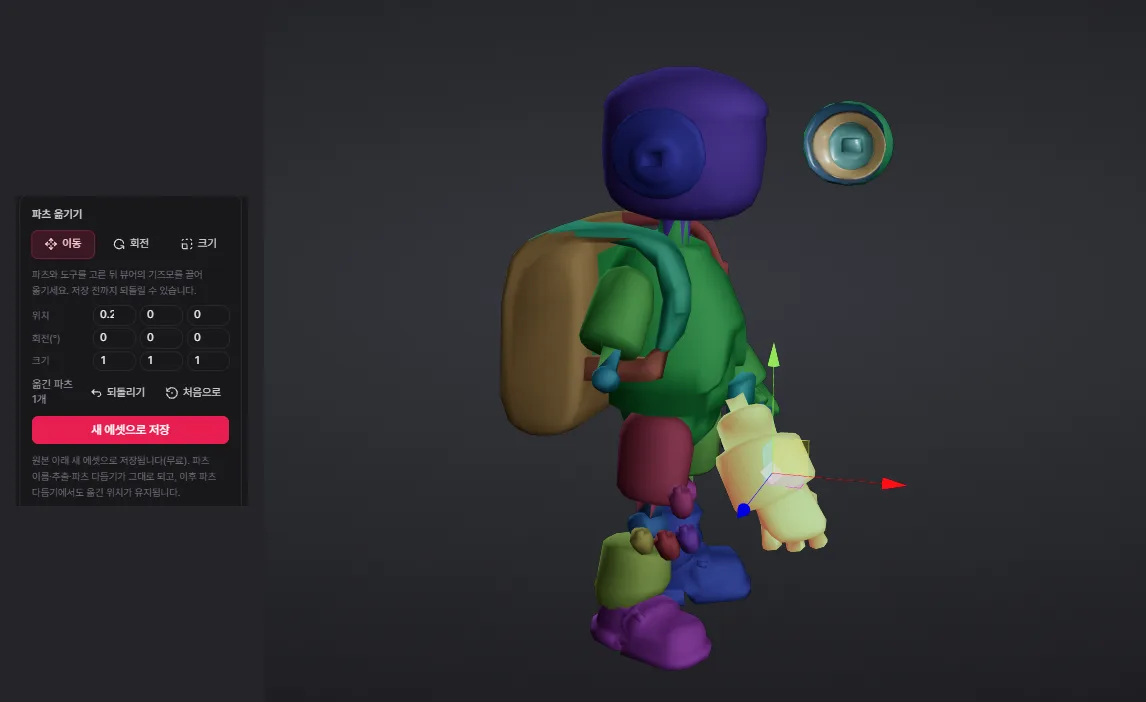
A saved copy can still be renamed, extracted and part-edited — and later part edits keep the moved places.
Refining parts
Runs a Tripo operation on the picked parts only (all parts when none is picked). The result is a new asset under the source and keeps the part names.
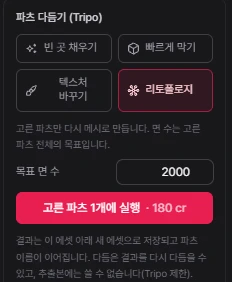
- Fill gaps (300 credits) — fills cut-off faces with AI so the part becomes a closed mesh.
- Quick cap (180 credits) — quickly caps open holes (for 3D printing). On some models a cap can bulge out a lot.
- Retexture (60 credits) — remakes only the picked parts' texture from a prompt; the shape stays.
- Retopology (180 credits) — remeshes only the picked parts; the face target covers the picked parts together, and Tripo may come out somewhat above the target.
A refined result can be refined again (for example retopology, then retexture). One part took about 49 seconds to 2 minutes in our tests. Credits are as of October 2026.
Extracting and exporting
- Save selected parts as asset — a new asset holding only the selected parts (free); node names in the file are the part names. Part edits are not available on an extract.
- Selected parts GLB · All GLB — downloads a GLB straight from the browser.
- The download menu and DCC send (Blender, Unity …) also ship the file with the part names.
Deleting parts
Pick parts and press Delete to remove them from the result (free, can't be undone). At least one part must remain, and only the asset's author or the team owner can delete.