Generate AI 3D on your phone, straight into Unity
Generate 3D on your phone with PicoBerry — nothing to install, just picoberry.ai in the phone's browser — then open Unity, where UModeler X reads the same asset library from your account. Nothing is pushed or sent from the phone. Every screen recording and screenshot on this page was captured on a real device, so you see the actual phone UI and the 3D it produces.
Can you generate AI 3D models on your phone and use them in Unity?
Yes. PicoBerry runs in your phone's browser at picoberry.ai — write a prompt, pick a model, and generate 3D drafts on the device. Each result saves to your PicoBerry asset library, and UModeler X in Unity reads that same library, so nothing has to be pushed or sent from the phone. Every screen recording and screenshot on this page was captured on a real phone.
See it on a real phone
Three screens captured on an actual device — the phone UI and the 3D it produces. No desktop emulation.
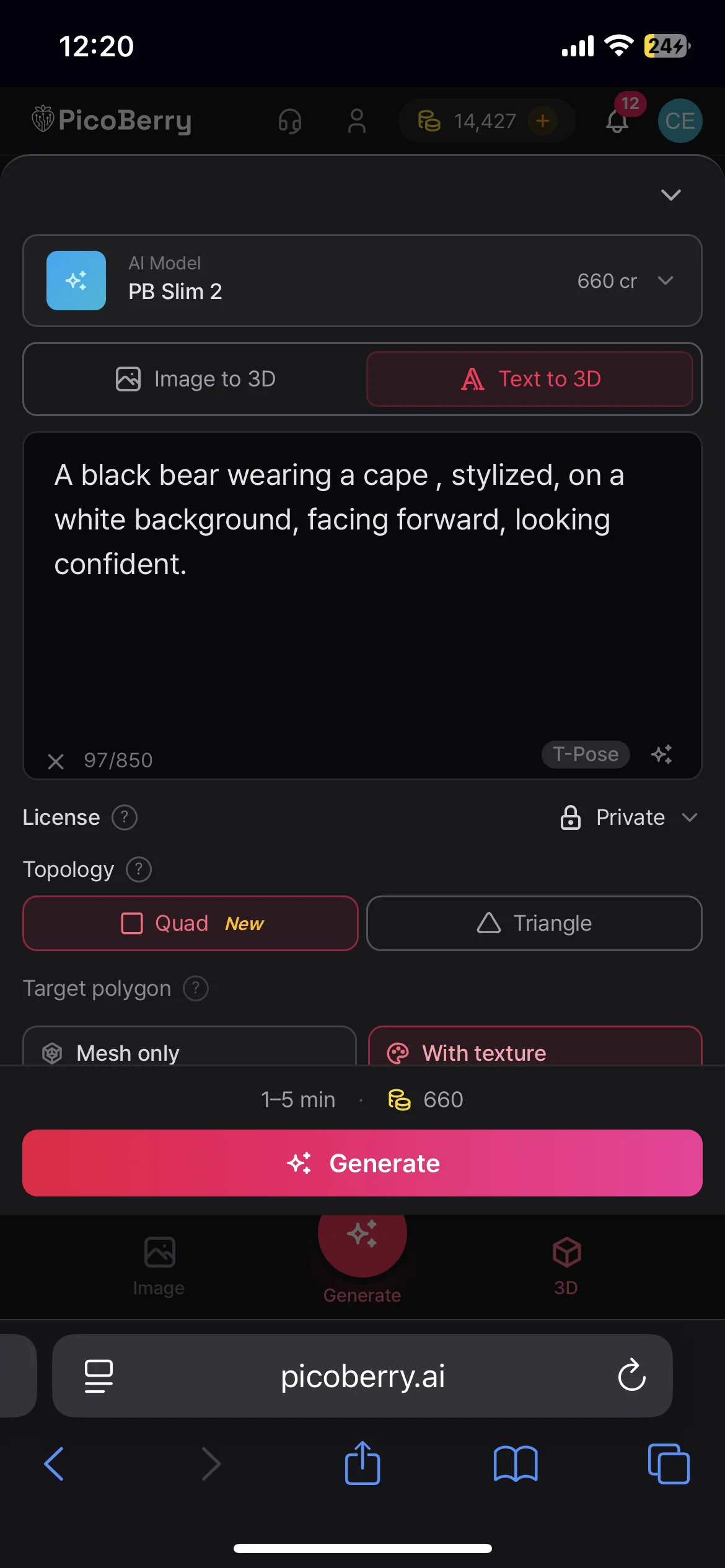
Prompt from your phoneType a prompt or drop in a concept image, right on the device.
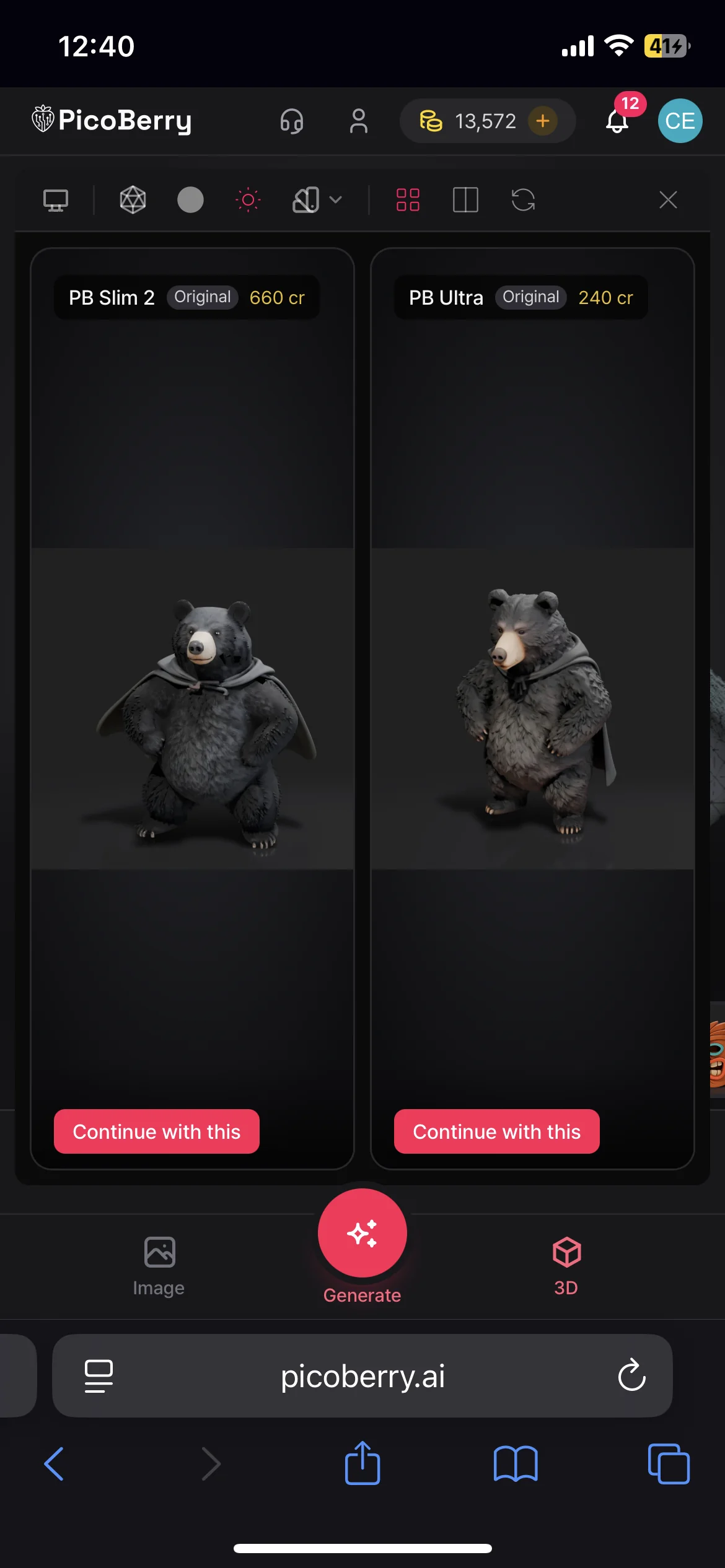
Generate & compareCreate drafts across several AI models and keep the one that reads best.
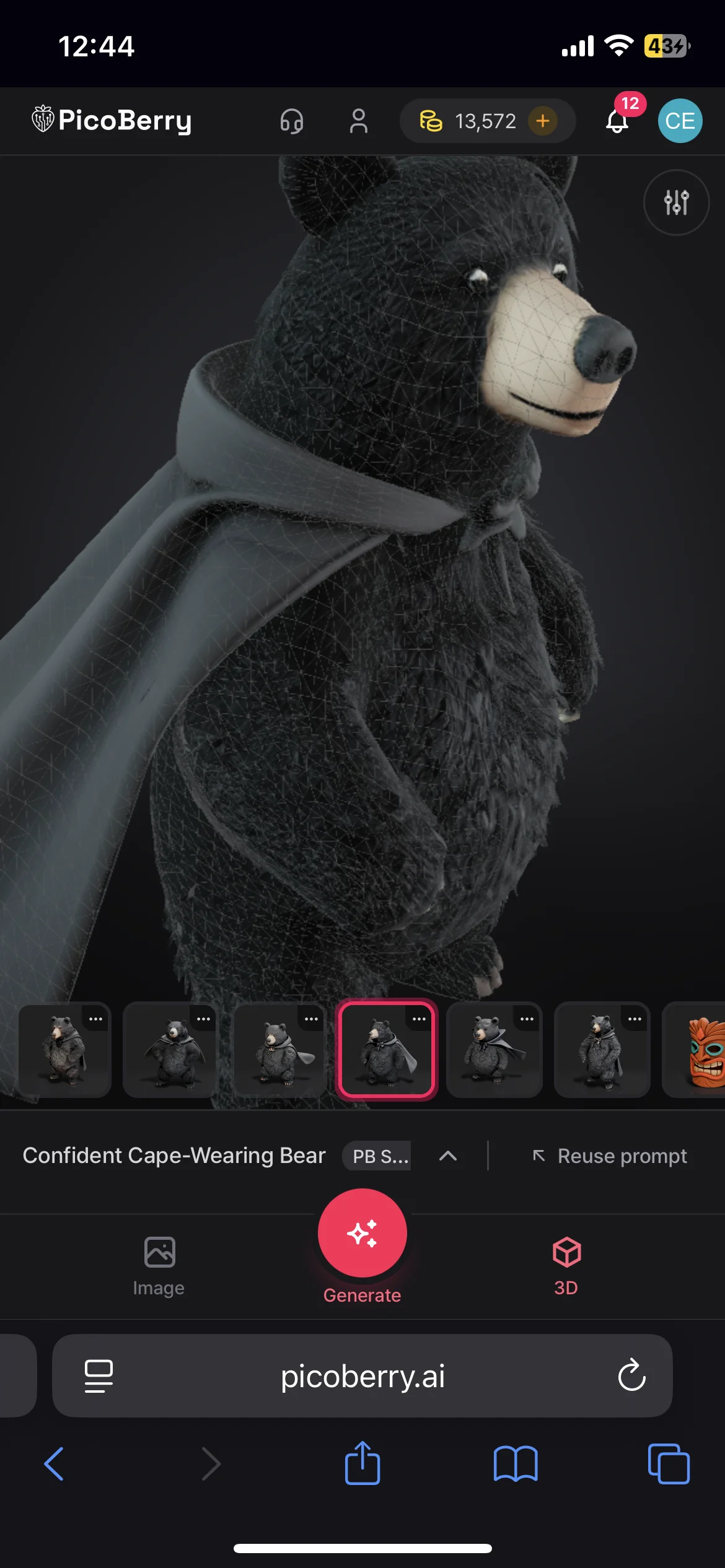
See the 3D resultSpin the generated model on your phone before you open it in Unity.
The credit figures visible in these captures are per generation and move with the options chosen for each run — generating the mesh only costs less than generating it with texture. Current prices live on the pricing comparison page.
The full mobile-to-Unity demo
One walkthrough in two halves. First the phone, then the Unity Editor — where UModeler X reads the asset straight from your library, with no push and no send, and you refine it there.
Half one — on the phonePrompt, generate, and spin the result on the device. The asset is in your library the moment it finishes; you do nothing else to it here.
Half two — in Unity. The PicoBerry window inside UModeler X lists the same asset that was just generated on the phone; Add to Scene puts it in the scene, and refinement happens in the editor. This half is recorded on the desktop, because that is where Unity runs.
Two paths from phone to Unity
The phone is where you make things; the engine is where you take them. Nothing has to be pushed or sent — UModeler X reads the asset out of your PicoBerry asset library, so both paths simply end in Unity.
Phone only, straight to Unity
Generation and refinement both happen on the device. No desktop web step, no push step — the only desktop thing you open is Unity itself.
Generate on your phone
Prompt and generate in the PicoBerry web workspace, right on the device.
It lands in your library
Every generation saves to your PicoBerry asset library automatically.
Open Unity
UModeler X reads the asset straight from your library — no push step, no desktop web step.
Phone, then desktop web, then Unity
Same start. Three things bring you to desktop web: playing back an animation you rigged on the phone, downloading the file — which is how you reach Unity if you are not using UModeler X — and the bridges that push to Blender, Unreal or Godot. The refinement tools are all on the phone already.
| On the phone | Desktop web only |
|---|---|
| Text to 3D and Image to 3D | Downloading the file — GLB, FBX, OBJ or STL |
| Comparing several models from one input | Send to Blender, Unreal or Godot |
| Remesh, UV unwrap and texture | Animation playback — play and pause |
| Auto-rig and animate | The animation timeline scrubber |
| Parts breakdown from an image | The animation clip selector |
Unity is on that send menu too, but its row only hands an asset id to a UModeler X that is already running. From the phone you never need it, because UModeler X reads the library itself.
Both paths end in Unity by design, because that is where the mechanism is unique: you do not send anything from your phone. UModeler X reads your asset library.
Real device, not emulation
Every screen recording and screenshot here was captured on an actual phone, running PicoBerry in the phone's browser. You are seeing the genuine mobile UI and the real 3D it makes, not a desktop window styled to look like a phone. The Unity half of the demo is recorded in the Unity Editor, because that is where Unity runs.
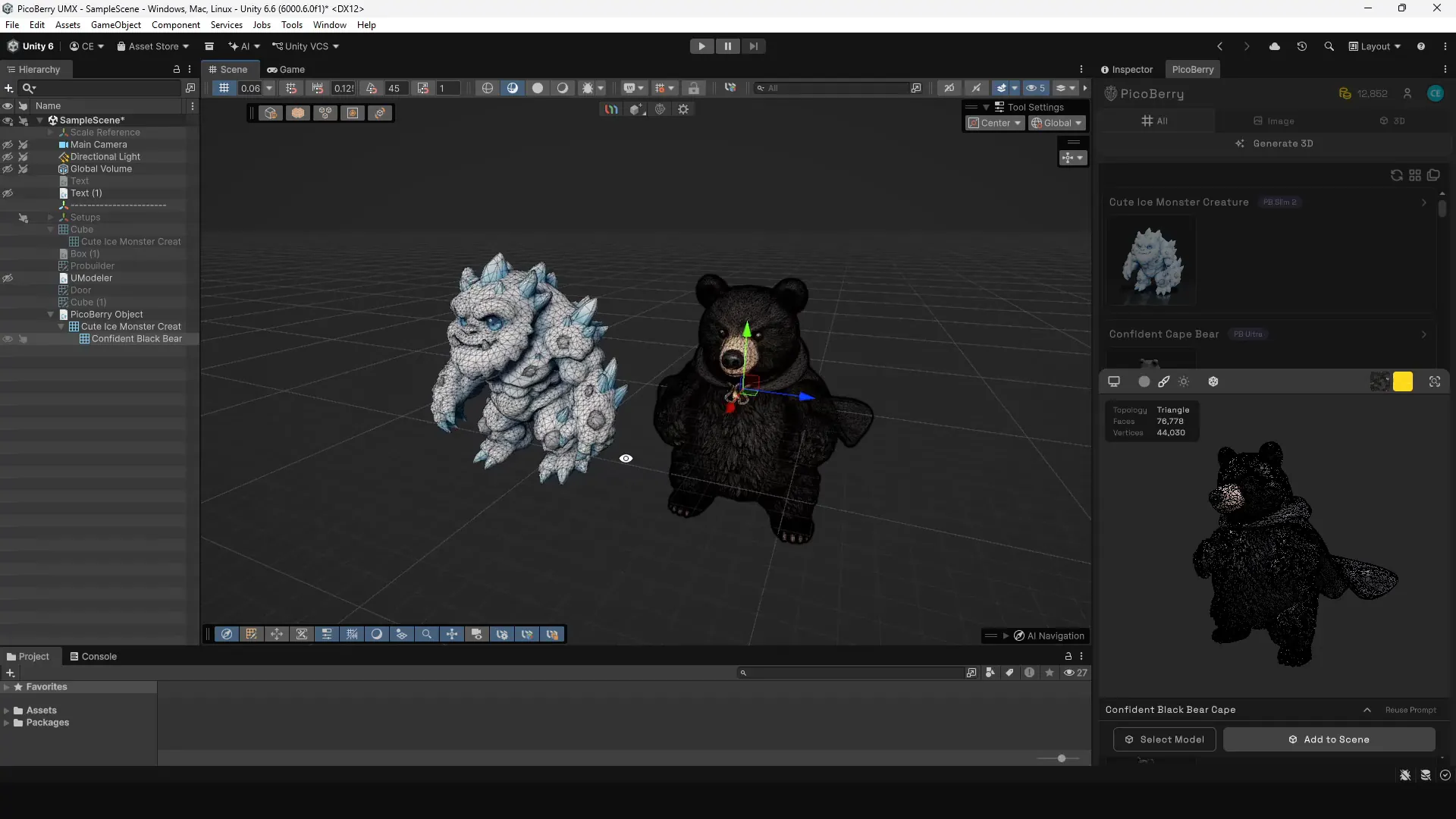
Two assets out of the PicoBerry library, standing in a Unity scene. The panel on the right is the same library the phone writes to.
Frequently asked questions
Can I really generate 3D on my phone?
Yes. There is nothing to install — PicoBerry works as a mobile AI 3D generator in your phone's browser at picoberry.ai. Write a prompt or upload an image, pick a model, and generate 3D asset drafts on the device. The screens and screen recordings on this page were captured on a real phone, so you see the mobile UI and the 3D result, not a desktop emulator.
Is the footage on this page real device capture?
Yes. The three screens above are screenshots taken on the phone, and the hero clip is a screen recording of PicoBerry running in the phone's browser. The demo's first half is that same phone; its second half is the Unity Editor, recorded on the desktop where Unity runs. Nothing here is a desktop window styled to look like a phone.
How do the assets get from my phone into Unity?
Nothing is pushed or sent from the phone. Every generation saves to your PicoBerry asset library, and the PicoBerry window inside UModeler X reads that same library, so anything you make on your phone is reachable in Unity with no push step. Remesh, UV unwrap, texture, parts breakdown and auto-rigging all run on the phone too — whichever of them you run, the result lands in the same library and reaches Unity the same way.
How do I generate a 3D mesh on my phone and use it in Unity?
Open picoberry.ai in your phone's browser, write a prompt or upload a reference image, pick a model, and generate. The mesh saves to your PicoBerry asset library. In Unity, open Tools › PicoBerry › Asset Library in UModeler X, find the same asset, and use Add to Scene. You never move a file yourself.
Are the generated assets ready to ship?
Generated assets are drafts, useful for prototyping and iteration. They can be reviewed, refined, or adapted for your project, and UModeler X in Unity gives you a native way to do that refinement.
Do I need UModeler X to use PicoBerry with Unity?
No. You can download the asset from PicoBerry on desktop web — GLB, FBX, OBJ or STL — and import it into any Unity project the usual way. UModeler X is what removes that step: it is signed in to the same account, lists your asset library inside the editor, and adds a model to the scene without a file for you to download and import. Downloading is a desktop-web surface, so the phone-only path is the UModeler X one.
Is PicoBerry only for Unity?
No. PicoBerry is an AI 3D asset generation platform for game developers and creators, and it supports broader game-engine workflows including Unreal, Godot, and Blender. This page focuses on the phone-to-Unity path.
Explore more
AI 3D Generator for Unity
Generate 3D drafts and bring them into Unity to prototype faster.
Explore →PicoBerry to UModeler X Workflow
Edit, refine, adapt, and finish AI-generated assets inside Unity.
Explore →AI 3D Generation API
Build generation into your tools, pipelines, and agents with one REST API.
Explore →Generate on your phone. Finish in Unity.
Start with free credits and see how AI 3D drafts fit your mobile-to-Unity workflow.