There is no single best model. The right one depends on the asset you are making and on what happens after generation. This guide gives you a way to pick a sensible model to try first, compare results, and refine, instead of guessing.
Written and maintained by the PicoBerry product team at UModeler Inc. — the team that runs every engine on this page in production and re-tests it when engines, prices or results change. Page updated: Sep 12, 2026.
Models to compare in PicoBerryPB SlimPB StandardPB UltraMeshy 6Hunyuan 3.1+ Image to 3D
Which AI 3D model is best for game assets?
There isn’t one, and that’s the point. The model you choose shapes the result, and different models are stronger on different object types: a stylized prop, a hard-surface machine, and a character each reward a different starting model. Match the model to what you’re making and a rough generation becomes an outstanding asset. So choose by the need first, then compare a couple of candidates and keep the one that fits.
What actually decides a good pick
Model output is only the start. These six things determine whether a generated asset is worth building on. Judge every candidate against them.
Silhouette & style fit
Does the shape read right from across the room, before you judge any detail?
Topology & editability
Is the mesh clean enough to edit, remesh, UV, or rig, or is it a dense blob you’ll fight?
Texture & material behavior
Does it arrive with usable PBR maps, or flat materials you’ll need to re-texture?
Scale, pivot & export
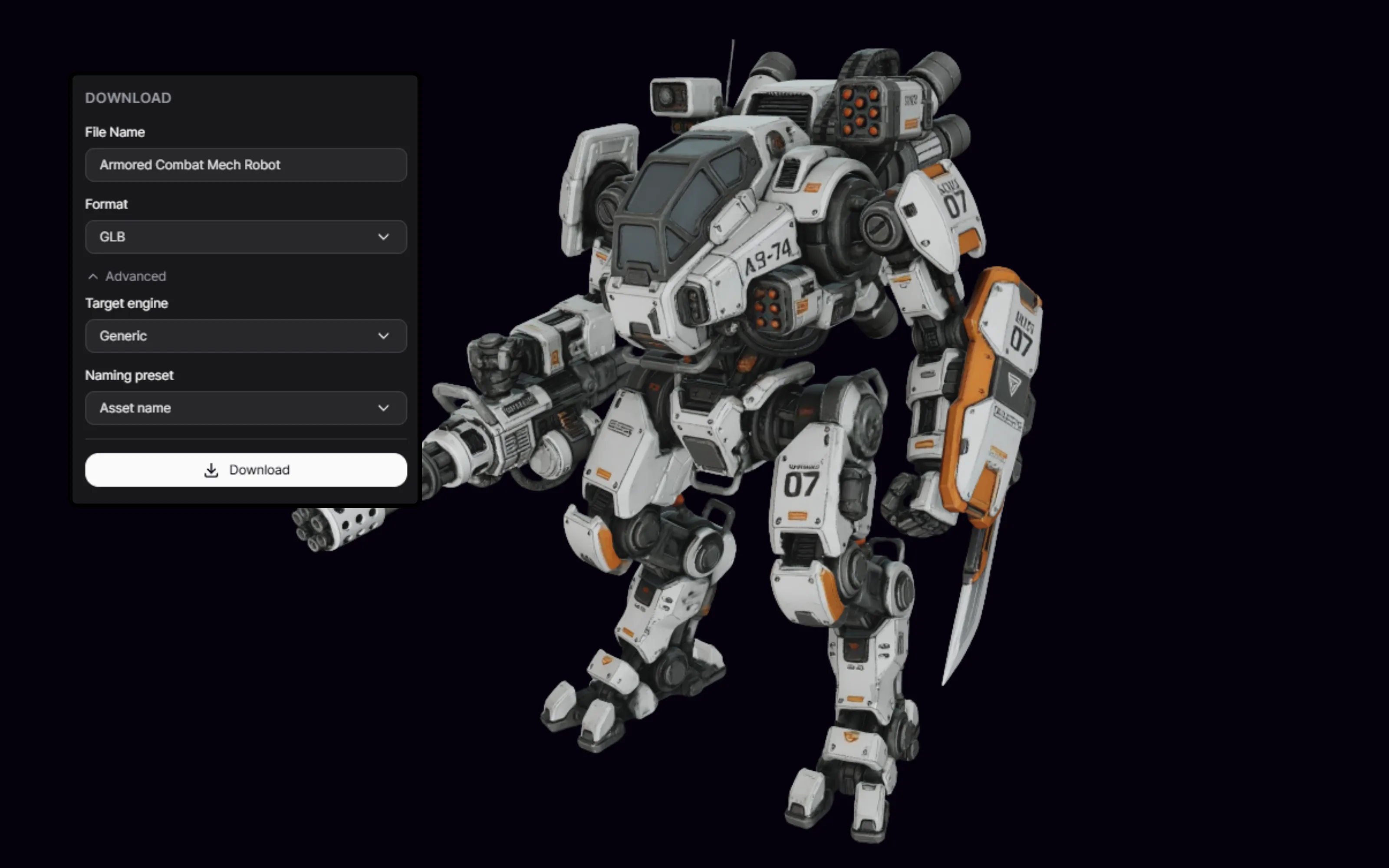
Right size, sensible pivot, clean GLB/FBX/OBJ: what decides how fast it drops into a scene.
Holds up in-engine
How it reads under your lighting and polygon count, not just the clean preview.
Refinement time after
The real cost: a rough result that cleans up in minutes beats a "nicer" one that needs hours.
How to choose, step by step
The asset type is your starting point for your project.
STEP 01
Start from the asset
Determine the type of asset it is. Is it a character, a building, rocks or cliffs?
STEP 02
Match a model to the asset
Pick the model that best aligns with the asset type.
STEP 03
Run the same prompt
Generate the same prompt or reference across your generations.
STEP 04
Judge, then refine
Choose the best model, then remesh, UV, re-texture, or rig as the asset needs.
Start by asset type
Pick the category closest to what you are making. The linked guides add a same-asset comparison and refinement notes. Model names are current starting points to test, not fixed winners.
The only honest way to choose is a like-for-like test: one prompt or reference, several models, judged on the six criteria. These are the comparisons this guide is built to show.
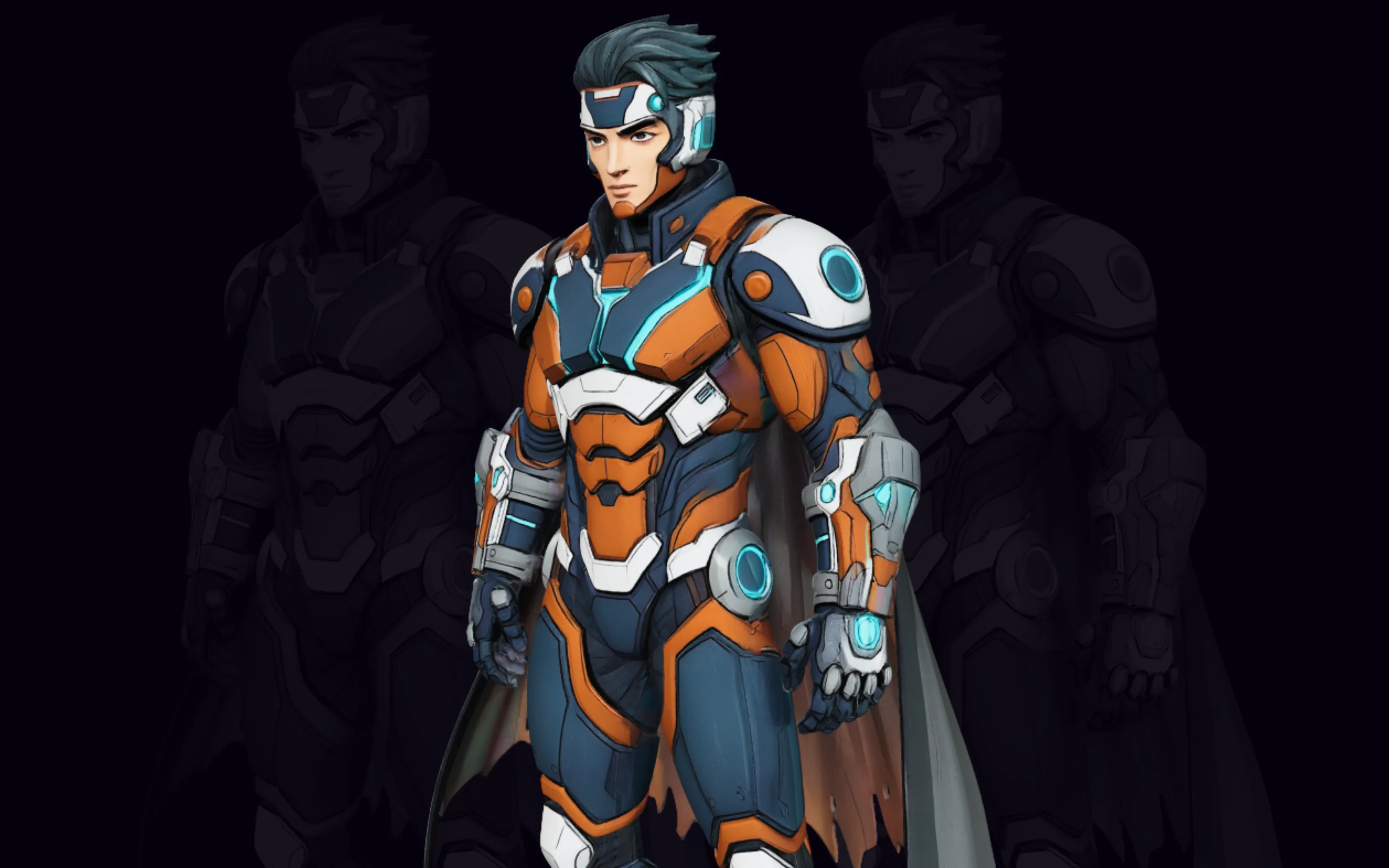
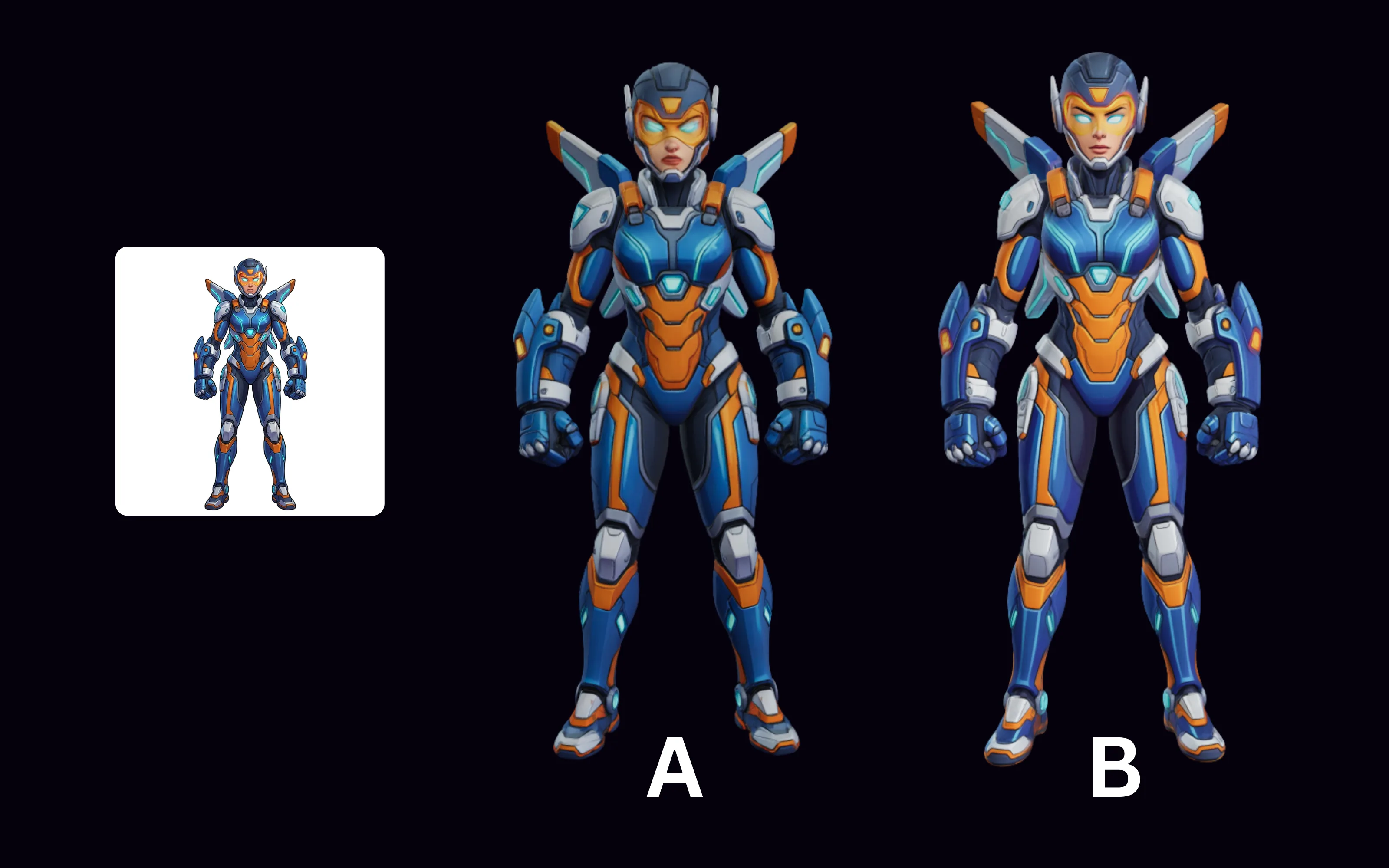
Same prompt, different models
One prompt across two candidates, so the difference in silhouette and cleanliness is visible, not asserted.
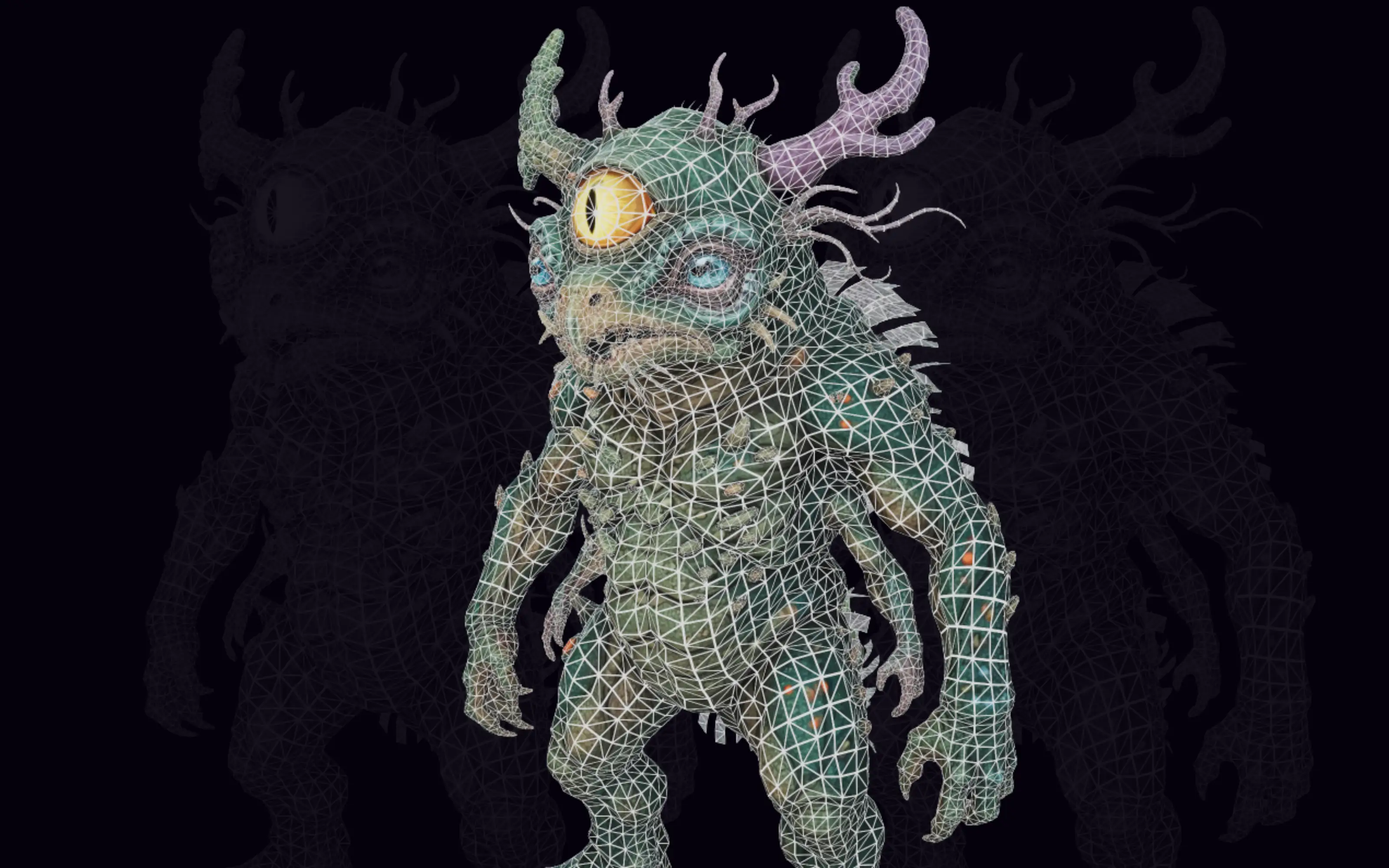
Topology side by side
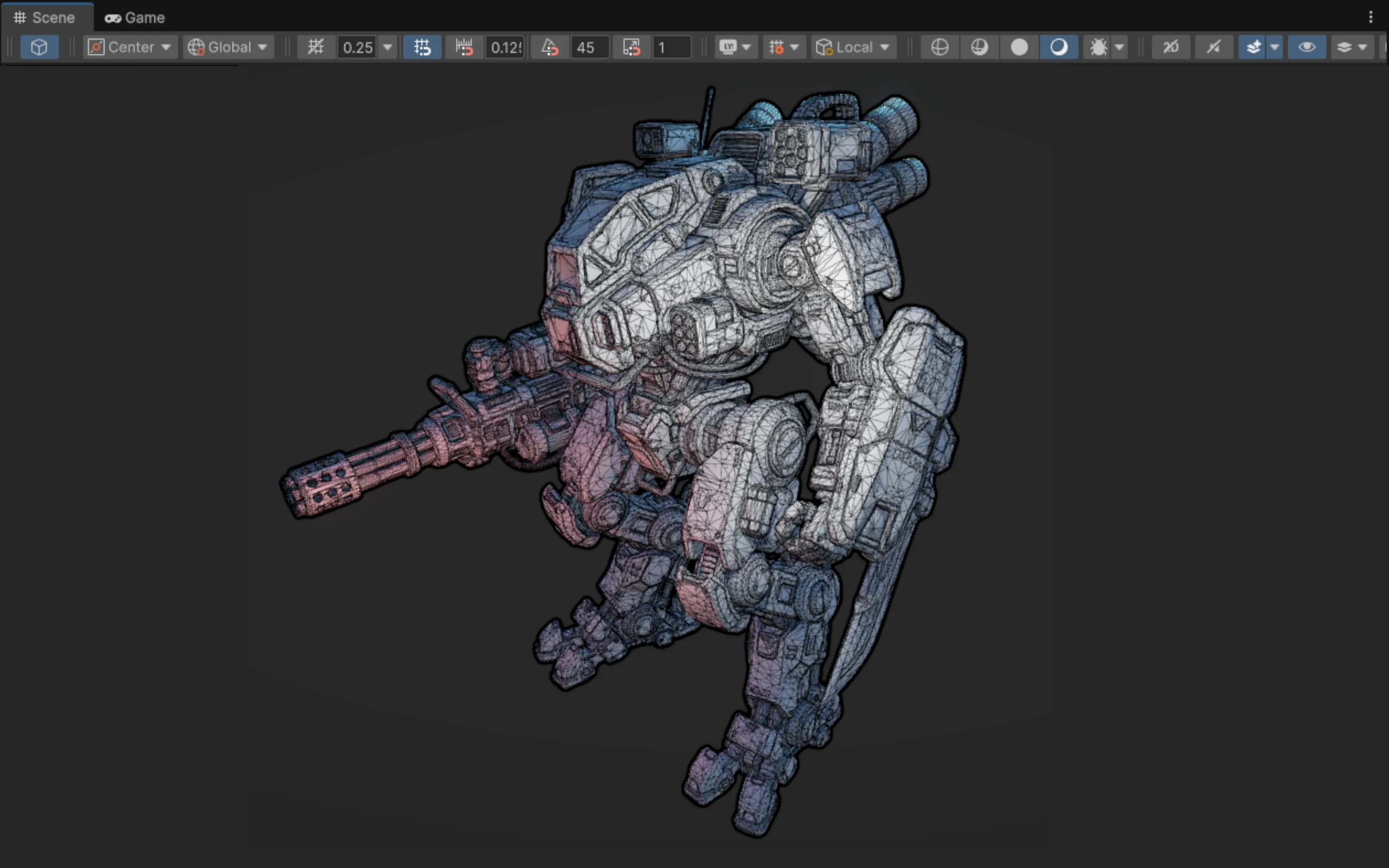
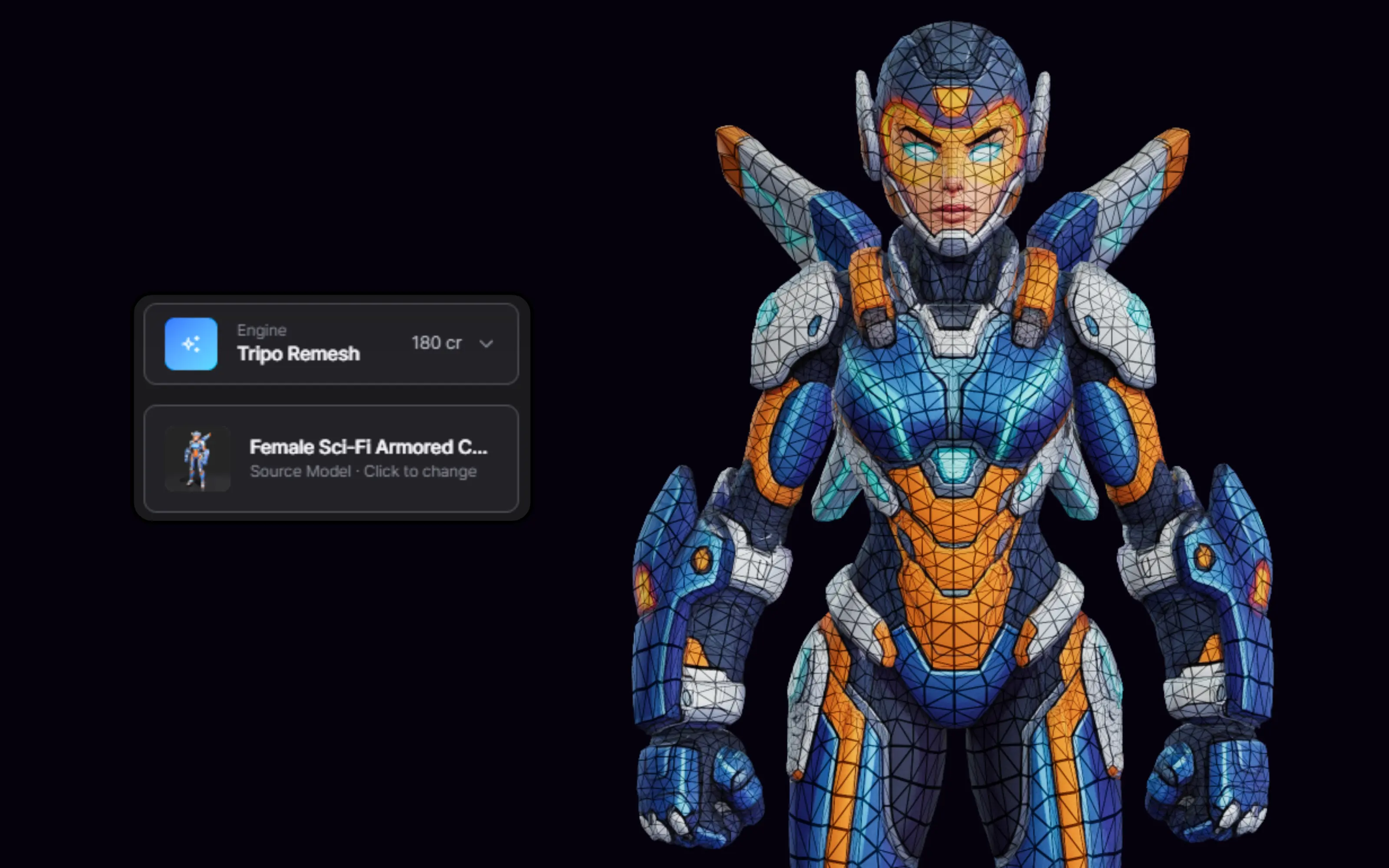
The same asset’s wireframe from each candidate, the clearest signal of how much cleanup each will need.
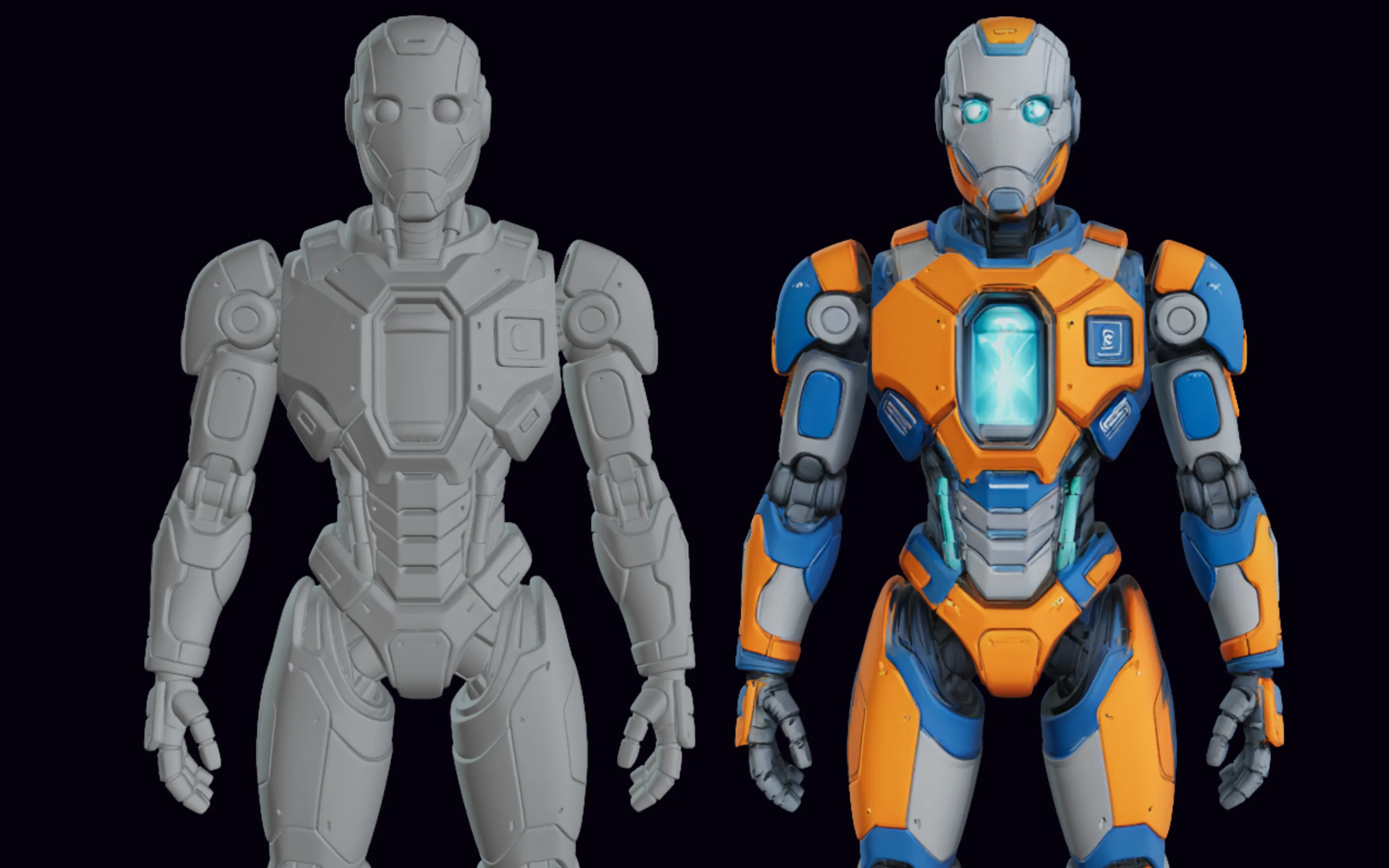
Chosen result, refined
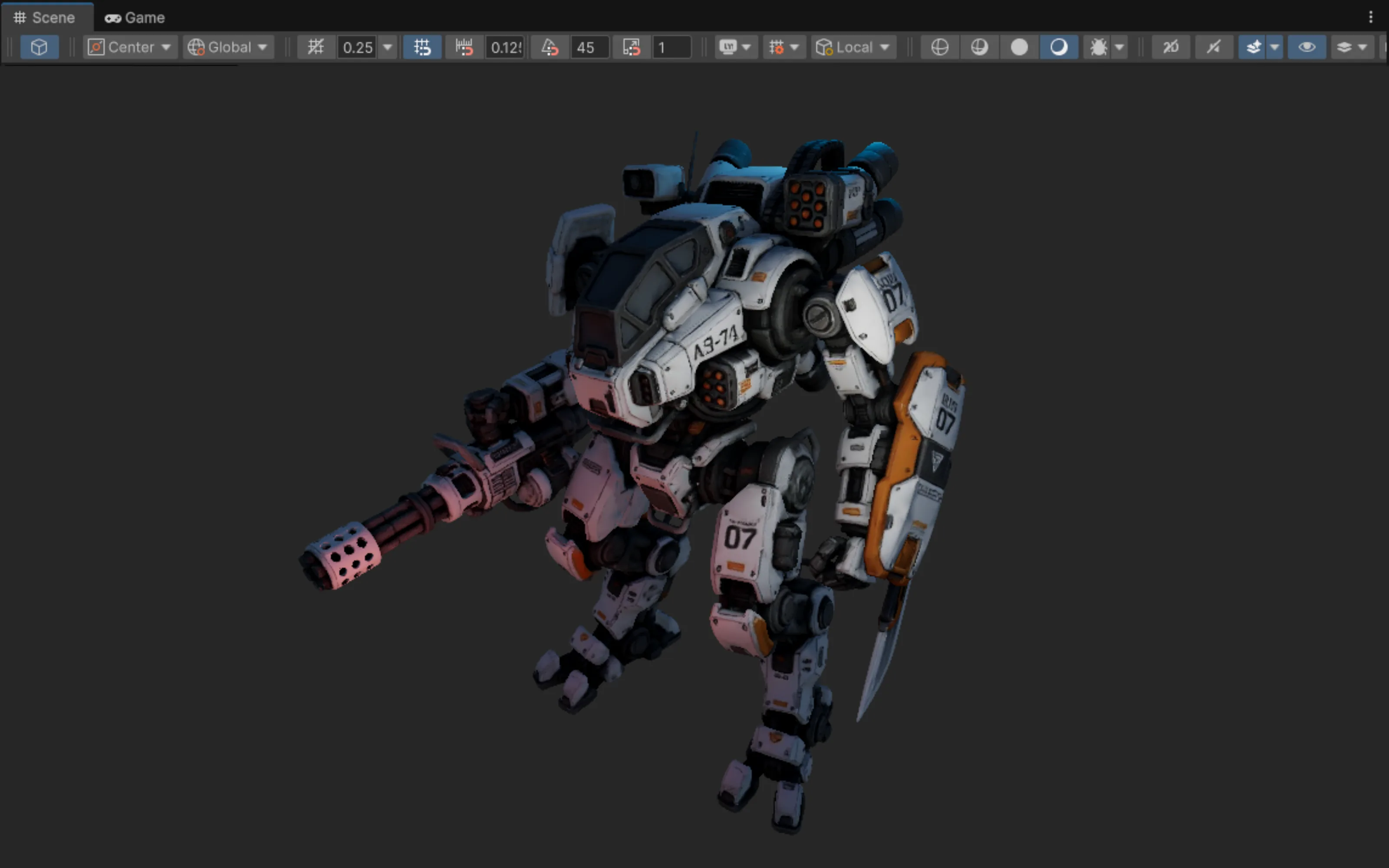
The winning candidate after remesh, UV, and texture, shown in-engine: proof of what the starting choice led to.
A reproducible same-input test (Sep 12, 2026)
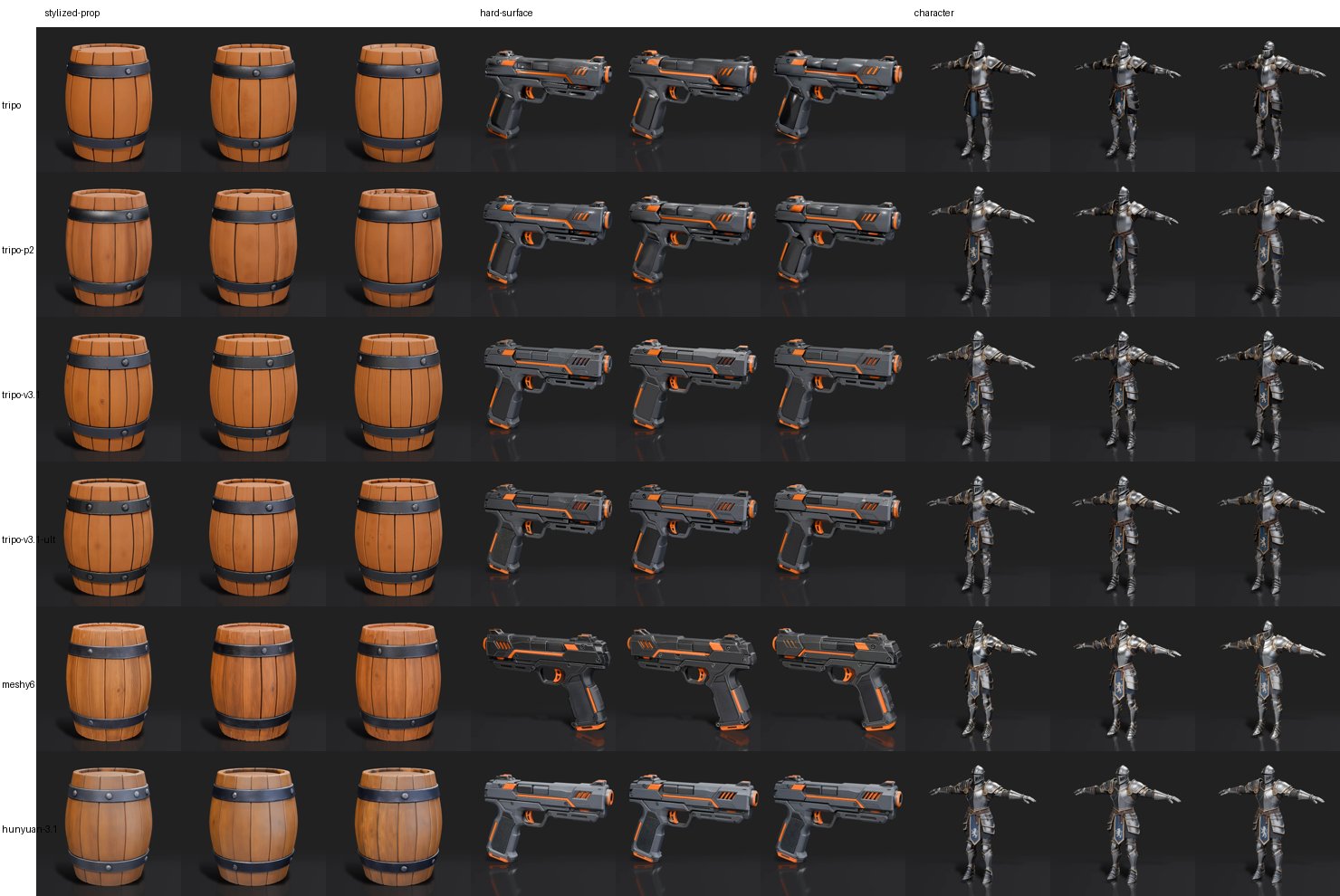
The comparisons above are judgment calls. This one is not: three reference images, six engines, three runs each, engine defaults, texture on, all through the public PicoBerry API on the same day. Everything below is read from the API — no one scored the pictures.
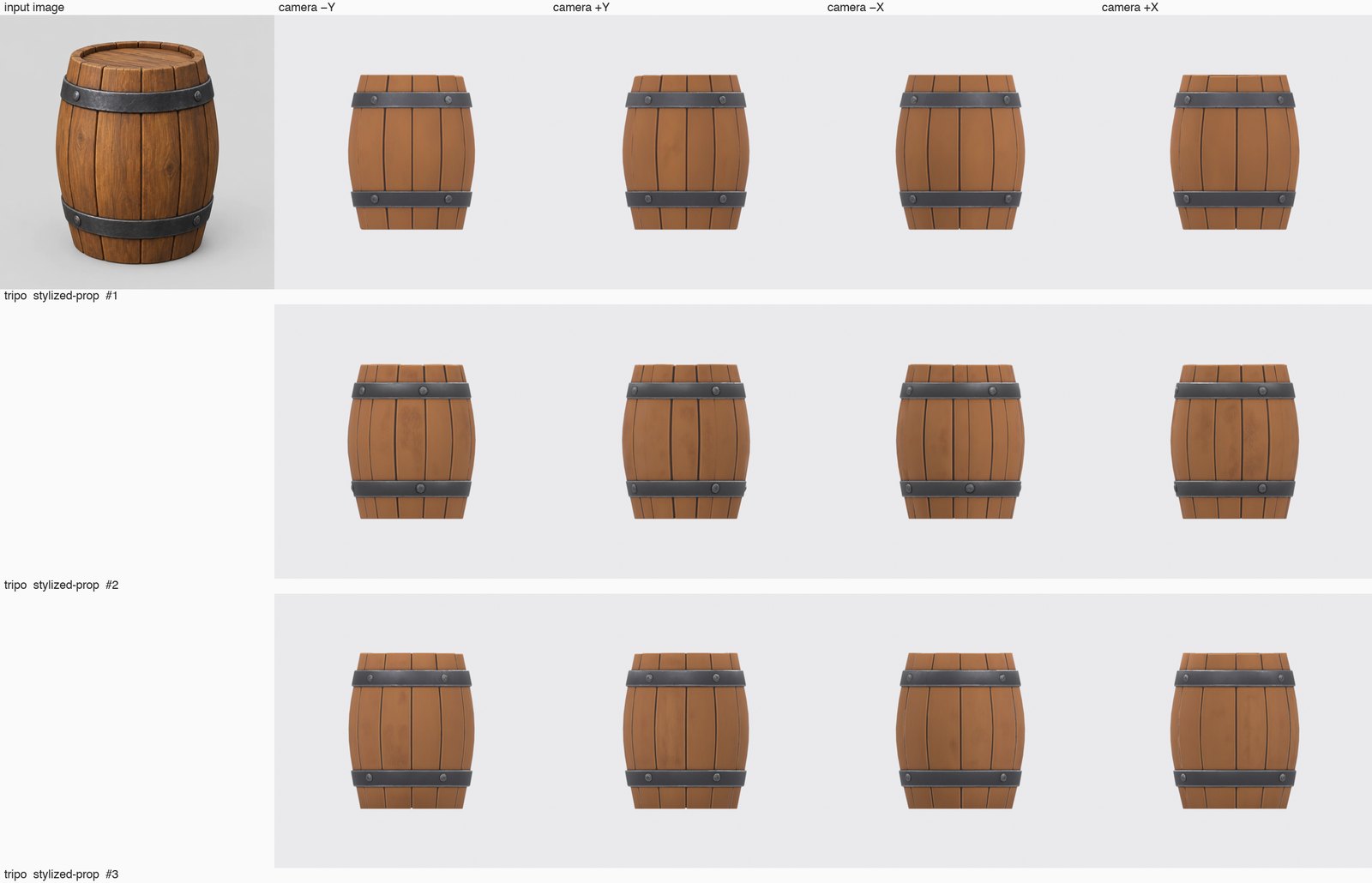
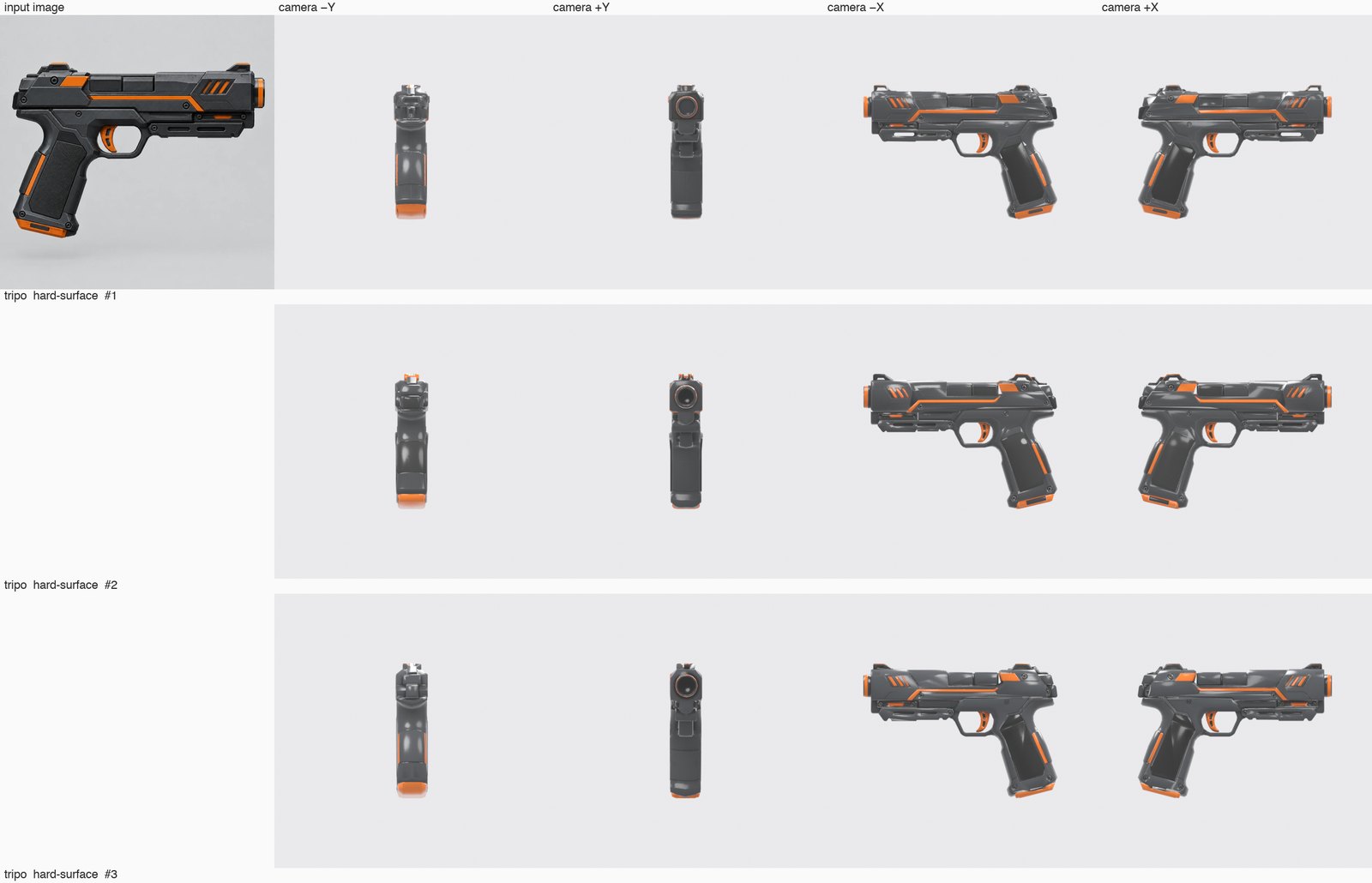
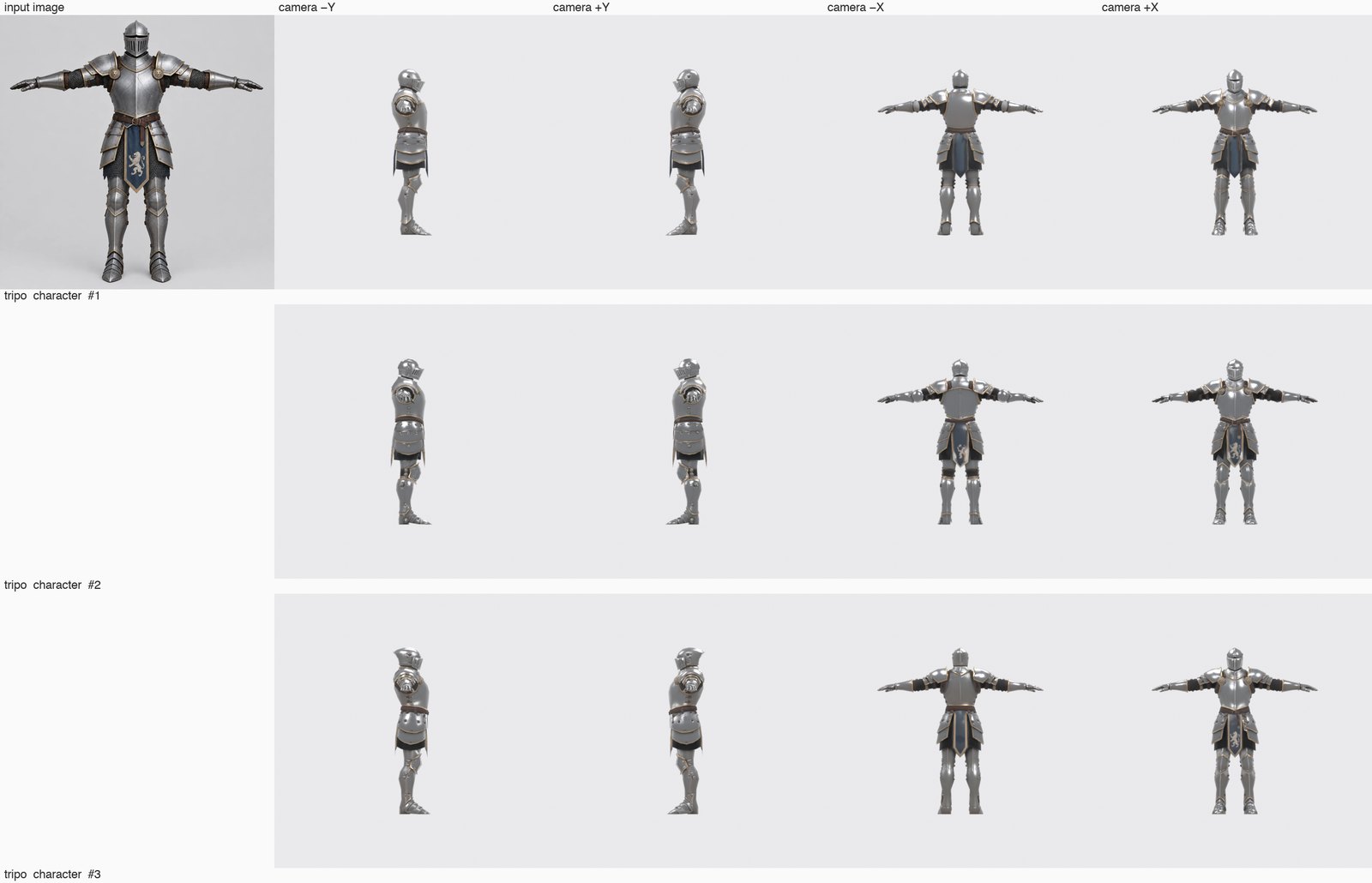
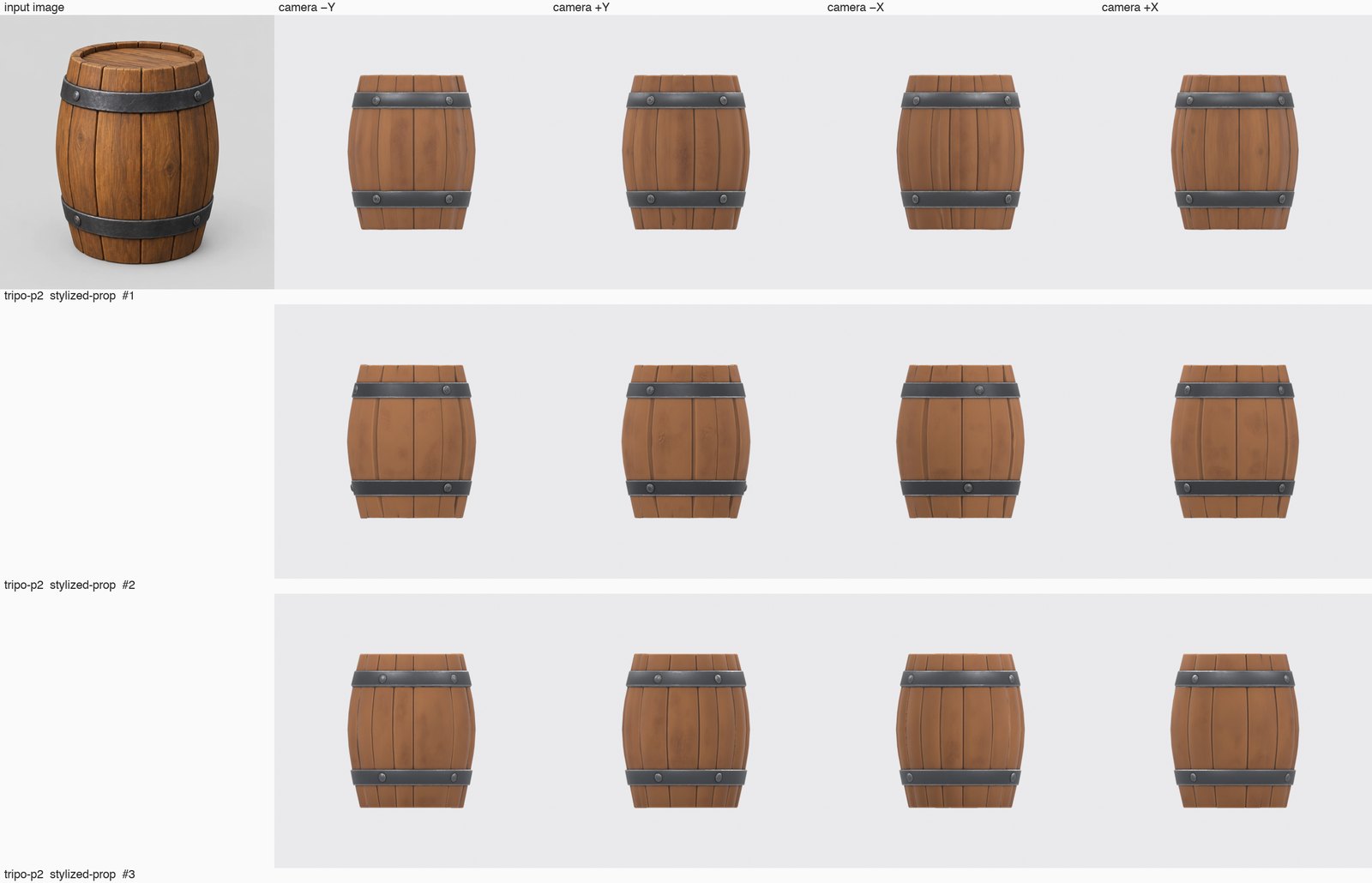
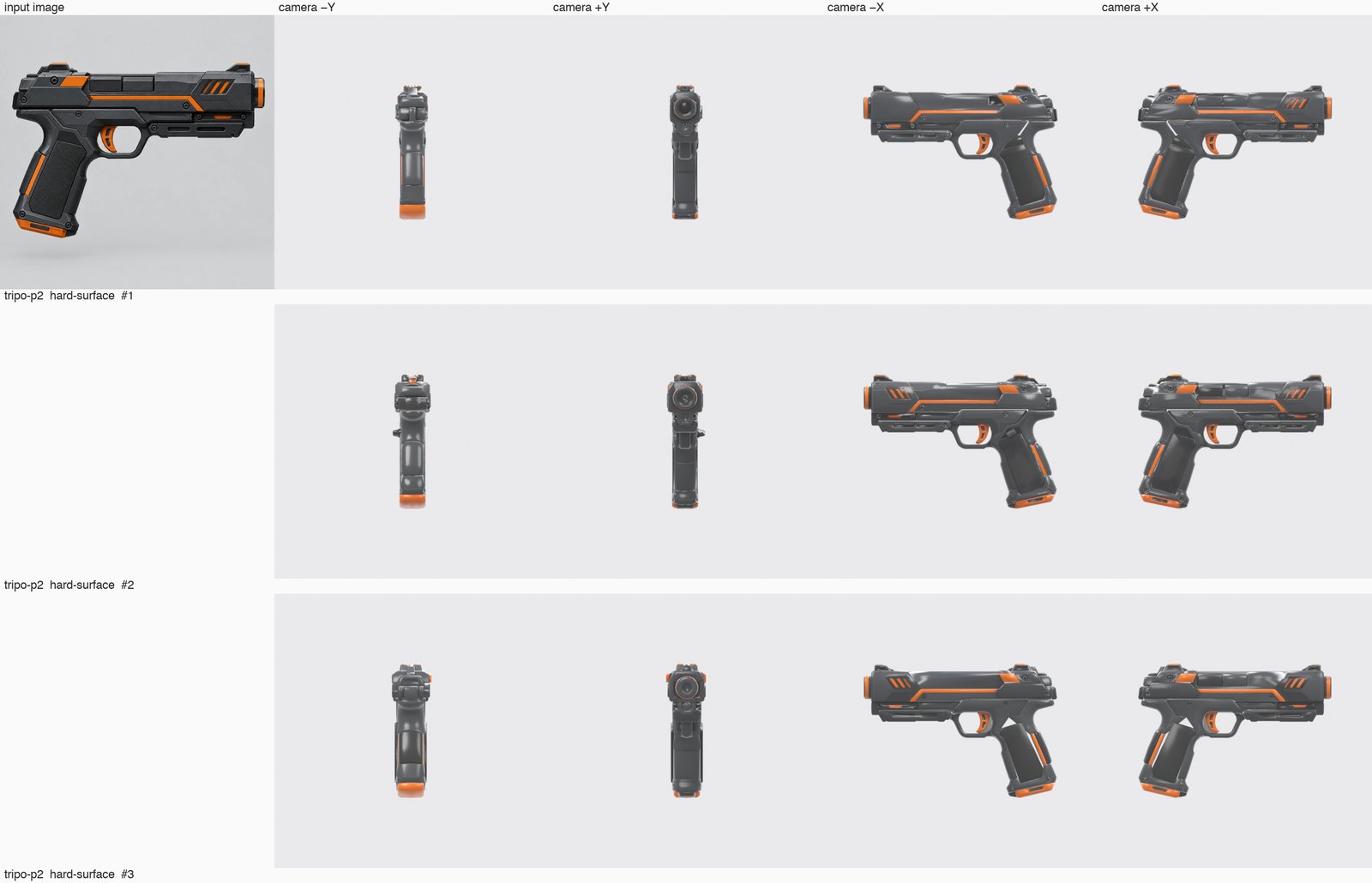
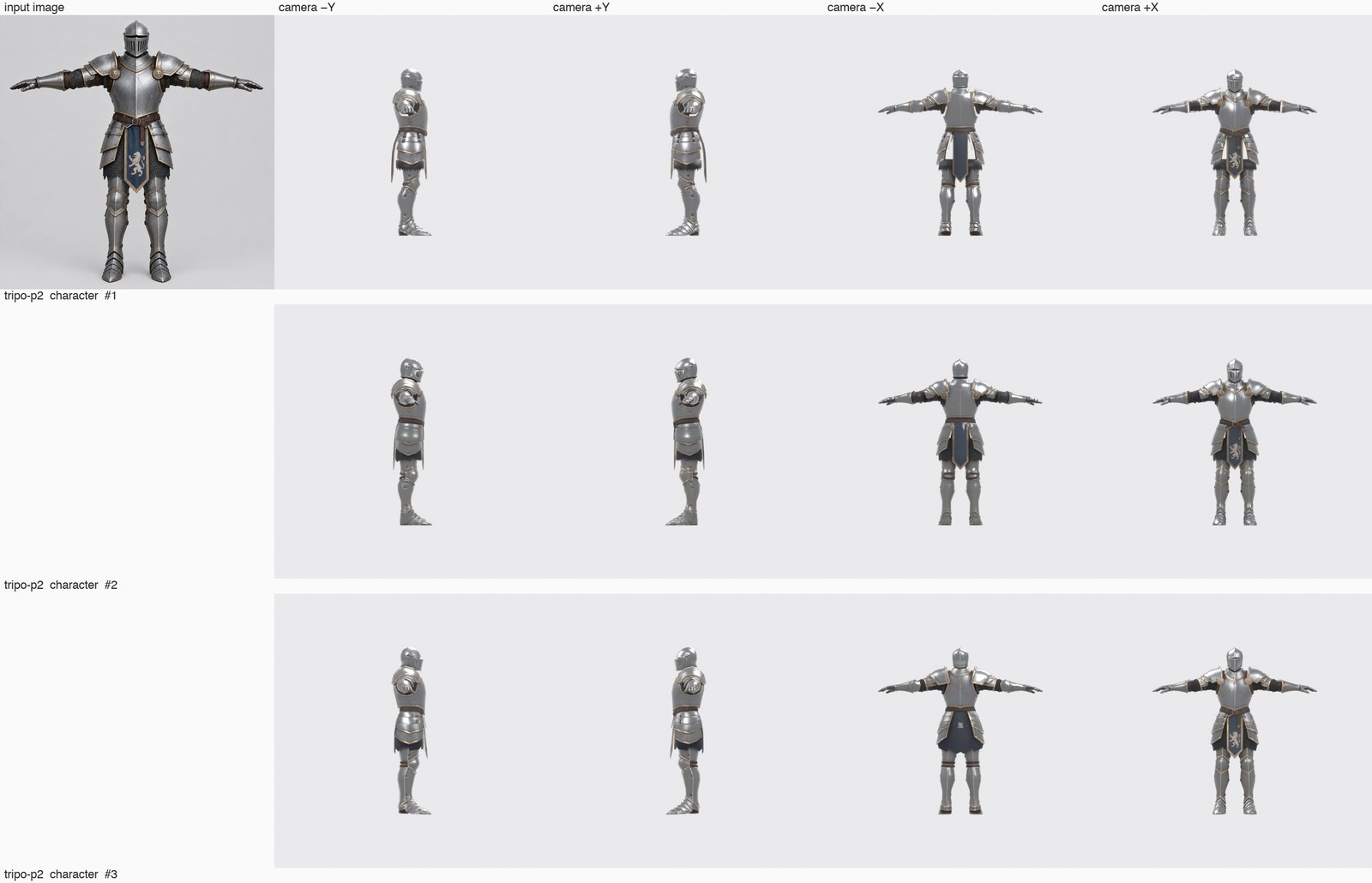
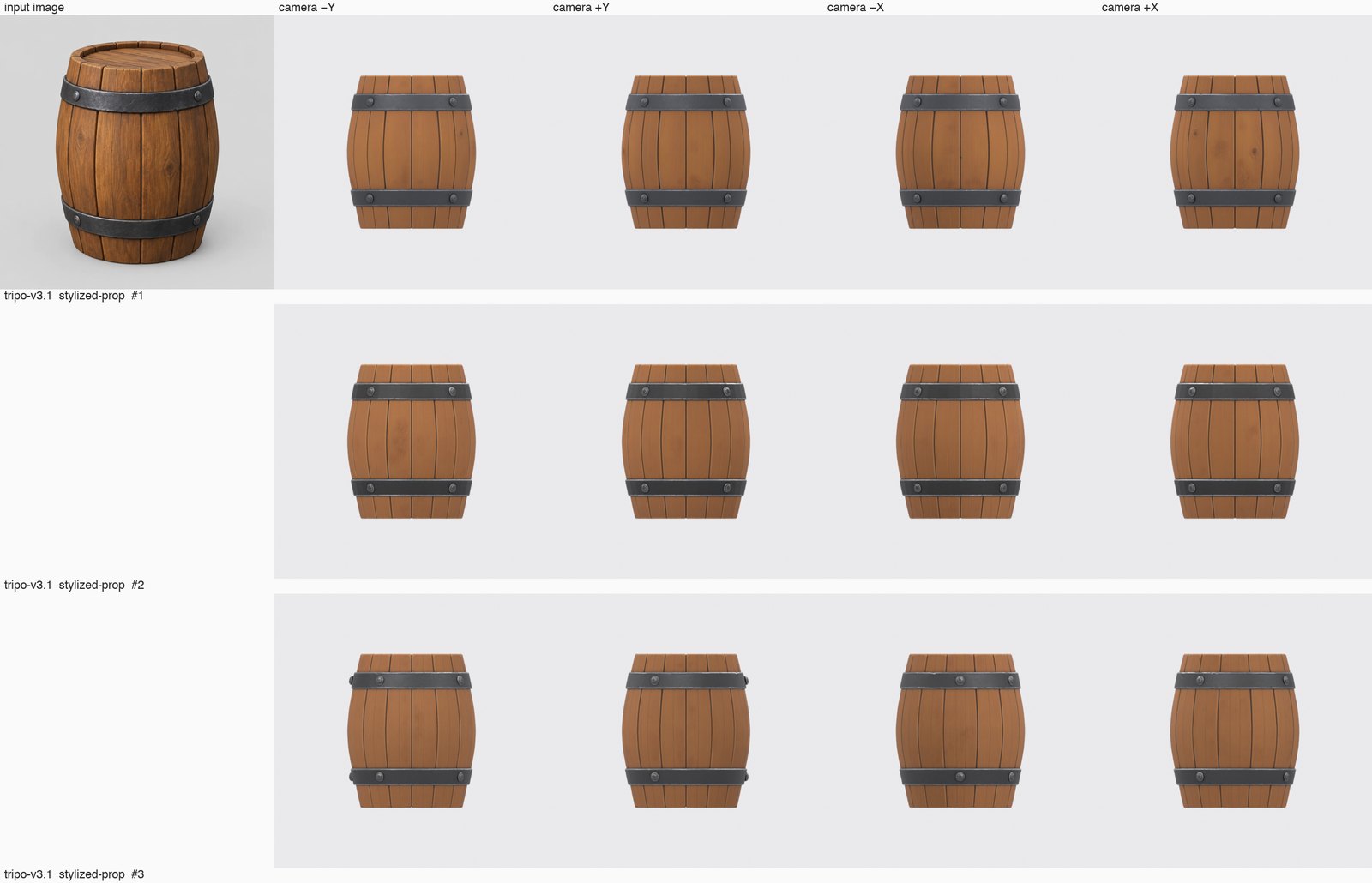
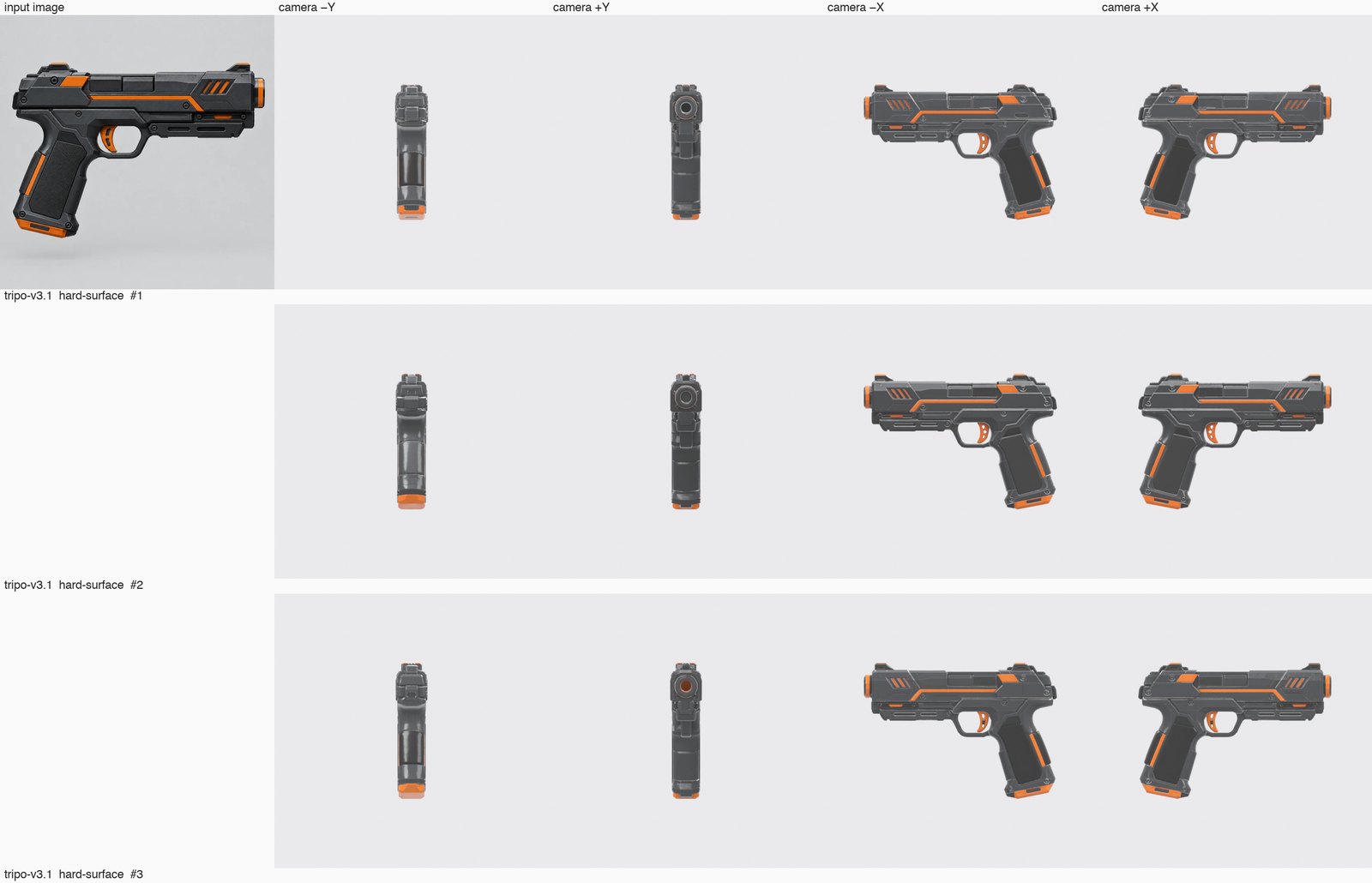
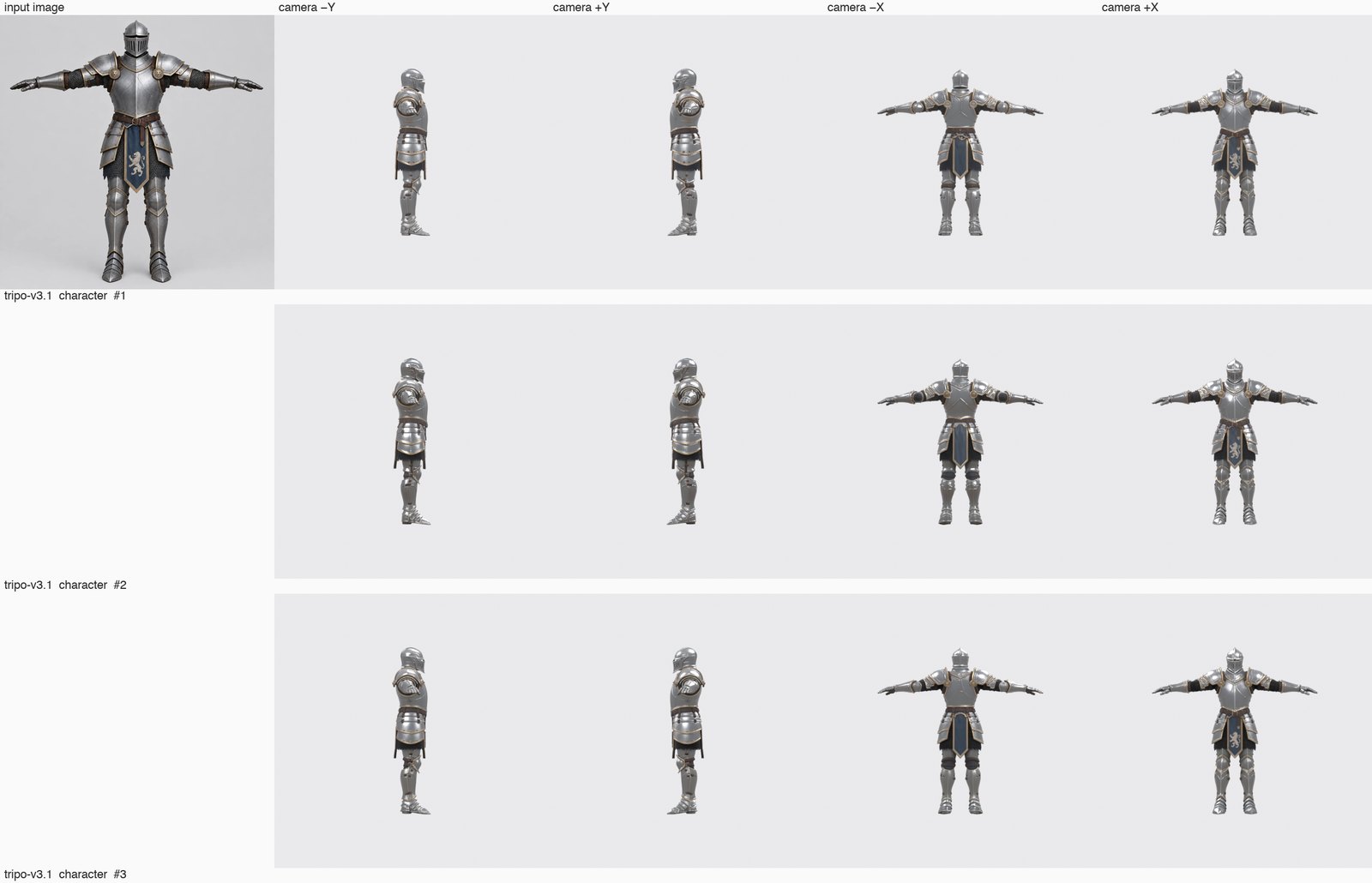
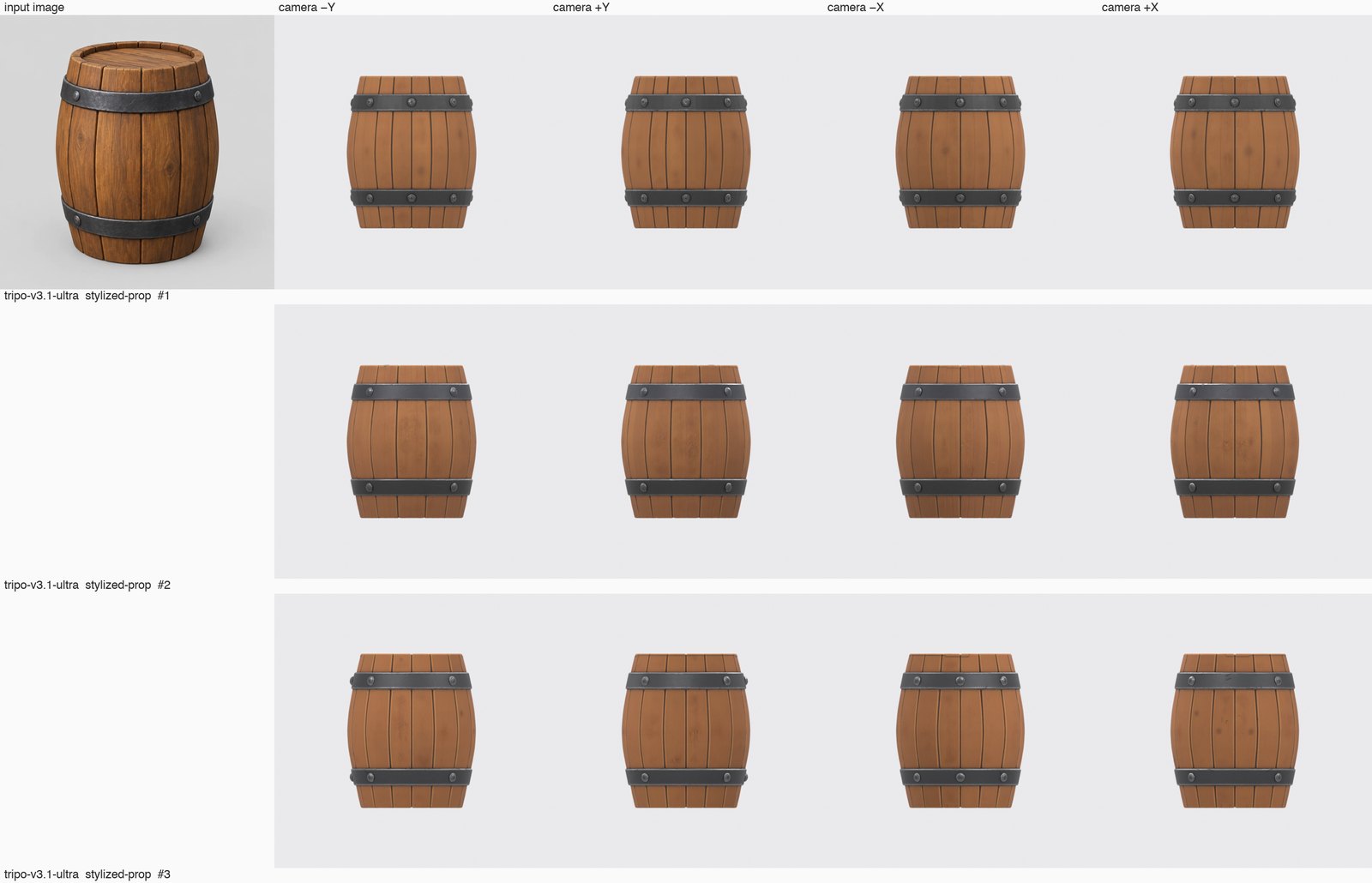
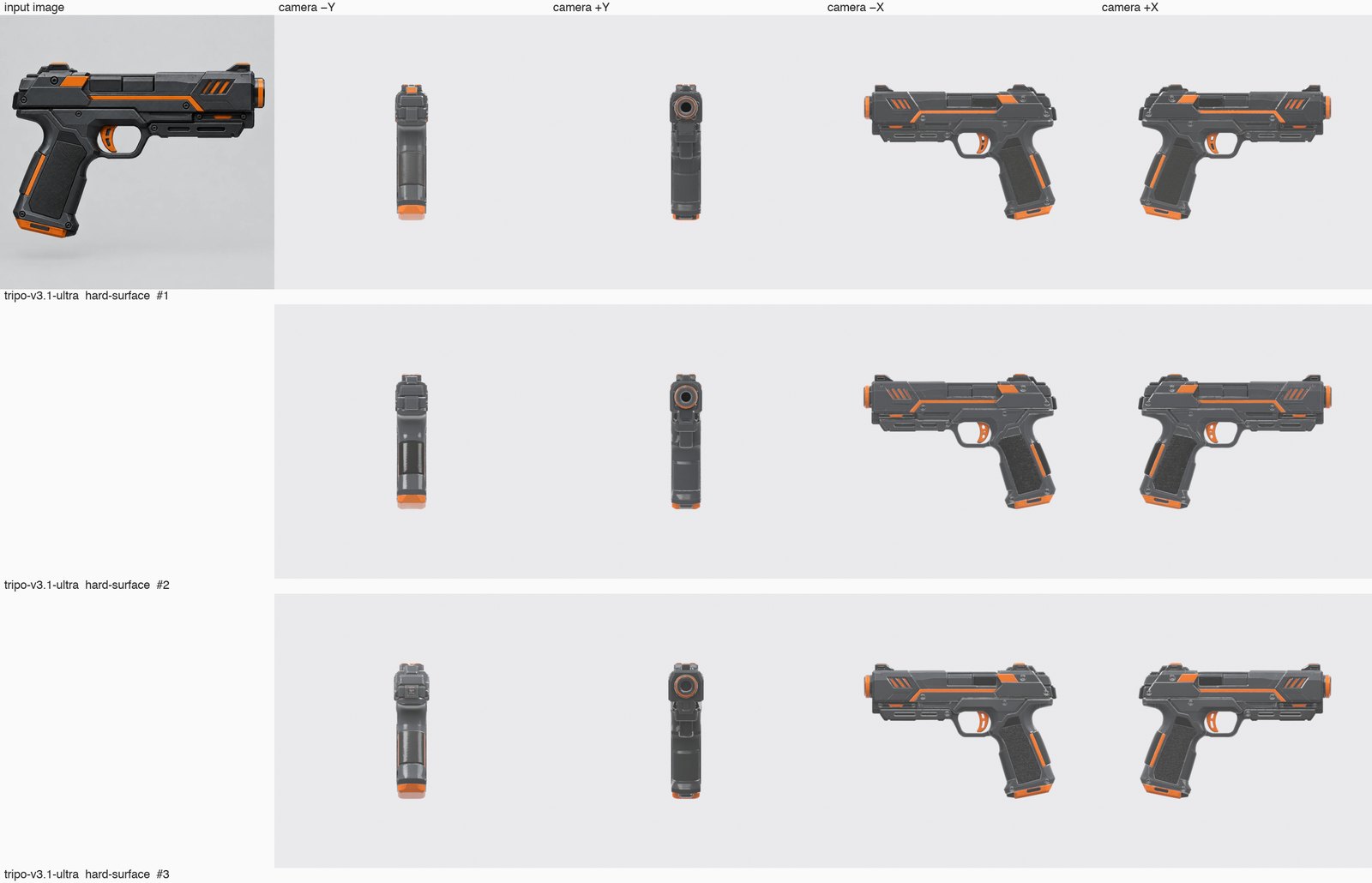
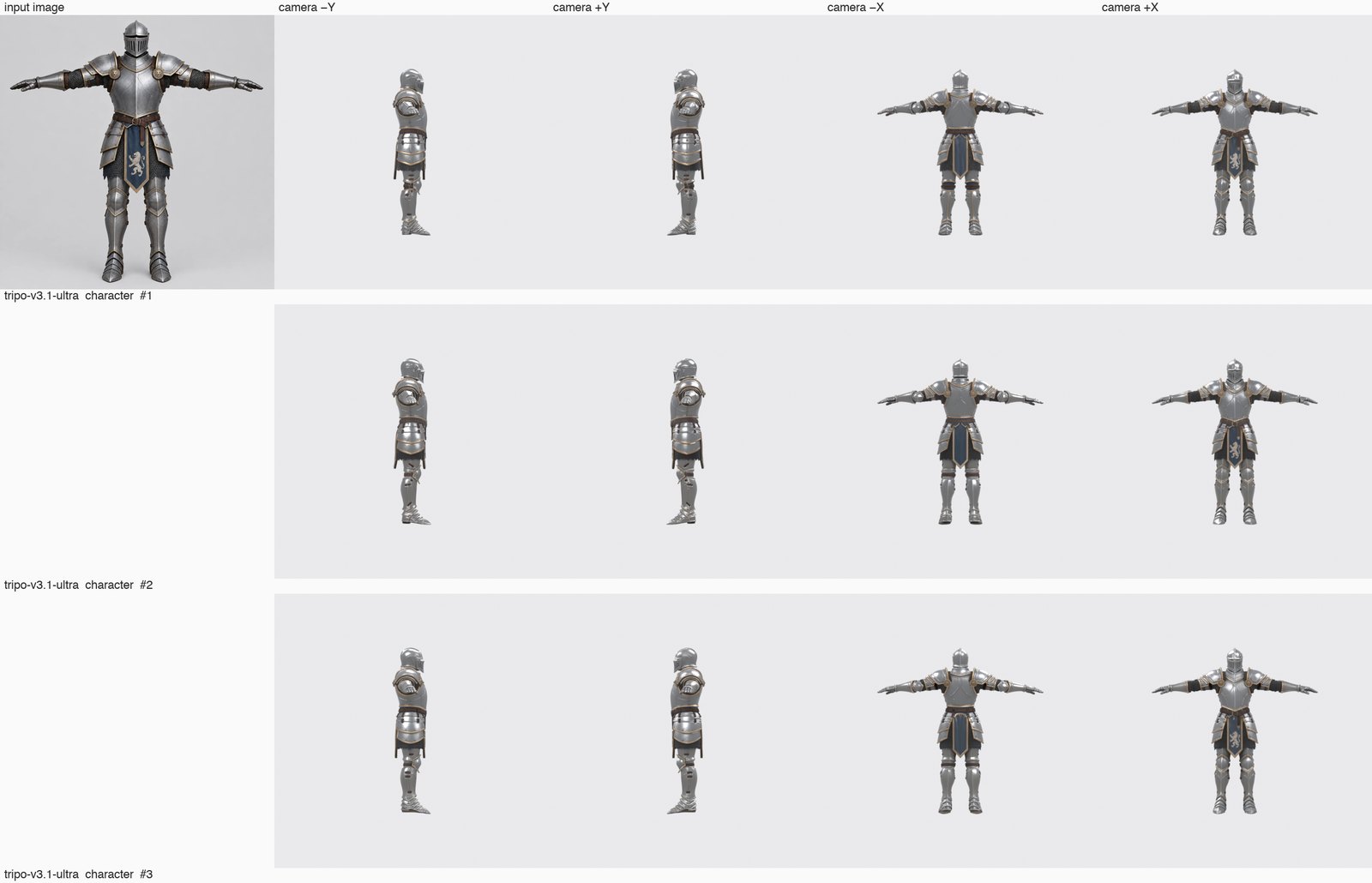
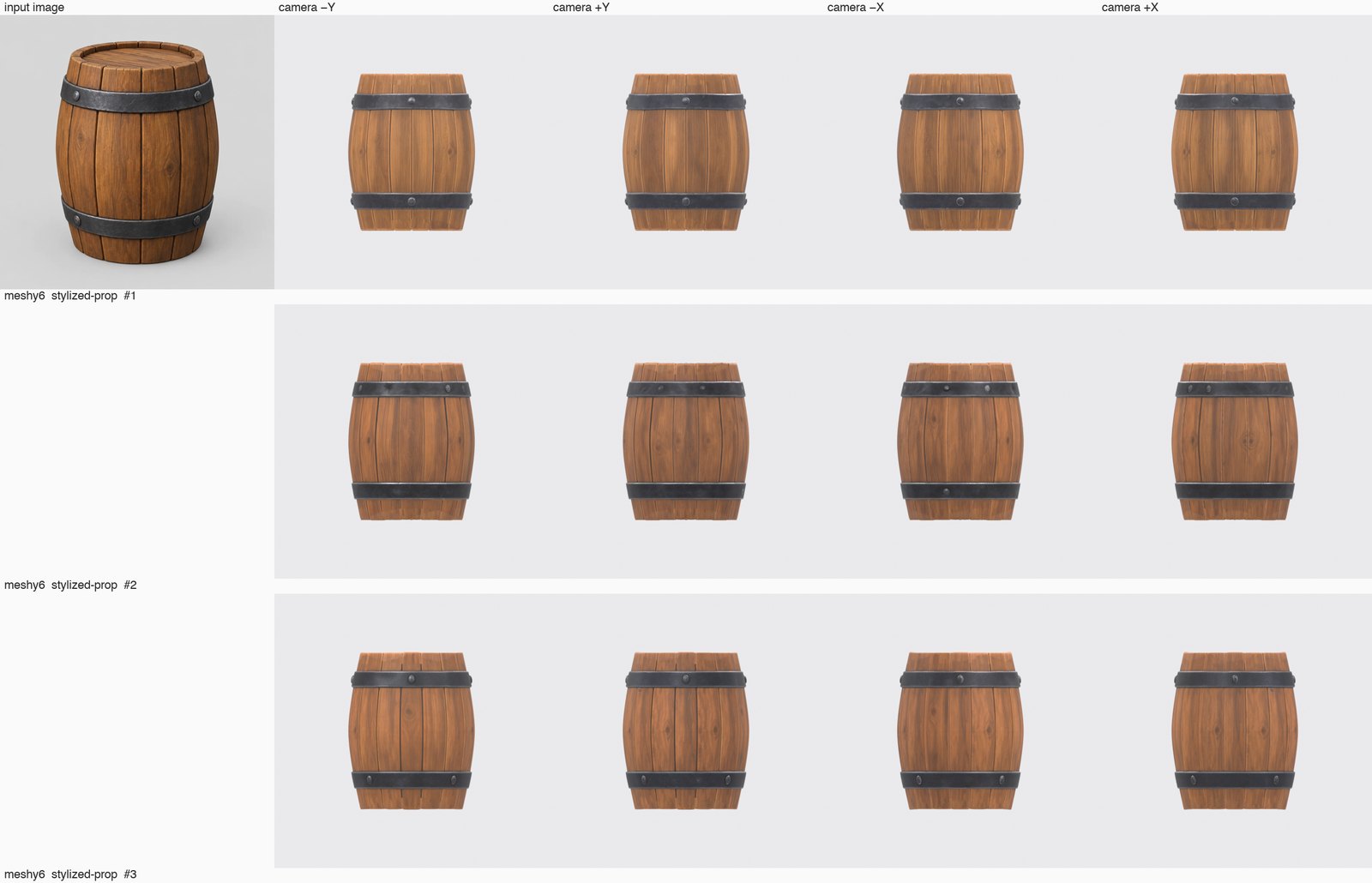
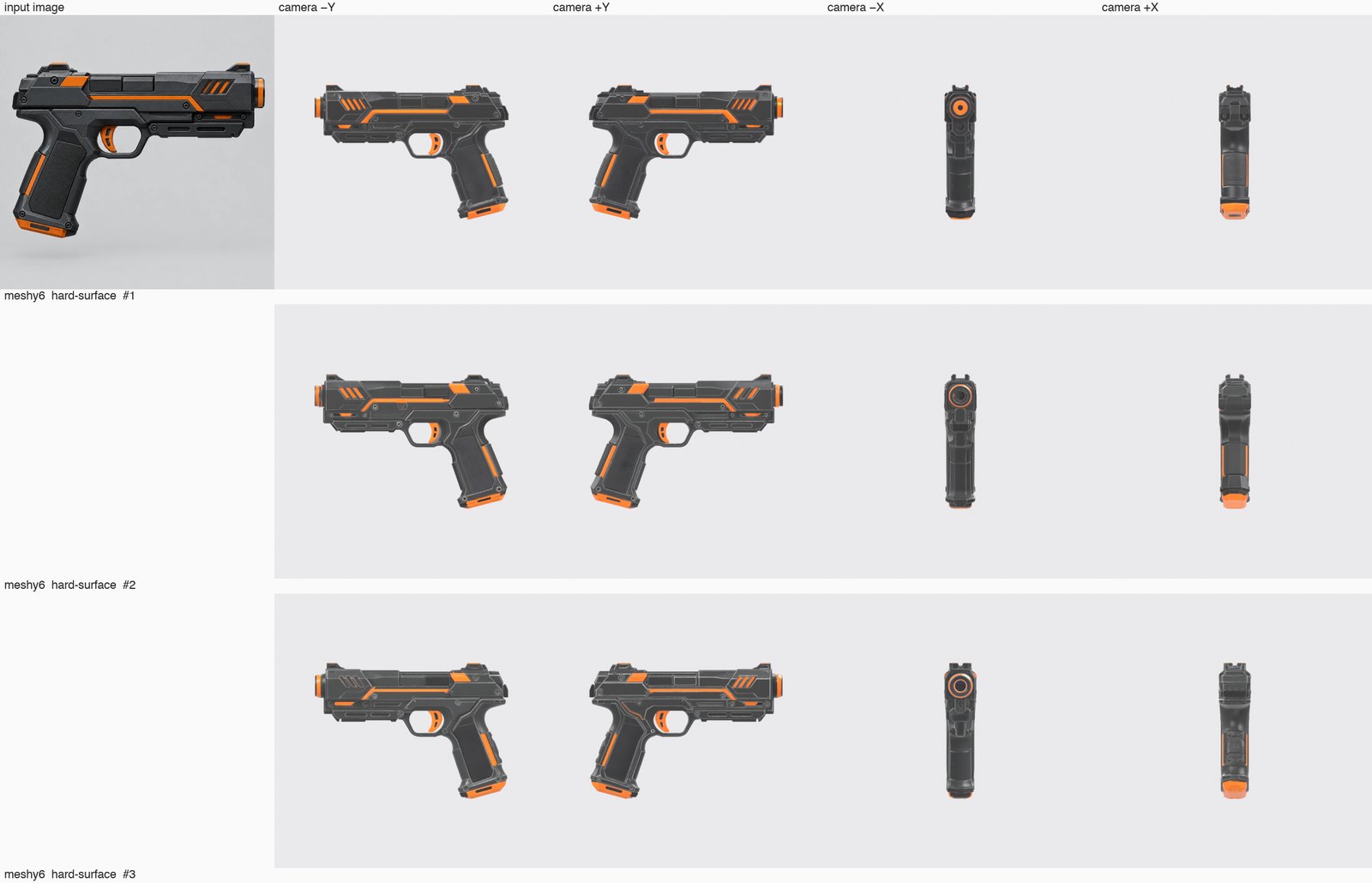
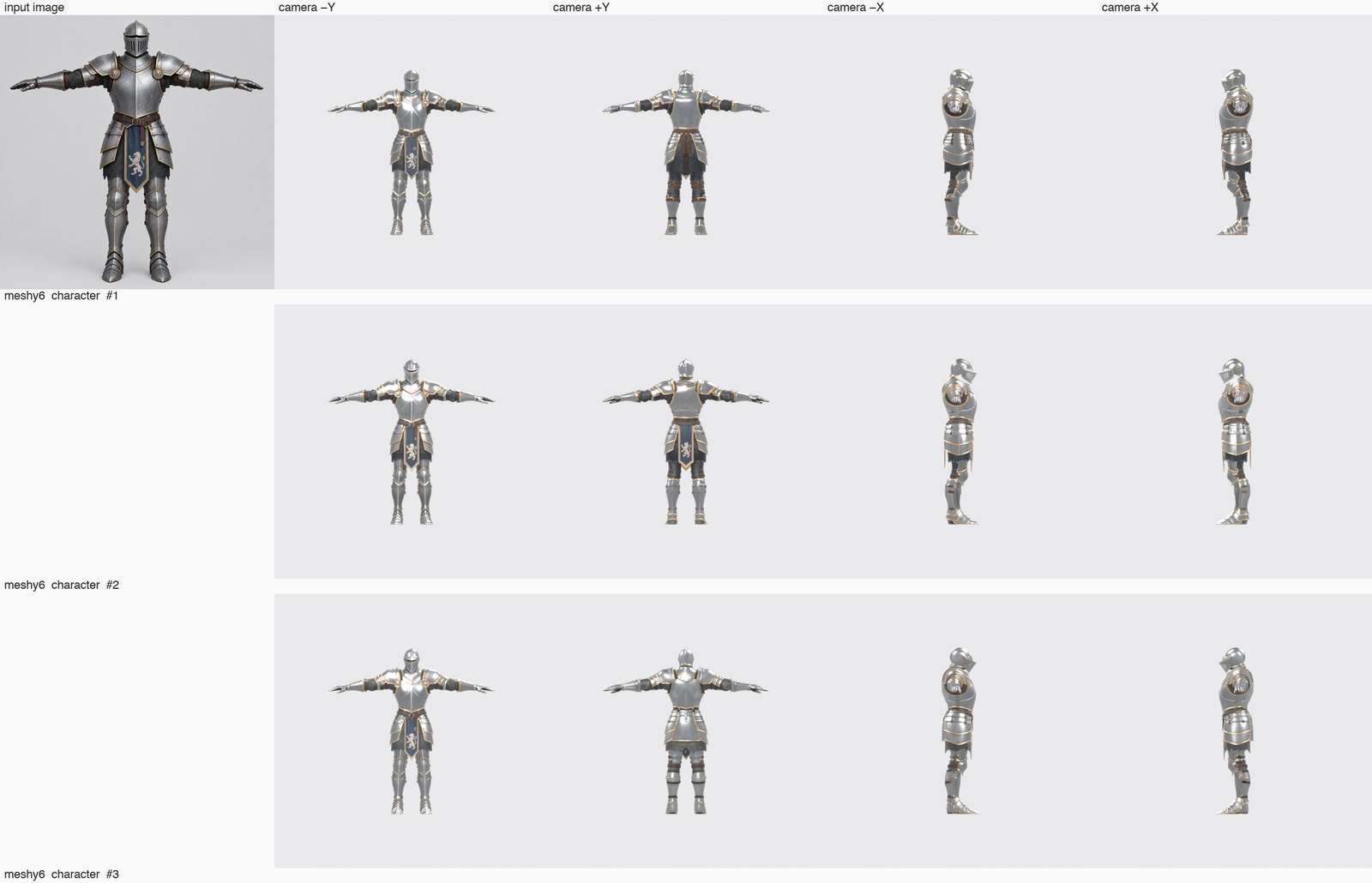
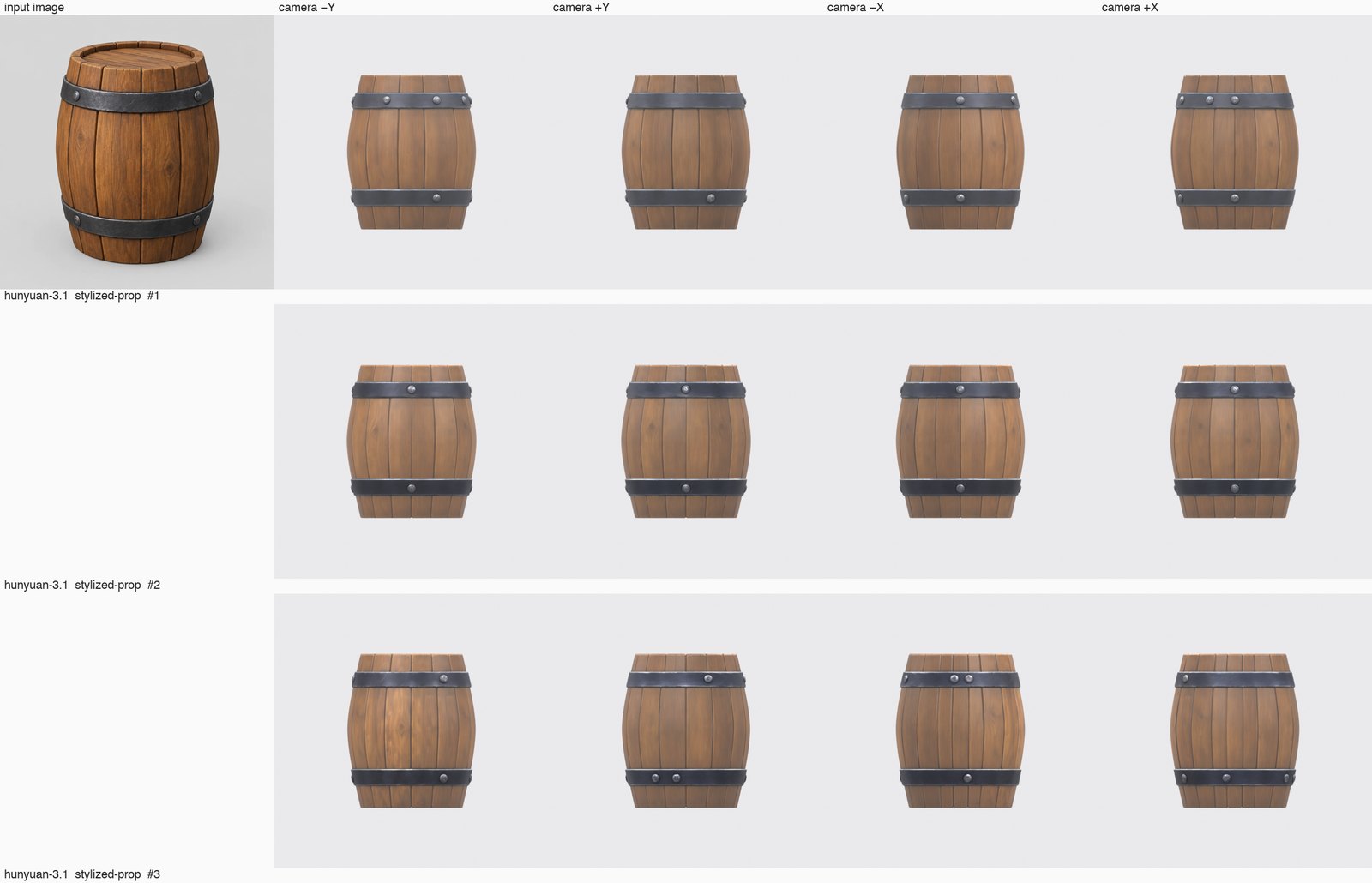
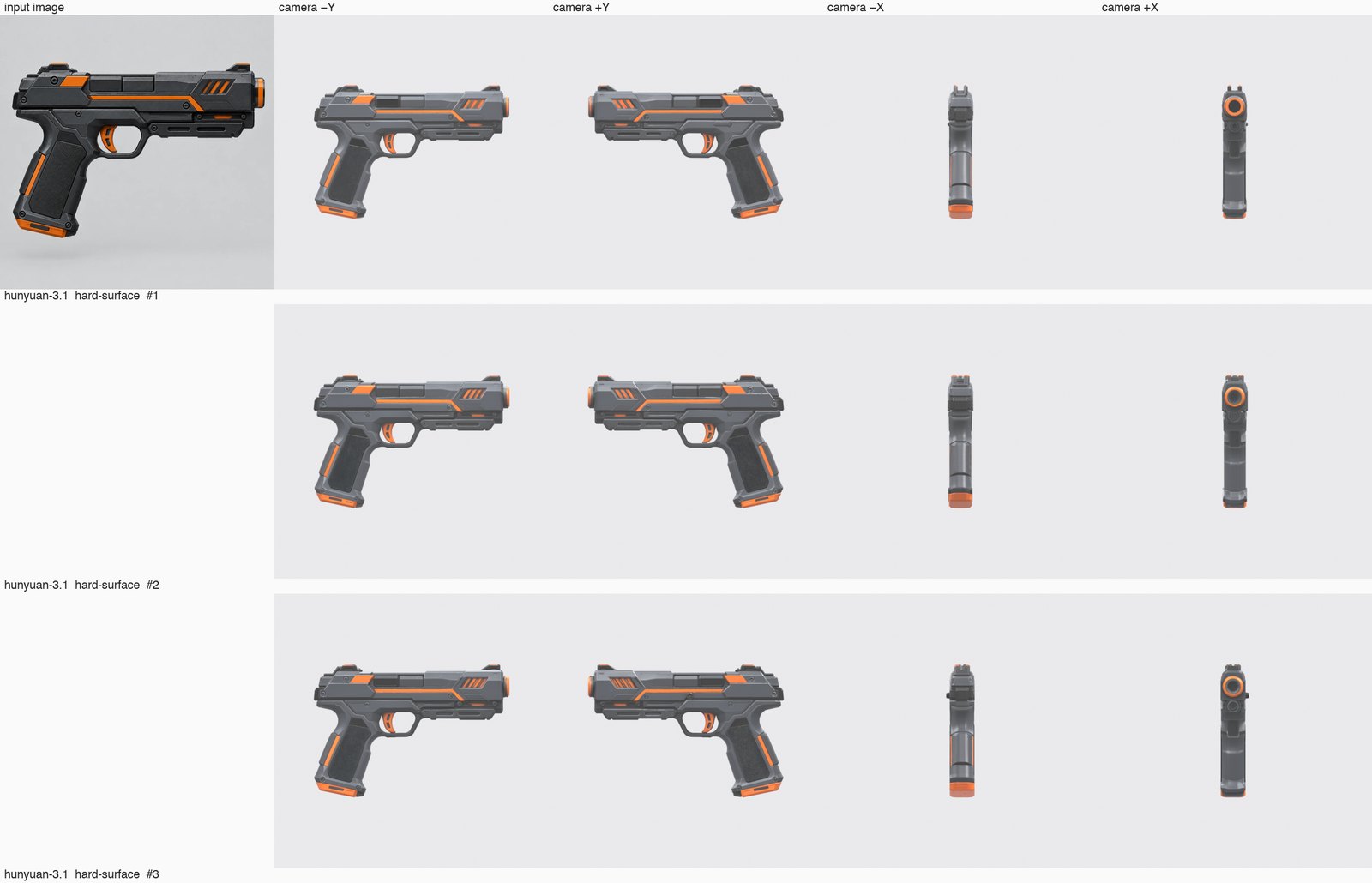
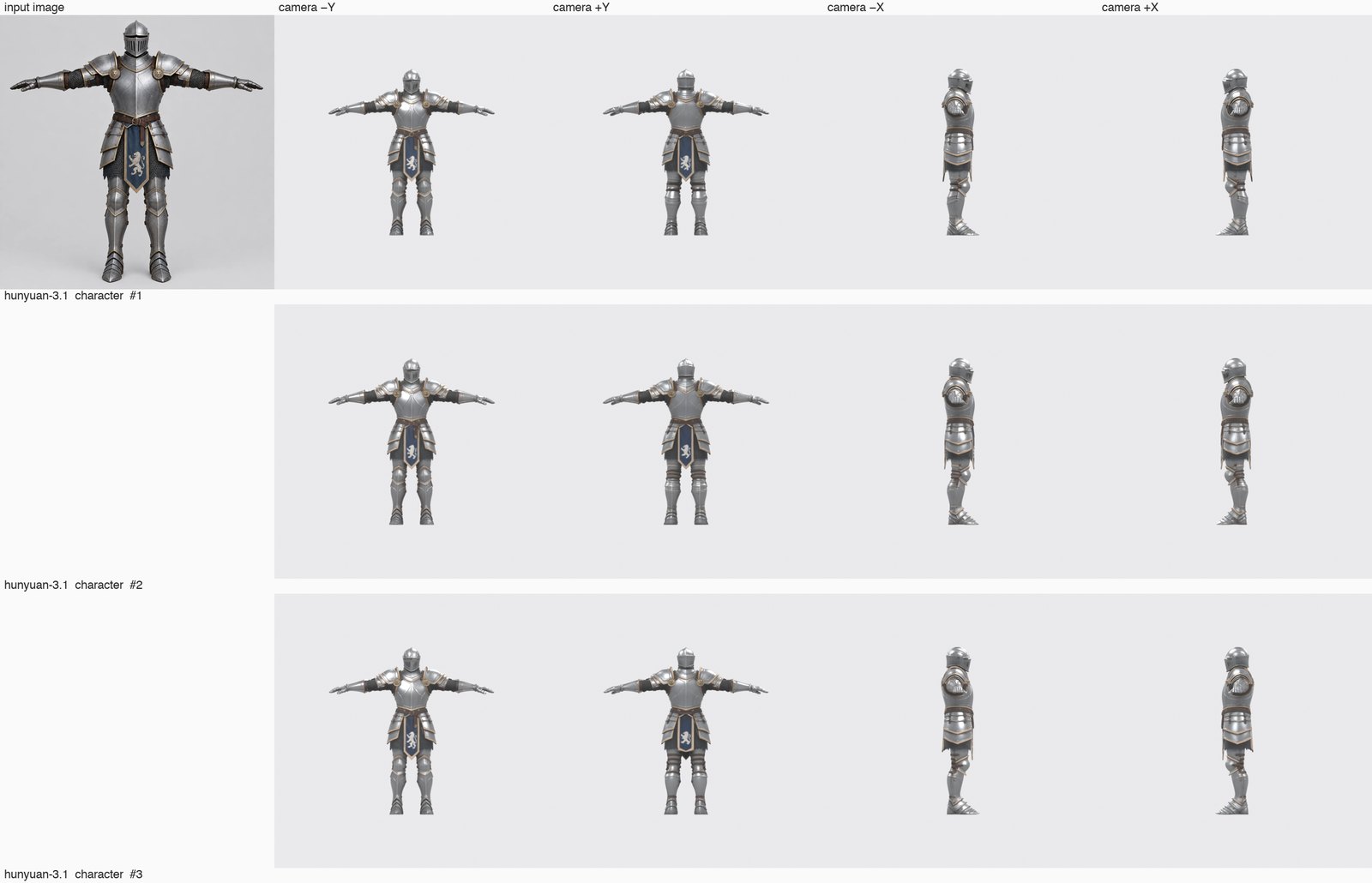
Inputs: one stylized prop (wooden barrel), one hard-surface object (sci-fi pistol), one T-pose character (armored knight) — generated once with Image Generation and reused as-is for every engine.
Settings: image-to-3D, texture on, no polygon target (each engine's default), single image. 3 repeats per input × engine = 54 runs, submitted 6 at a time.
Measured: success, wall time from submit to result (±5 s, includes queue), faces/vertices from the pipeline's stats file, GLB size, the image-to-3D credit list price at run time — and, from the GLB files themselves, texture count and resolution, UV/normal attributes, vertex and triangle totals, bounding box and pivot offset.
Not measured: silhouette fidelity, texture quality, topology cleanliness, rig-friendliness, import into Unity, post-processing time — the six criteria above are still yours to judge. The original GLB files are published so you can (the table below says which is which).
2026-09-12 · PicoBerry API · engine defaults · texture on · 3 inputs × 3 runs per engine
Engine
Success
Wall time (median · range)
Faces (median · range)
GLB (median)
Credits (mesh + texture, image-to-3D list price)
PB Slim tripo
9/9
108s (86–141s)
4,666 (4,416–4,930)
1 MB
300
PB Slim 2 tripo-p2
9/9
123s (97–146s)
4,843 (4,509–5,290)
1 MB
660
PB Standard tripo-v3.1
9/9
164s (146–291s)
1,468,748 (1,442,940–1,484,472)
42.7 MB
180
PB Ultra tripo-v3.1-ultra
9/9
209s (177–329s)
1,943,059 (1,868,630–1,981,438)
56.6 MB
300
Meshy 6 meshy6
9/9
239s (194–351s)
668,362 (274,428–910,780)
28.5 MB
490
Hunyuan 3.1 hunyuan-3.1
9/9
215s (205–259s)
500,000 (499,534–500,000)
65.4 MB
440
Wall time is measured from the API and includes PicoBerry's queue, so it is an upper bound on engine time and will vary with load.
PB Slim and PB Slim 2 return low-poly meshes (~4.5–5.3K faces) by default; PB Standard, PB Ultra, Meshy 6 and Hunyuan 3.1 return dense meshes (0.3–2M faces) that you remesh down — pick by what the asset needs next, not by the face count alone.
n = 9 per engine. Enough to show the shape of each engine's defaults; not enough to rank engines by small differences.
What is inside the files (parsed from the original GLBs, medians of 9)
Engine
Textures
UV · normals · tangents
Vertices
Triangles
Largest dimension
Pivot offset
Materials · extensions
PB Slim tripo
3 × 2048²
✓ · ✓ · —
7,106
4,666
0.998
0
1
PB Slim 2 tripo-p2
3 × 2048²
✓ · ✓ · —
5,613
4,843
1
0
1
PB Standard tripo-v3.1
3 × 2048²
✓ · ✓ · —
761,464
1,468,748
1
0
1
PB Ultra tripo-v3.1-ultra
3 × 2048²
✓ · ✓ · —
1,013,825
1,943,059
0.98
0
1
Meshy 6 meshy6
4 × 2048²
✓ · ✓ · —
361,441
668,362
1.9
0.001
1
Hunyuan 3.1 hunyuan-3.1
3 × 4096²
✓ · ✓ · —
322,796
500,000
1.056
0.502
1 · KHR_materials_specular
Triangle counts parsed from the GLB equal the pipeline's reported faces for all 54 files. Dimensions are in the file's own units (glTF metres): Tripo engines and Hunyuan 3.1 deliver a ~1-unit object, Meshy 6 ~1.9 units, so scale them on import.
Pivot offset is the distance from the origin to the bounding-box centre. Tripo and Meshy centre the object at the origin; Hunyuan 3.1 places it with the box touching the origin on one axis (offset ≈ half the height).
Hunyuan 3.1 textures are 4096², the others 2048². Meshy 6 ships four texture images (base colour, metallic-roughness, normal, plus one more), the others three. Nothing here says which looks better — open the files.
Judgment criteria — what this test does and does not fill in
Criterion
Status in this test
How
Silhouette fidelity to the input
inspected
4-view render sheets per engine × input were inspected and the notes recorded (visual-review.json); no score
Topology and UV cleanliness
measured
Blender 5.1.2 import: holes and non-manifold edges after welding, parts, UV overlap, UV area, texel-density consistency — table below
Texture and material quality
instrumented + inspected
texture count/resolution above; colour and material read vs the input recorded in the inspection notes; no score
Scale and pivot
measured
largest dimension and bounding-box centre offset, from the GLB; forward axis noted per engine
Import into Blender
measured
Blender 5.1.2 headless import of all 54 files (success, seconds). Unity, Unreal and Godot: not measured
Character rigging
measured
PicoBerry API auto-rig (tripo-rig and meshy-rig) on the 18 raw character outputs — success and time, table below
Post-processing to a game target
measured
PicoBerry API remesh to 20,000 faces, then UV unwrap, on all 54 outputs — success, time, credits, table below
"Not measured" means exactly that — no number or grade is filled in for it. "Inspected" means notes were recorded from the render sheets, not a grade. n = 9 per engine and three inputs: a limited sample, not a general success-rate claim.
Import and mesh quality (Blender 5.1.2, medians of 9 per engine)
Engine
Import
Holes after weld
Non-manifold after weld
Parts
UV overlap
UV area used
Texel-density CV
UV islands
PB Slim tripo
9/9 0.02s
148
172
13
0.43%
61%
0.032
1,177
PB Slim 2 tripo-p2
9/9 0.01s
488
505
32
0.23%
62%
0.032
597
PB Standard tripo-v3.1
9/9 2.25s
114
228
1
0%
64%
0.179
n/a (>300k)
PB Ultra tripo-v3.1-ultra
9/9 3.1s
5
11
1
0%
60%
0.212
n/a (>300k)
Meshy 6 meshy6
9/9 0.78s
0
0
1
0%
68%
0.099
258
Hunyuan 3.1 hunyuan-3.1
9/9 0.69s
0
0
1
0.03%
53%
0.273
n/a (>300k)
All 54 files import into Blender 5.1.2 without errors (headless, import_scene.gltf). "After weld" merges coincident vertices first — glTF splits vertices along UV and normal seams, so the as-delivered files look non-manifold everywhere; the welded numbers are the real open edges (holes) and loose parts. Both sets are in mesh-quality.json.
PB Slim and PB Slim 2 deliver low-poly meshes built from many separate parts with open edges (holes after weld in the hundreds, 13–32 parts, ~600–1,200 UV islands). Meshy 6 and Hunyuan 3.1 deliver one closed shell with zero open edges. PB Standard and PB Ultra are one shell with a few open edges. Whether open parts matter depends on what you do next — remeshing closes them (see the post-processing table).
UV overlap is the share of faces Blender's uv.select_overlap flags; UV area used is the fraction of the 0–1 square covered; texel-density CV is the coefficient of variation of sqrt(UV area / 3D area) per face — 0 would be perfectly even texel density. Islands are only counted below 300k faces.
Post-processing through the PicoBerry API (paid follow-up, Sep 12, 2026)
Engine
Remesh → 20,000 (pb-remesh)
UV unwrap (pb-uv, on the remeshed mesh)
Auto-rig tripo-rig (characters)
Auto-rig meshy-rig (characters)
PB Slim tripo
9/9 · 34s → 4,666 faces
8/9 · 77s
3/3 · 47s
3/3 · 82s
PB Slim 2 tripo-p2
9/9 · 34s → 4,843 faces
9/9 · 72s
3/3 · 47s
3/3 · 83s
PB Standard tripo-v3.1
9/9 · 77s → 20,000 faces
9/9 · 98s
3/3 · 122s
3/3 · 315s
PB Ultra tripo-v3.1-ultra
5/9 · 99s → 20,000 faces
5/5 · 99s
3/3 · 144s
3/3 · 322s
Meshy 6 meshy6
9/9 · 61s → 19,999 faces
9/9 · 98s
3/3 · 109s
3/3 · 244s
Hunyuan 3.1 hunyuan-3.1
9/9 · 61s → 20,000 faces
9/9 · 115s
2/3 · 137s
3/3 · 217s
Every one of the 54 raw outputs was remeshed to a 20,000-face game budget with pb-remesh (10 credits), then UV-unwrapped with pb-uv (10 credits) on the remeshed result — the two steps a low-poly-plus-clean-UV workflow needs. The 18 character outputs were additionally auto-rigged on the raw output with tripo-rig (15 credits) and meshy-rig (10 credits), rigging only, no clip.
Times are wall-clock from submit to result including PicoBerry's queue (5 s polling), so they are upper bounds on tool time. Failures are listed as such; the public API does not expose the failure reason, so none is invented here. In this run: pb-remesh failed on 4 of the 9 PB Ultra outputs (the ~1.9M-face inputs) and succeeded on all 45 others; pb-uv failed on 1 of 50 (a PB Slim character); tripo-rig failed on 1 of 18 (a Hunyuan 3.1 character); meshy-rig 18/18. Account balance moved 166,769 → 165,334 credits (1,435) over the run — consistent with the list prices with failed external tasks refunded; the account is shared, so treat this as a reconciliation, not an audit.
This is one chain at default settings. It does not say a rigged character animates well or that a 20K remesh keeps every detail — open the derived files in your own tool. Post-processing credits per output: remesh 10 + UV 10 (+ rig 15/10 for characters).
Review log: Sep 12, 2026 — benchmark run and published (PicoBerry product team, via the public API with a paid account); the guide text above was not changed by the results. Sep 12, 2026 (later) — credits column corrected to image-to-3D list prices (the first version had read the text-to-3D catalog: PB Standard mesh 120, not 60) and reconciled to the account's 21,480-credit balance delta; original GLBs, manifest and glTF metrics published. Sep 12, 2026 (second re-evaluation) — added Blender 5.1.2 import + topology/UV metrics, API remesh → UV unwrap on all 54 outputs and auto-rig on the 18 characters (paid, credits listed), 4-view render sheets and written inspection notes; the criteria table was updated from 'not measured' to what was actually measured or inspected.
The bottom line: choose a starting point, then compare
There’s no fixed best model, and there won’t be, so treat this as a method. Match a model to your asset, compare it against a second on the same prompt, and keep the result that needs the least cleanup. PicoBerry runs several models on one credit pool, so comparing is cheap and switching is easy.
Frequently asked questions
Is there a single best AI 3D model for game assets?
No. Start from the asset type, then compare two candidates on the same prompt or reference. Stylized props: PB Slim and PB Slim 2. Hard-surface objects: PB Ultra or Hunyuan 3.1. Characters: PB Ultra or PB Slim 2. Creatures: PB Slim 2 or Meshy 6. Environment sets: PB Slim 2 or PB Standard. Image-led work: generate the reference in PicoBerry Image Generation, then Image to 3D on PB Slim 2 or PB Ultra. Keep the result that needs the least cleanup — judged on silhouette and style fit, topology and editability, texture behavior, scale and export, how it holds up in your engine, and refinement time. The lineup evolves, so check the current model picker in PicoBerry.
How do I compare models fairly?
Run the exact same prompt or reference through each candidate and judge the results on the same six criteria. In PicoBerry you can generate across several models on one credit pool, so you compare real, like-for-like output instead of relying on demos.
Which models can I choose from in PicoBerry?
PicoBerry exposes several 3D generation models to pick per generation, for example PB Slim, PB Standard, PB Ultra, Meshy 6 and Hunyuan 3.1, plus image generation feeding Image to 3D. The exact lineup evolves, so check the current model picker in the app.
Does a higher-detail model always give a better game asset?
No. More detail can mean denser, harder-to-edit topology and more cleanup. For many game assets a cleaner, lower-detail result that remeshes and textures easily is the faster path. Judge by refinement time, not just the preview.
What do I do after I pick a model?
Refine for your project: remesh for clean topology, unwrap UVs, re-texture to match your art direction, and rig if it is a character, then export GLB, FBX, or OBJ for Unity, Unreal, Godot, or Blender. Treat the generated result as a strong starting candidate to review, not a finished asset.
Why not just publish a ranking of the best models?
Because it would be misleading. Model quality shifts with every update, and output depends on your prompt, reference, and asset type. A practical method for choosing and comparing stays useful; a fixed ranking goes stale fast.
Compare models on your own asset
Run the same prompt across several models in PicoBerry, judge the results, and refine the one that fits your project.