Launch Event50% off annual plans · free Nano Banana images · Premium Templates with Max yearlySee the offer
NewSegmentation & PB Animation are liveTry it now
Blender workflow · skip the blockout
AI 3D Generator for Blender Workflows — skip the blockout, start at refinement
One prompt or one image gives you a textured 3D draft, and a free add-on drops it straight into your Blender scene. The hours you used to spend building the first shape go into refining it instead.
Send to DCC Bridge in PicoBerry: pick Blender (shown as connected) and the asset downloads straight into your Blender scene.
Built forBlender usersGame DevelopersUnityUnrealGodotPicoBerry
How do you make a 3D model with AI for Blender?
Generate a 3D draft in PicoBerry from a prompt or a reference image, then send it with the free PicoBerry Bridge add-on (Blender 4.0+). It arrives in your scene as a textured GLB in its own collection. From there you check mesh structure, UVs, scale, origin and pivot, and finish materials and rendering in Blender.
Blender is powerful, but starting from zero is still expensive
Blocking out forms, testing silhouettes, building reference-based props, and exploring many variations can slow early production. PicoBerry helps with the generation stage so teams can compare multiple 3D directions before investing detailed Blender time.
Faster ideation
Generate several object directions before committing manual modeling time.
Better starting points
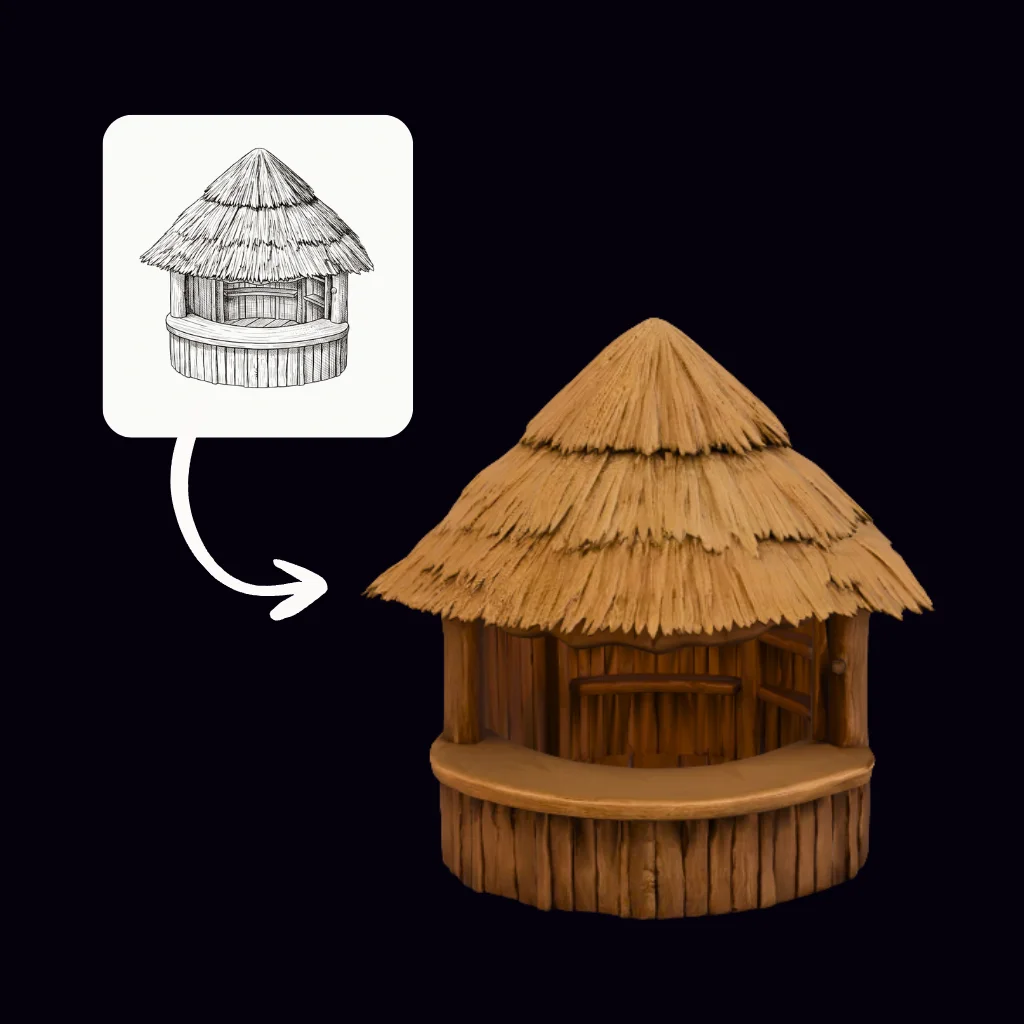
Use generated 3D candidates as editable references instead of relying only on flat concept images.
Blender control stays intact
Inspect, modify, render, and prepare the asset with the manual control Blender provides.
Manual blockout vs. generate, then refine
Same Blender finish line. What changes is where the first hours go — building the base shape by hand, or refining a textured draft.
Step
From scratch
PicoBerry → Blender
First shape
Block out the base by hand in an empty scene
A prompt or image returns a textured 3D draft
Exploring directions
Re-model each variation to compare
Generate several candidates, then pick one
Handoff to Blender
Export, clean up, re-import round trips
One click drops a GLB with textures into its own collection
Refinement & control
Everything by hand, start to finish
Retopo, materials, lighting and render stay in Blender
Bridge add-on FreeBlender 4.0+Output GLB + texturesPlacement Own collectionComing FBX · OBJExport to Unity · Unreal · Godot
Where teams use PicoBerry with Blender
Use PicoBerry for candidate generation, then use Blender as the inspection and refinement layer before the next production step.
Game prop ideation
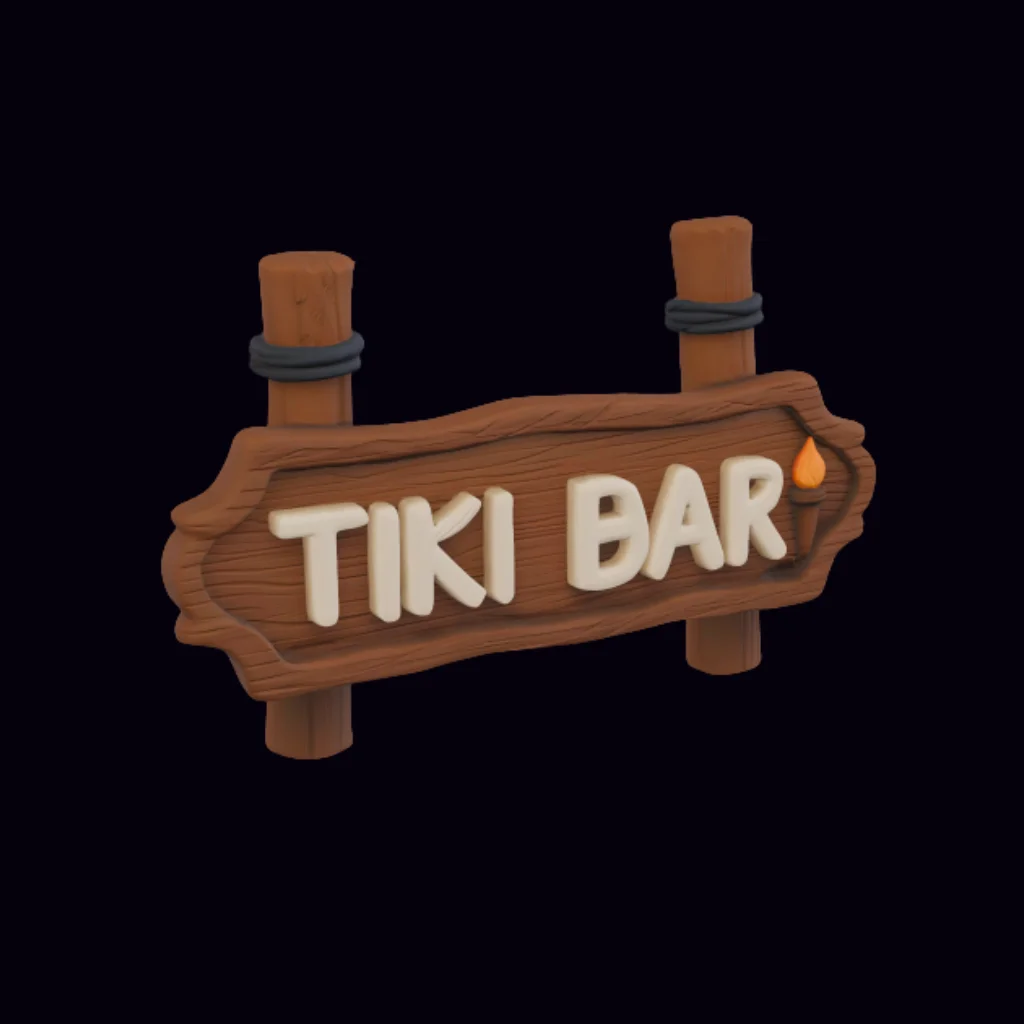
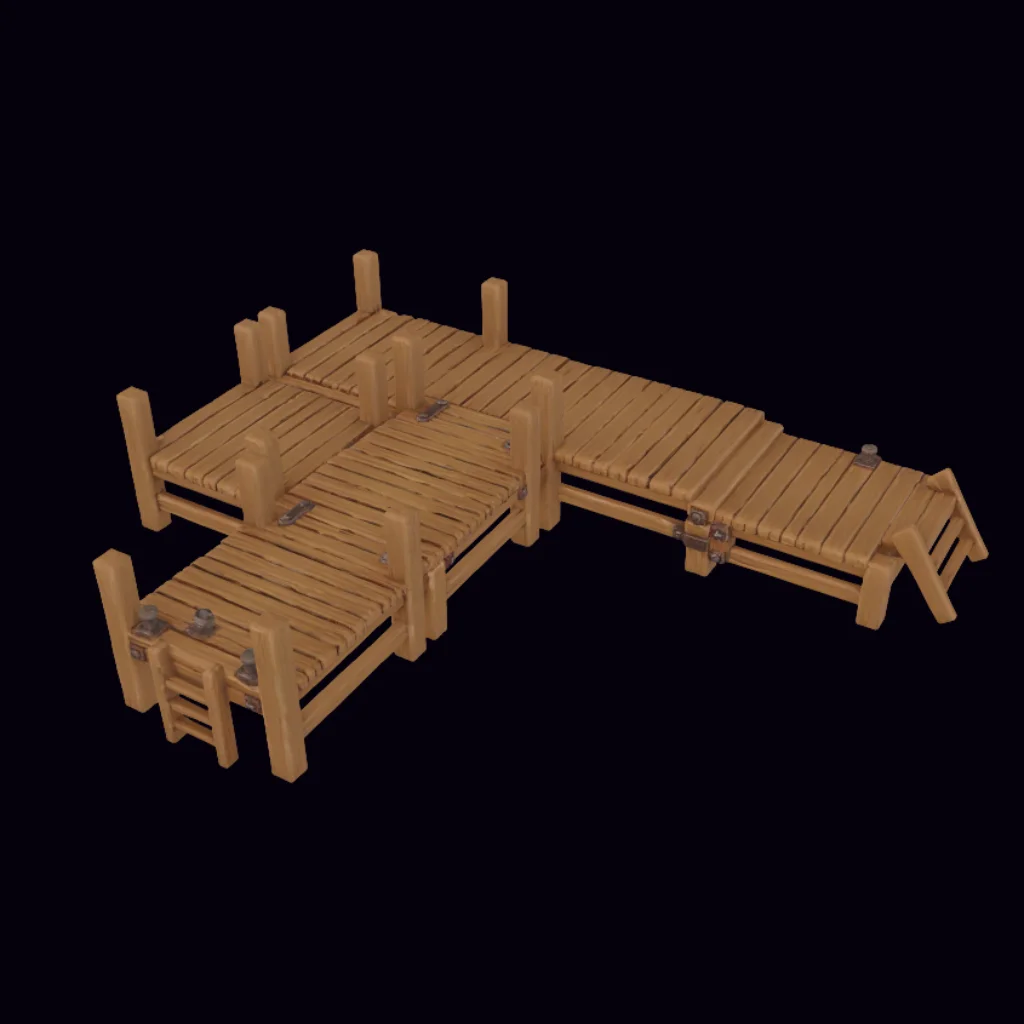
Create props, containers, pickups, signs, and scene elements for early game production.
Concept-to-3D exploration
Turn visual ideas into 3D candidates that can be inspected from multiple angles.
Indie prototyping
Explore rough asset directions quickly before deciding what deserves manual refinement.
Render and presentation prep
Use Blender to produce internal review renders, pitch visuals, moodboards, and direction checks.
See the PicoBerry-to-Blender handoff step by step
A generated candidate enters Blender, gets inspected, and moves toward the next production step.
Start with the candidate, not a blank scene
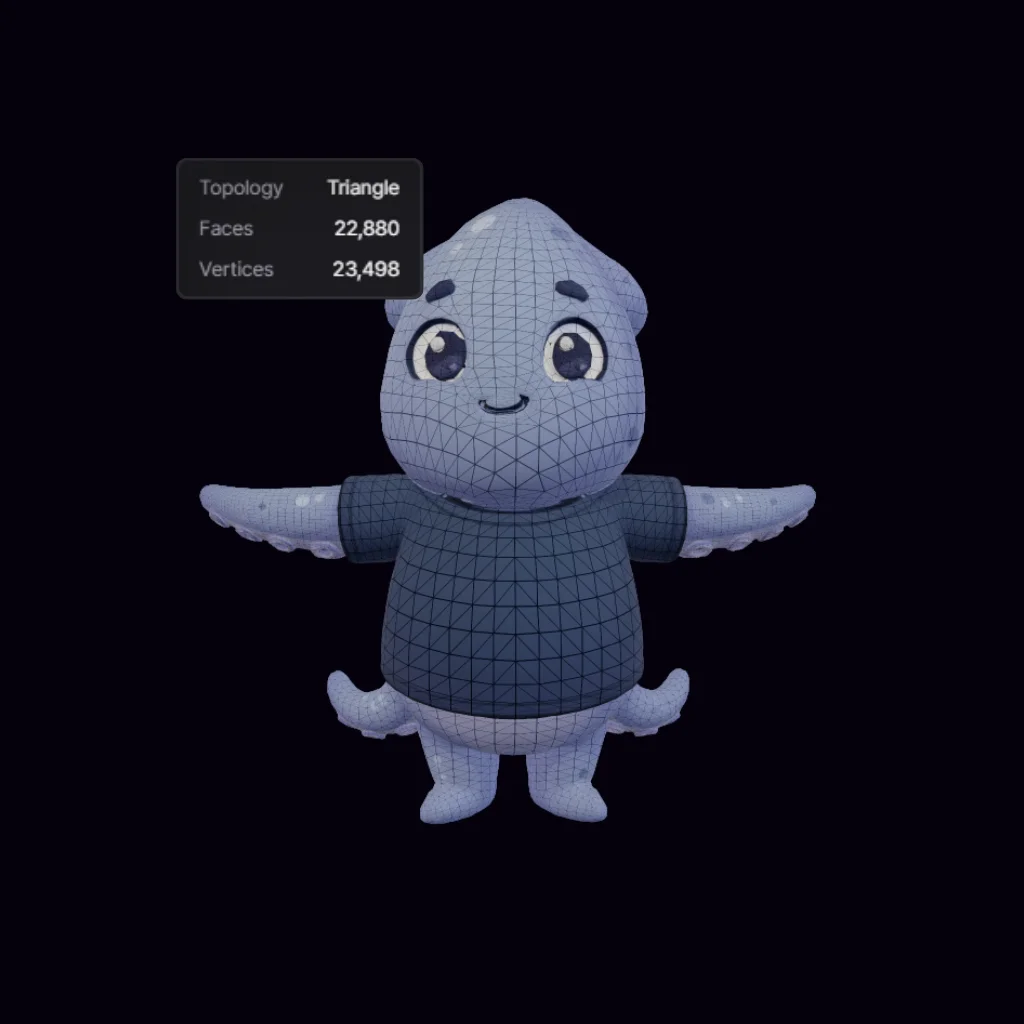
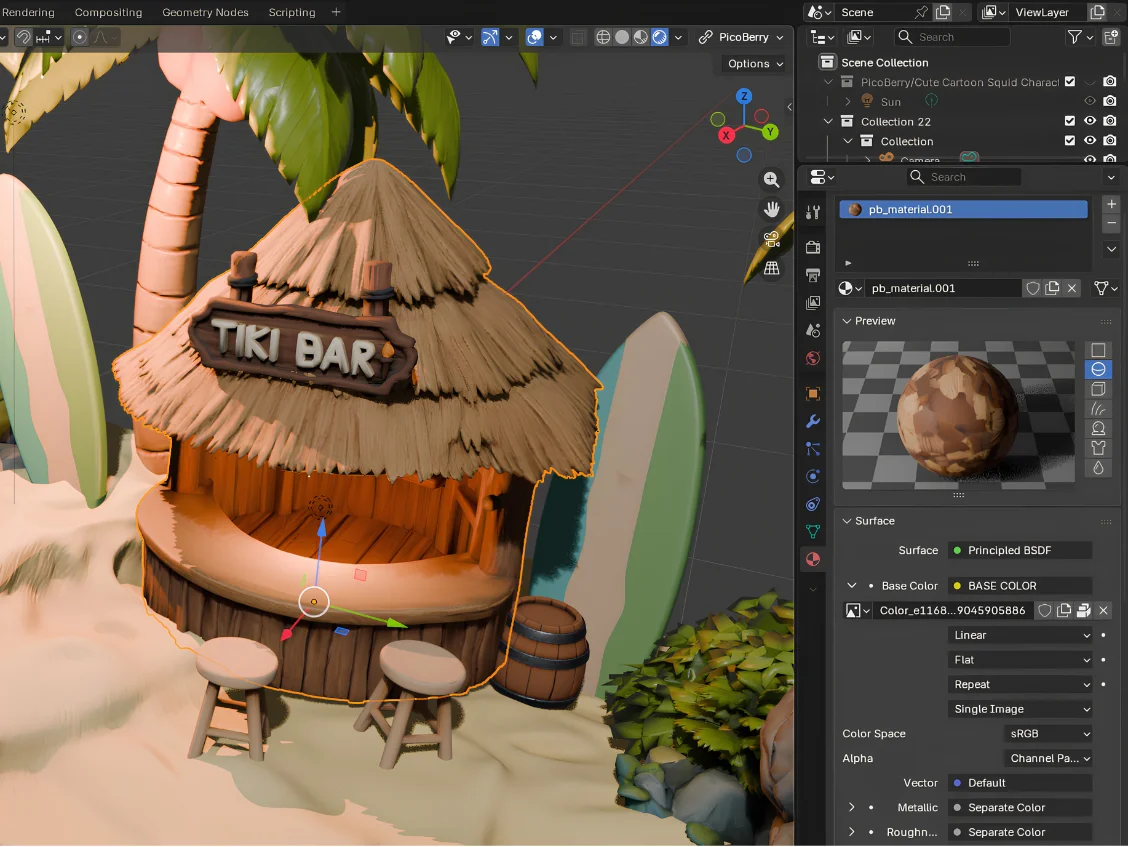
The result from PicoBerry shows exactly what Blender receives, and what still needs review.
Inspect the candidate in Blender
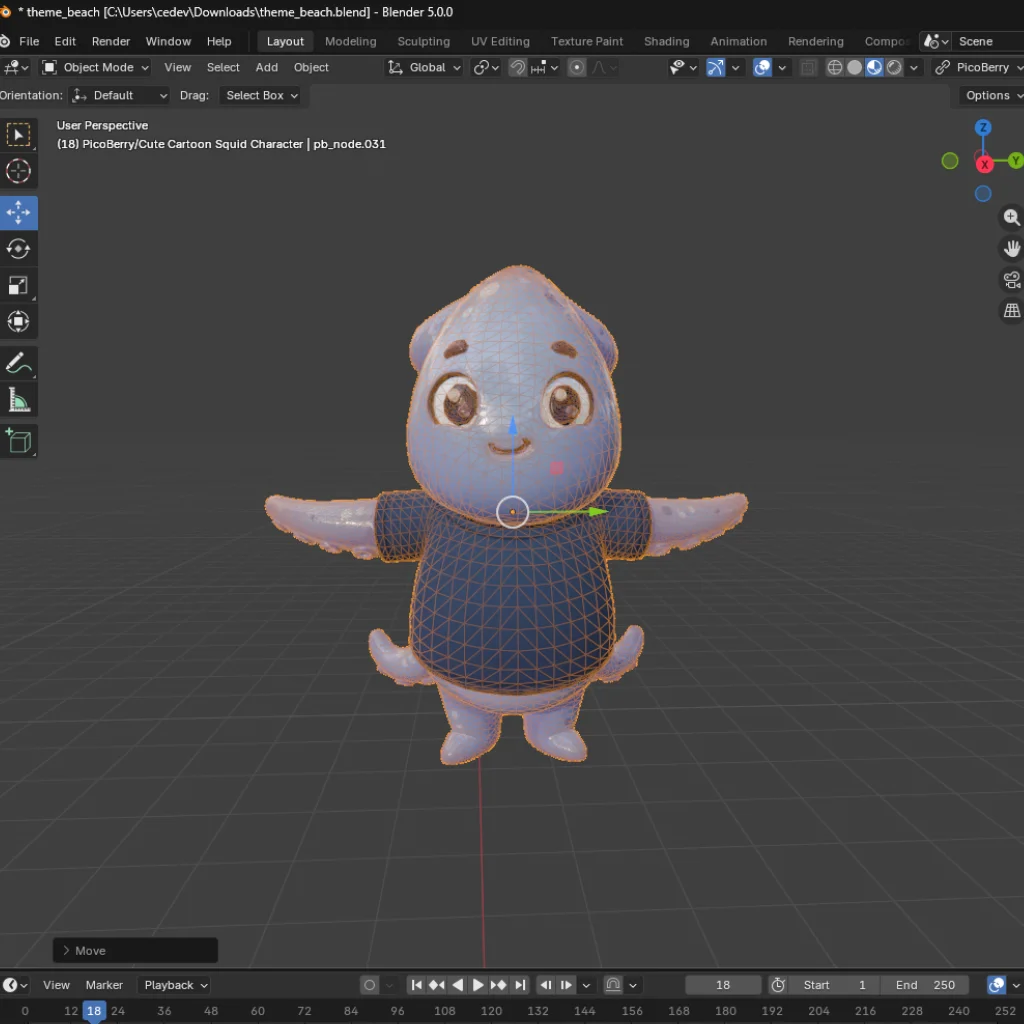
Review the imported mesh, materials, scale, and object setup in the Blender viewport before deeper work.
Place it in the scene
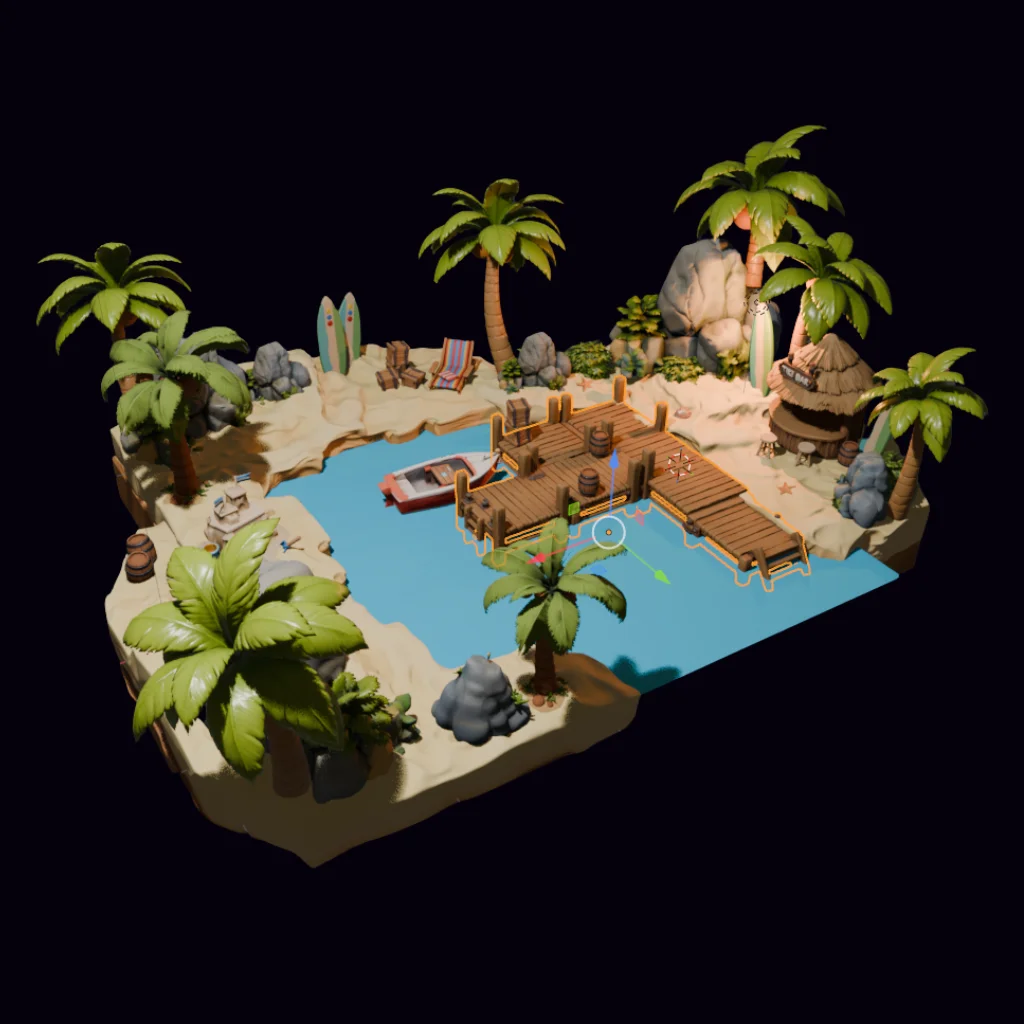
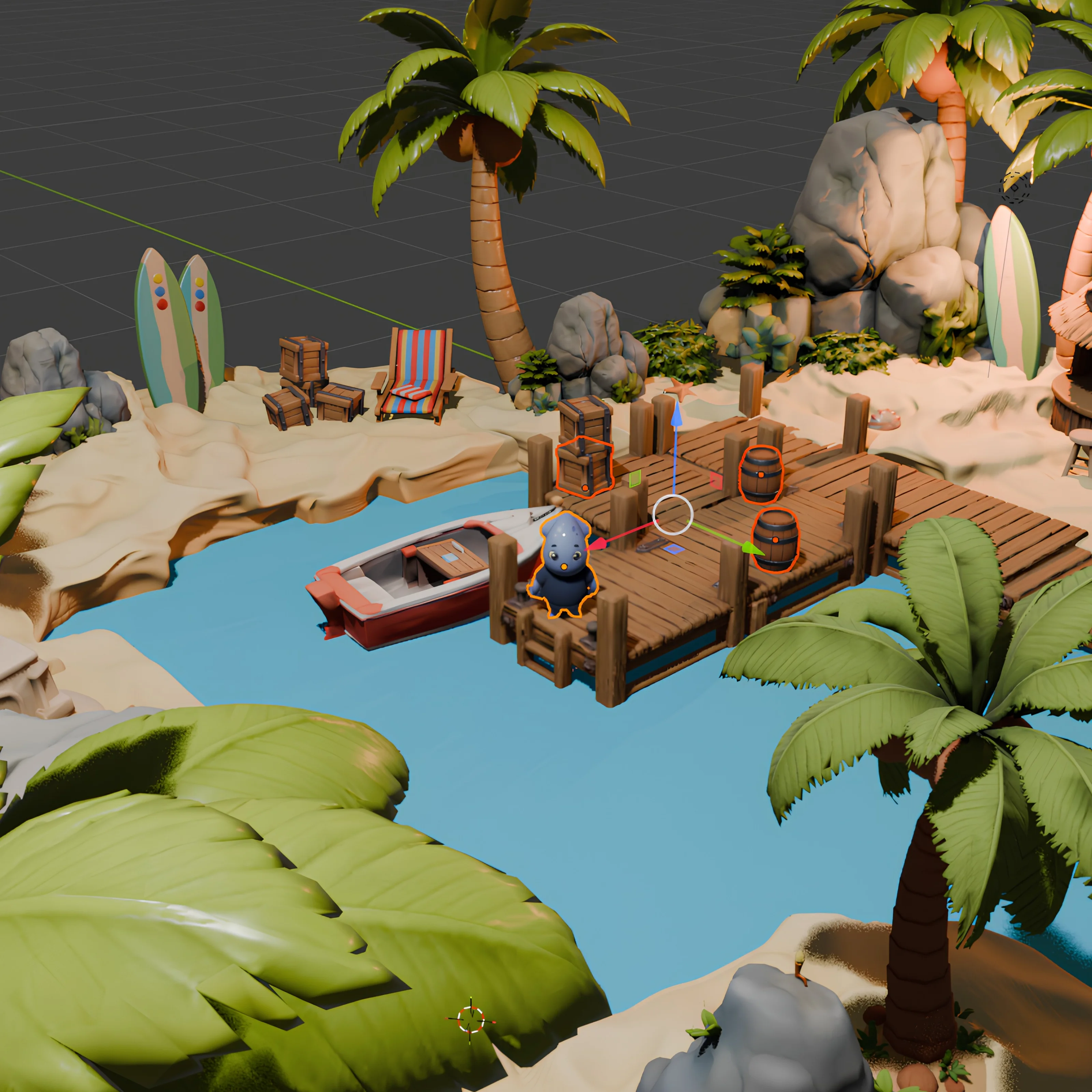
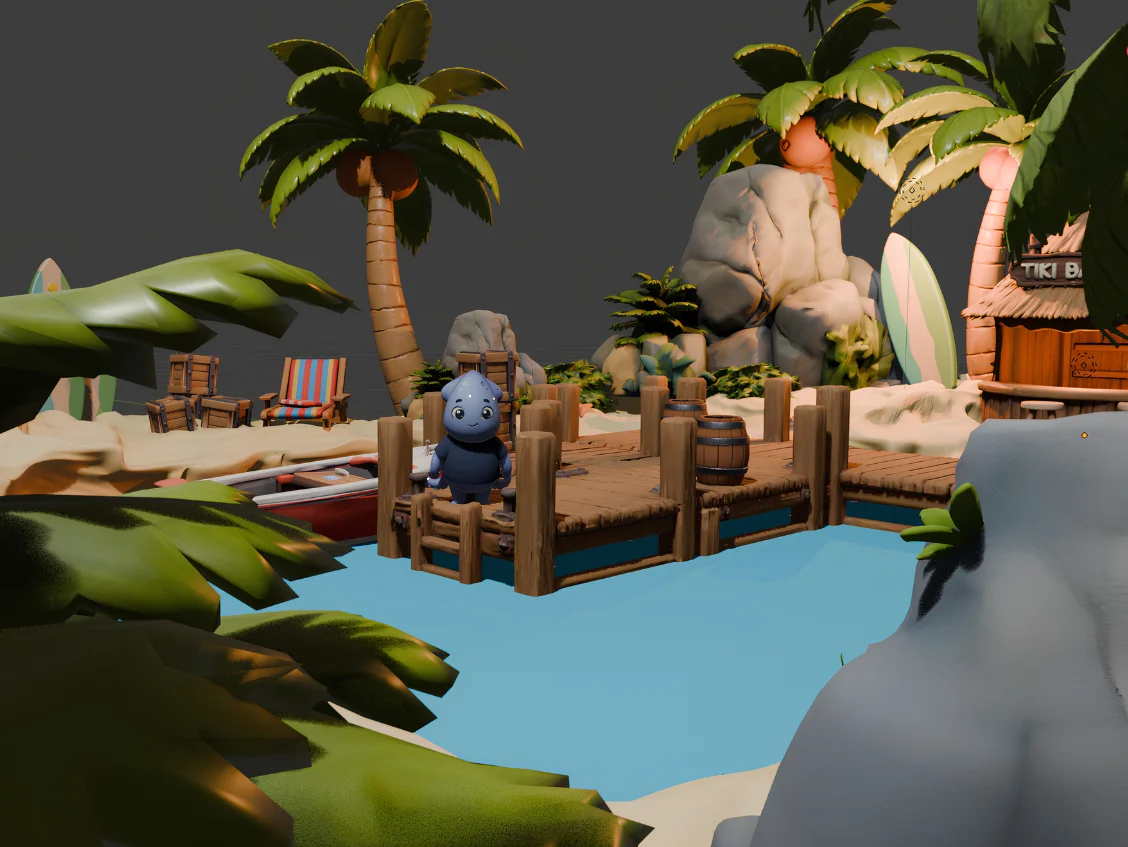
Drop the reviewed asset into a scene to judge scale, lighting, and how it reads next to other props.
Blender Bridge keeps the handoff explicit
Blender Bridge is a free PicoBerry add-on that sends a generated asset straight from PicoBerry into Blender, so you can see exactly where an AI-generated candidate becomes a reviewed, refined 3D asset.
Blender Bridge
Generate in PicoBerry. Inspect in Blender. Decide the next step.
With the free PicoBerry Bridge add-on (Blender 4.0+), open Send to DCC Bridge in PicoBerry, pick Blender, and the asset downloads directly into your Blender scene as a GLB with its textures, in its own collection. FBX and OBJ are on the way. From there you inspect, refine, render, or prepare it for your engine.
Watch a candidate move from PicoBerry into Blender
The clip shows Send to DCC Bridge in PicoBerry with Blender connected, then the asset downloading straight into the Blender scene for review.
Practical PicoBerry-to-Blender workflow
Generate a candidate, inspect it like a production asset, then send only the strongest result into deeper cleanup or engine preparation.
STEP 01
Generate the candidate
Create a 3D asset candidate in PicoBerry using text, image, or supported reference workflows.
STEP 02
Review the result
Evaluate silhouette, proportions, material direction, surface detail, and scale before deeper work.
STEP 03
Inspect in Blender
Use Blender to check mesh structure, adjust materials, set up lighting, and render review views.
STEP 04
Prepare for handoff
Review topology, UVs, origin, pivot, collisions, LODs, and export requirements for the next tool.
Skip the blockout on your next asset
Generate a textured draft, send it into Blender, and spend your time refining instead of starting from zero.
A quick map of how inputs become a candidate, cross the Blender Bridge, and continue out to your engine.
From inputs to a candidate
A text, image, or reference prompt generates a 3D asset candidate in PicoBerry.
Across the Blender Bridge
One click on Send to DCC Bridge sends the candidate into Blender as a GLB with its textures.
Out to your engine
After Blender review and refinement, export the asset toward Unity, Unreal, or Godot.
See the refinement, not just the result
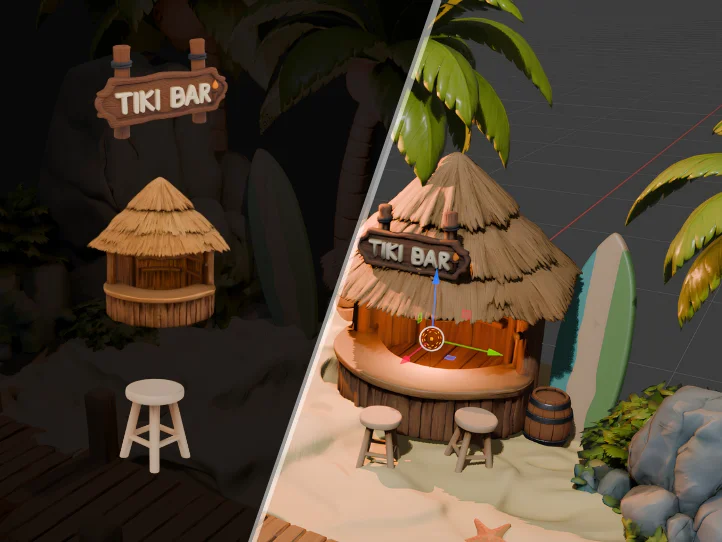
Before-and-after views, material passes, mesh checks, and review renders show what changes between a PicoBerry candidate and a Blender-refined asset.
Frequently asked questions
Can PicoBerry generate 3D models for Blender?
PicoBerry can generate 3D asset candidates that can be reviewed and refined as part of a Blender workflow. Generated results should still be inspected for topology, scale, materials, UVs, and project-specific requirements before production use.
Is PicoBerry a Blender add-on?
PicoBerry itself is a web platform, not a Blender add-on. It does offer a free companion add-on, the PicoBerry Bridge, that adds one-click send to Blender: a generated asset downloads straight into your Blender scene as a GLB with its textures, in its own collection. It works on Blender 4.0 and newer with any plan, and Blender stays the place for inspection, refinement, materials, and rendering.
Does PicoBerry replace manual modeling in Blender?
No. PicoBerry helps create starting points faster. Blender remains important for detailed editing, material work, topology inspection, rendering, and production preparation.
What should I check after importing an AI-generated model into Blender?
Review silhouette, scale, topology, UVs, materials, origin, pivot, collision needs, LOD needs, and target-engine requirements before using a generated candidate downstream.
What is Blender Bridge?
Blender Bridge is the free PicoBerry add-on that connects PicoBerry to Blender. In PicoBerry you open Send to DCC Bridge, pick Blender (shown as connected), and send; the asset downloads directly into your Blender scene as a GLB with its textures, in its own collection. FBX and OBJ support is on the way, and Blender then handles inspection, refinement, rendering, and engine prep.
Start with PicoBerry. Refine with Blender control.
Generate 3D asset candidates quickly, then use Blender to review, refine, render, and prepare the assets for the next production step.