Launch Event50% off annual plans · free Nano Banana imagesSee the offer
New modelNano Banana 2.1 · sharper textMake one
Collections · Workspace organization
PicoBerry Collections — organize your generated 3D assets
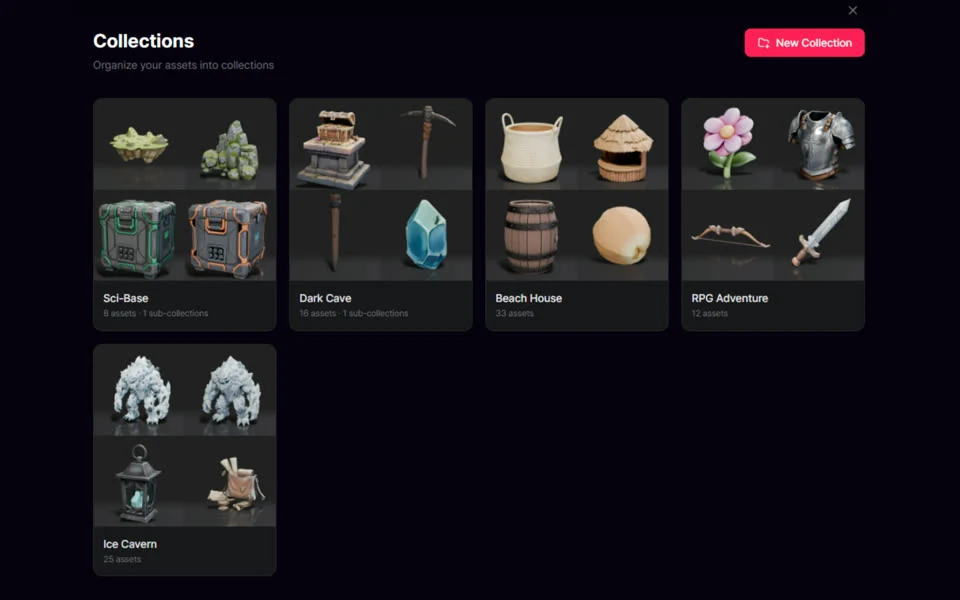
Keep one prototype's characters, props, environments, and reference images together. Collections turn a growing PicoBerry library into named groups — with sub-collections and asset-type filters — that you can reopen when it is time to keep building.
Collections in PicoBerry: pick an asset, file it into a named group, and reopen that group later.
One workspaceYour asset libraryCharactersPropsEnvironmentsReference imagesSub-collections
What are Collections in PicoBerry?
Collections are named groups for the 3D models and images already in your PicoBerry workspace. Open an asset's menu, choose Add to Collection, pick an existing group or create a new one, then confirm. Inside a Collection you can add sub-collections, filter by Images or 3D Models, and move or remove assets as the project changes. Collections organize what you already have — they do not generate, remesh, texture, or edit an asset.
What can you do with Collections?
Group your generated assets so a growing library stays manageable and one project's assets stay easy to find.
Group by project or game
Gather the assets for one project or game into their own named Collection, each with its own asset count.
Filter inside a Collection
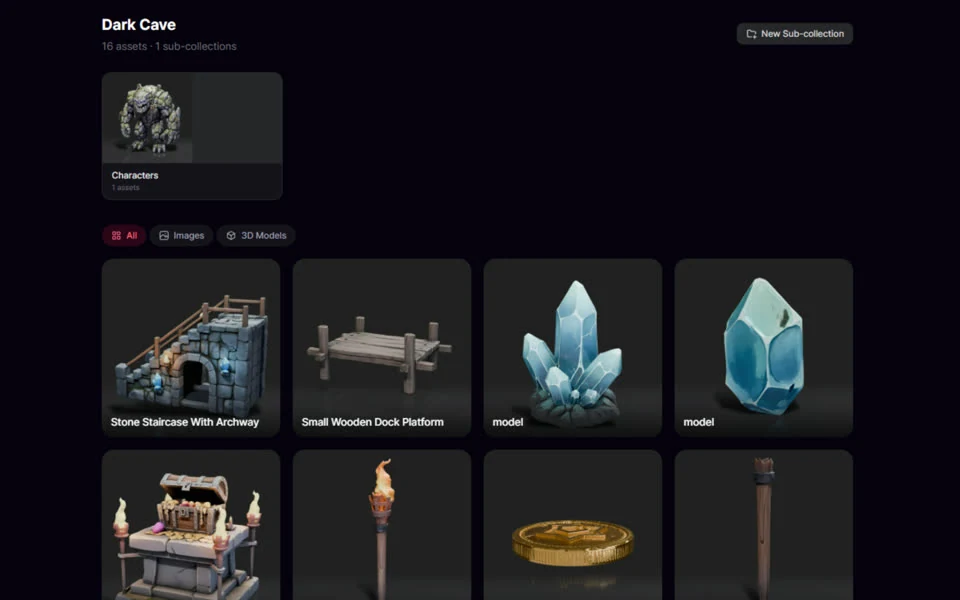
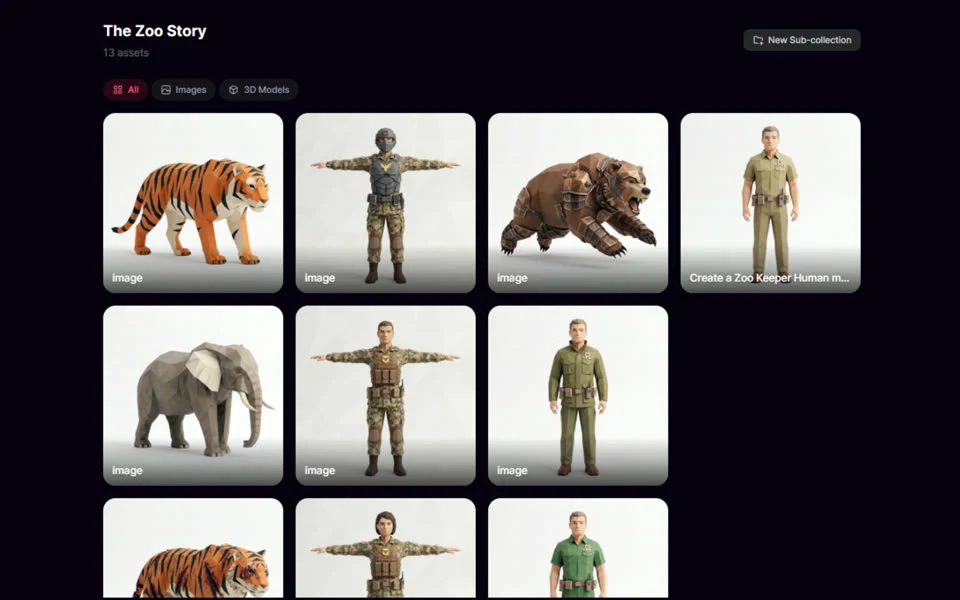
Open one Collection and narrow it to All, Images, or 3D Models instead of scrolling one long, unsorted list.
Keep a project's assets together
The models and the reference images for the same project sit side by side in one group.
Reopen and reuse
Return to an asset you generated earlier, with the rest of its Collection one step away.
How do Collections work?
Select assets you already have, file them into a named group, then reopen that group when you need them again.
STEP 01
Start with existing assets
Choose one or more 3D models or images already generated in your PicoBerry workspace.
STEP 02
Choose Add to Collection
Open the asset menu and select Add to Collection. The dialog confirms how many items you selected.
STEP 03
Pick or create a Collection
Search the existing Collections and sub-collections, or use New Collection to start a new group.
STEP 04
Confirm, then reopen later
Confirm your choice, then open Collections from the workspace header whenever you need those assets again.
Built for a growing asset library
Use Collections when a flat list is no longer enough to keep a project moving.
Keep a project in context
Put one prototype's characters, props, environments, and reference images in a single group, then split it further with sub-collections.
Return without re-searching
Open the group for the scene or asset set you are resuming instead of scanning every generation in the workspace.
Organize, not generate
Collections arrange the assets you already have. They do not generate, remesh, texture, or edit an asset, and taking one out of a Collection never deletes it.
What Collections look like
Filing a generated asset into a group, then reopening that group later to find and reuse it.
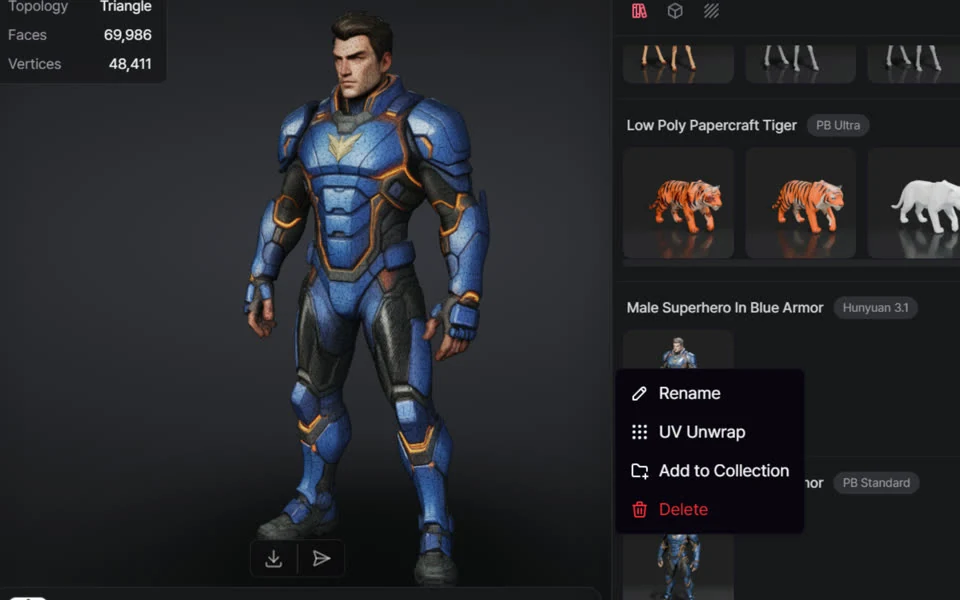
Adding an asset to a Collection
Open an asset's menu and choose Add to Collection, alongside actions such as Rename and UV Unwrap.
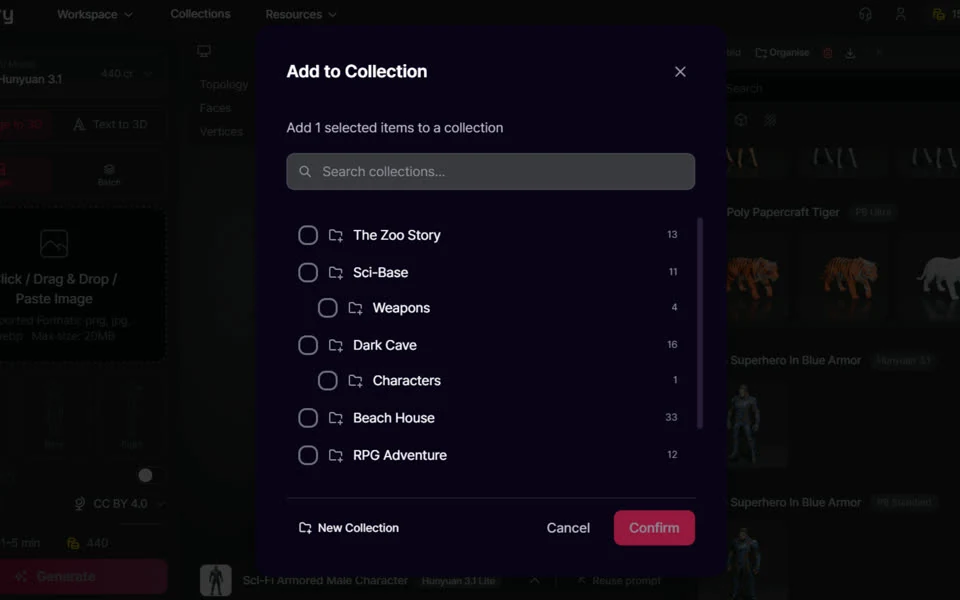
Choosing the Collection
Search the existing Collections, open a sub-collection, or create a new group — then confirm.
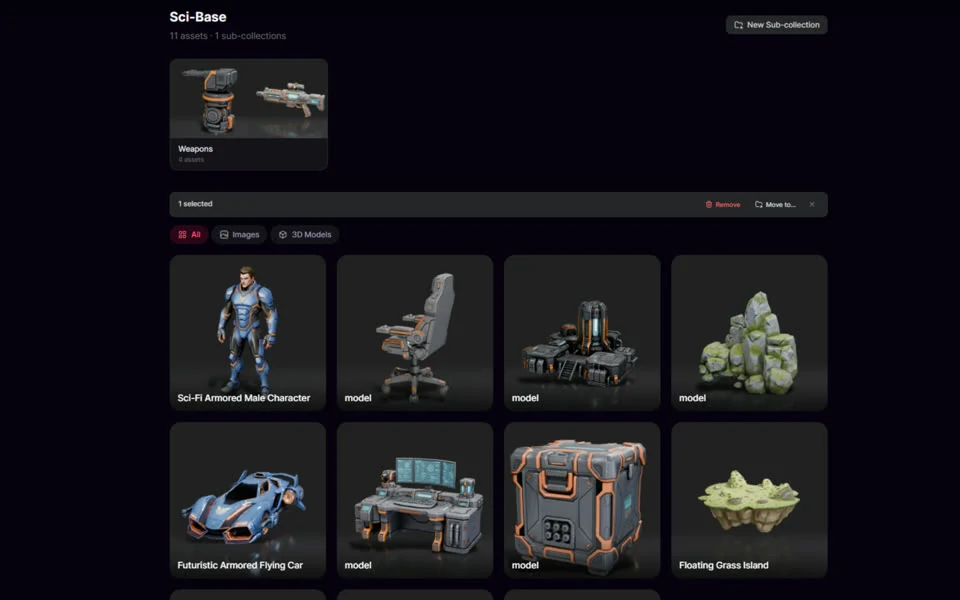
Staying organized
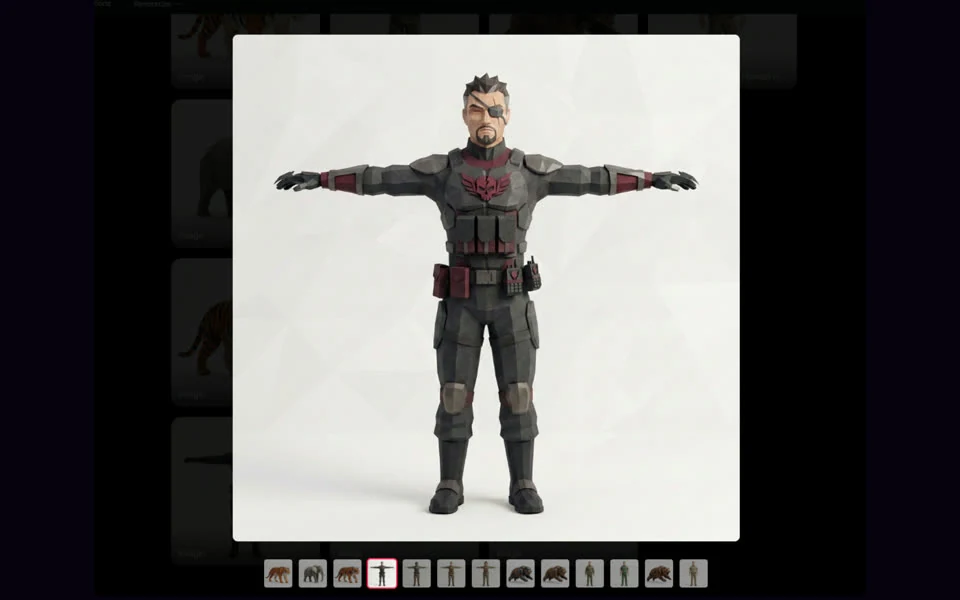
Inside a Collection you can select assets and move or remove them as the project changes.
The whole loop: select an asset, add it to a Collection, then reopen that Collection to find it again.
Frequently asked questions
What are Collections in PicoBerry?
Collections are named groups for the 3D models and images already in your PicoBerry workspace. Use one for a game, prototype, scene, or asset set so you can return to the right material without searching through one long library. They organize existing assets; they do not generate or edit them.
How do I add an asset to a Collection?
Select an existing asset, choose Add to Collection from its menu, then pick an existing Collection or choose New Collection. Confirm your choice to add it. You can select several assets first and file them together.
Can I create a new Collection while adding an asset?
Yes. The Add to Collection dialog includes a New Collection action, so you can name a new group before you confirm the assets you selected.
Can a Collection contain sub-collections?
Yes. Open a Collection and use New Sub-collection to split it further — for example a Weapons or Characters group inside one game's Collection. Sub-collections appear indented in the Add to Collection dialog.
What kinds of assets can go in a Collection?
Collections hold the generated 3D models and images in your PicoBerry workspace. Inside a Collection, the All, Images, and 3D Models filters narrow the grid to the type you are looking for.
Can I move or remove assets from a Collection?
Yes. Select assets inside a Collection and use Remove or Move to... Removing an asset from a Collection does not delete the asset, and deleting a Collection leaves its assets in your workspace.
Does an asset have to live in only one Collection?
No. The same asset can belong to more than one Collection, so a shared prop can sit in every project that uses it.
Do Collections change my assets?
No. Collections are an organization layer, so grouping an asset only arranges your library — it does not generate, remesh, texture, or edit the asset itself.
Who are Collections for?
Game developers and creators who generate a lot of assets and want a growing library to stay organized — keeping each project's or game's assets together and easy to find again.
Can I manage Collections through the PicoBerry API?
Yes. The PicoBerry API includes collection endpoints, so a pipeline can create a Collection, list Collections, add or remove assets, rename a Collection, or delete one.
Keep your growing library of generated assets organized.
Bring your first assets into PicoBerry, then keep every scene, prop set, and character group easy to return to.