Animation · PB Animation engine

PB Animation — auto-rig the mesh you already made

PB Animation is PicoBerry's own rigging engine. It fits a skeleton onto your model while the original geometry, UVs and textures stay as they are, then gives humanoid characters more than 900 motions that cost nothing to apply. Four-legged and other bodies can be rigged too (beta), and the result downloads as GLB or FBX.

Rigged on its own mesh, then animated — plus a four-legged and an eight-legged rig (both beta). The full walkthrough with narration is below the steps.
RigsHumanoidFour-legged (beta)Other (beta)Exports toUnityBlenderUnrealGodot

How is PB Animation different from Meshy Ani and Tripo Ani?

PB Animation, PicoBerry's own engine, fits the rig onto your original geometry, UVs and textures; Meshy Ani and Tripo Ani, the other two engines in PicoBerry's Animation tool, remesh the model while they rig it, so the result comes back triangulated even from a quad source. PB Animation is also the only one of the three that rigs four-legged and other bodies (both in beta, rig only) and that has a base-pose editor, joints you place yourself and motion adjustments saved as new clips. Its 900+ humanoid motions cost no credits to apply, and you can tick several and send them with one press — they go out one after another; Meshy Ani (600+ presets) and Tripo Ani (80+) apply one motion at a time, use credits for each, and rig humanoid characters only.

PB Animation, Meshy Ani and Tripo Ani compared
PB AnimationMeshy AniTripo Ani
Your meshKept — the rig is fitted onto the original geometry, UVs and texturesRemeshed (triangulated)Remeshed (triangulated)
Body typesHumanoid · Four-legged (beta) · Other (beta)HumanoidHumanoid
Motion library900+ humanoid motions600+ presets80+ presets
Applying a motionNo creditsUses creditsUses credits
Several motions per pressYes — sent one after anotherOne at a timeOne at a time
Base pose · mark joints · adjust motionYes — not on Other rigs——

What does the PB Animation engine add to the Animation tool?

It rigs the model you bring instead of rebuilding it, it ships with a large motion library that costs nothing to use, and it reaches past the humanoid skeleton.

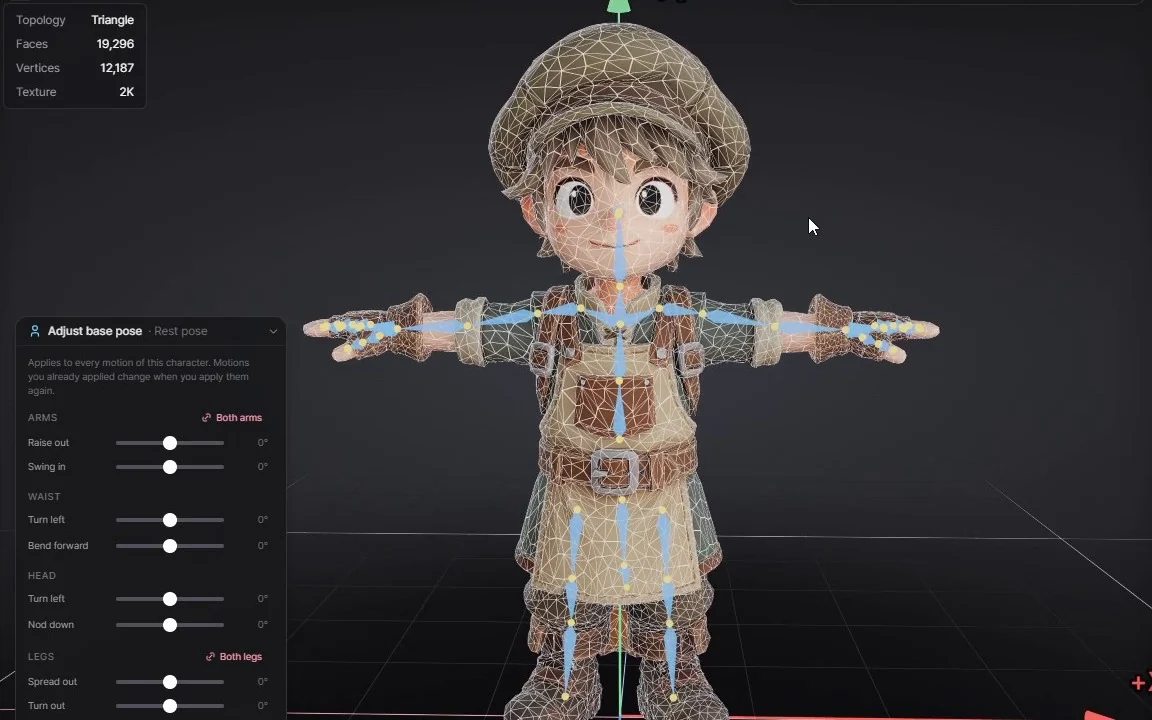
The rigged boy character in wireframe with its skeleton inside; the Statistics panel reads 19,296 faces and 12,187 vertices, the same as the original model, and the Adjust base pose panel is open at the lower left.

Keeps your mesh

The skeleton is fitted onto the model you made. Its geometry, UVs and textures are not rebuilt, so the topology and texture work you already did survives rigging.

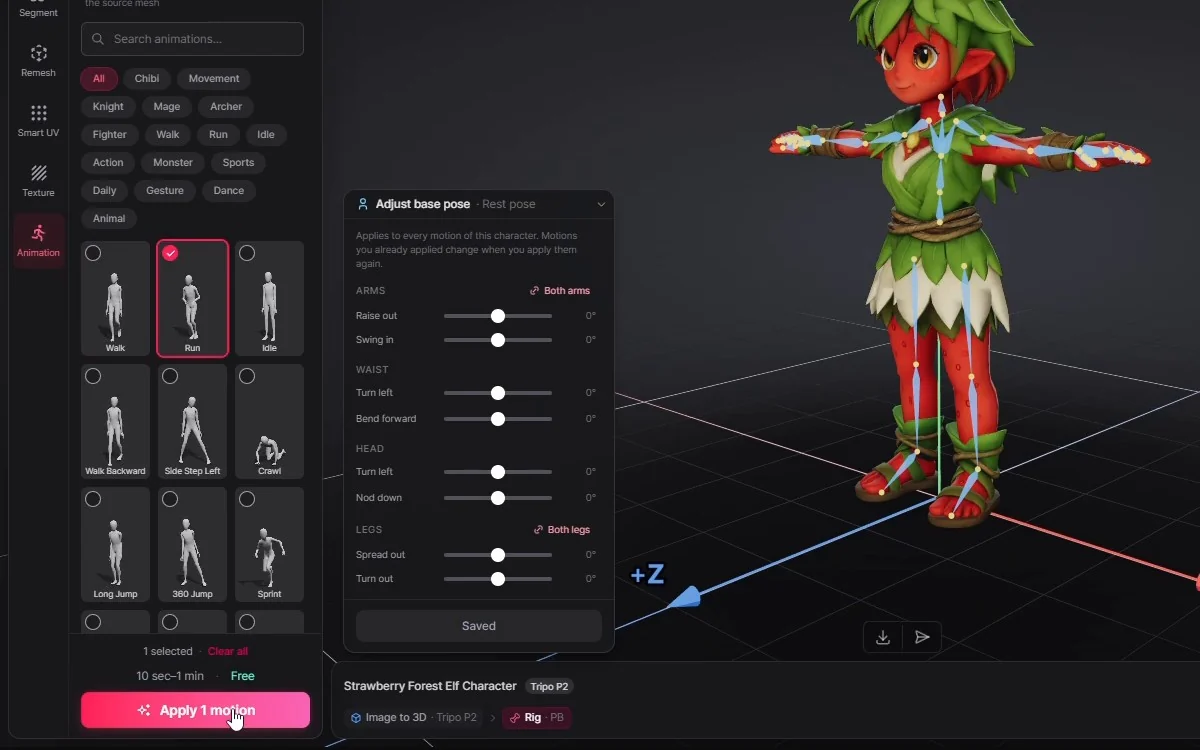
The PB Animation motion library with its category tabs, the Run motion ticked, “1 selected · 10 sec–1 min · Free” and the Apply 1 motion button, beside the Adjust base pose panel.

900+ free motions

Humanoid rigs get more than 900 ready-made motions — free animations from Movement and Fighter to Dance, Idle and a Chibi tab. Tick several and press Apply N motions (the button counts them) — they're sent one after another, and applying costs no credits.

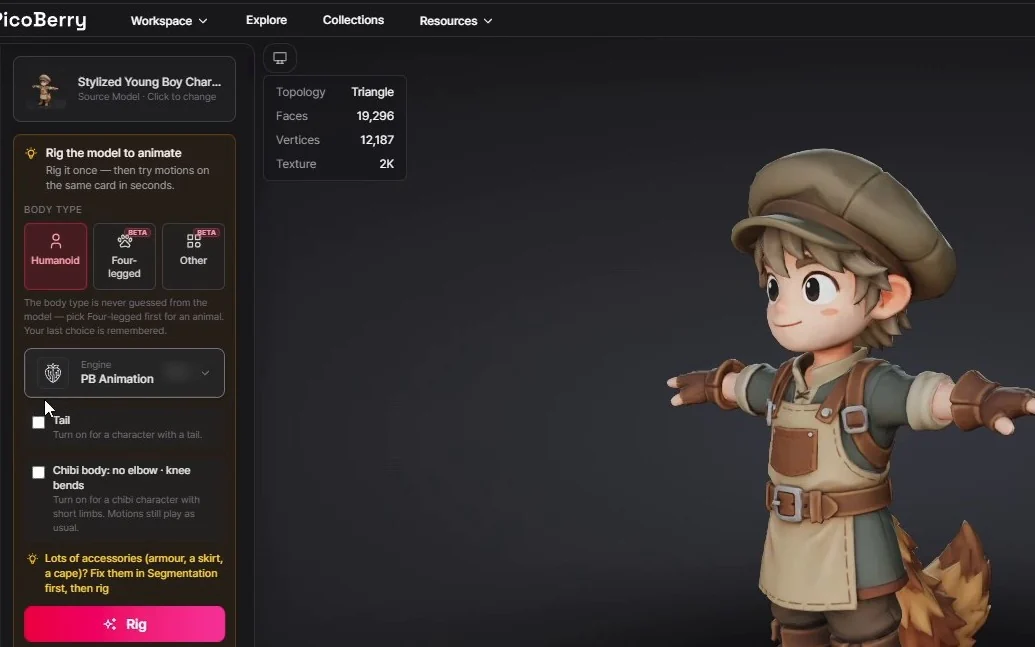
The body-type row — Humanoid, Four-legged and Other — with Engine set to PB Animation and Tail and Chibi body options.

Humanoid, four-legged and other bodies

Choose the body type before you rig. Four-legged covers animals; Other covers bodies that fit neither skeleton — the video rigs an eight-legged spider. Both are in beta and rig-only for now.

How do you auto-rig your own mesh with PB Animation?

Select the model and open Animation, the last icon in the left toolbar. Models you generate in PicoBerry work, and so do 3D models you upload (paid plans).

STEP 01

Pick the body type, then PB Animation

Choose Humanoid, Four-legged or Other under Body type — PicoBerry never guesses it and remembers your last choice. For a humanoid, pick PB Animation in the engine list; Four-legged and Other switch to it on their own. A humanoid can add Tail and Chibi body; for Four-legged, Tail starts on — turn it off for an animal without one.

STEP 02

Rig, or mark the joints first

Press Rig (the button shows 1–5 min) — or, for Humanoid and Four-legged, Rig (mark joints) to place the joints yourself. The result is a new card named “… (Rigged)”; the original model stays in your library, and a failed rig refunds its credits.

STEP 03

Tick motions and apply them

Search or browse the tabs, tick the motions you want and press Apply N motions. They're sent one at a time, each in about 10 seconds to a minute, and collect under Applied motions on the rigged card. No credits are used.

STEP 04

Download with every motion

On desktop, open Download, pick GLB or FBX and leave Contents on Rig + animation. Every applied motion goes into that one file.

PB Animation at a glance
Rigabout 1–5 min (the button's estimate) · uses credits · a failed rig refunds them
Apply a motionabout 10 sec–1 min each (estimate) · free
Motion library900+ humanoid motions · none yet for four-legged and Other
Motion speed×0.25 to ×4 in Adjust motion
DownloadGLB or FBX, on desktop

Full walkthrough (5:24, with narration): body type and engine · rigging on your own mesh · base pose · marking joints yourself · 900+ free motions · motion adjustments · four-legged and other rigs · export

The narration simplifies a few steps — the written steps above match the app.

What can you adjust before and after rigging?

PB Animation leaves room for hand fixes: the pose every motion starts from, where the joints sit, and each clip after it's applied.

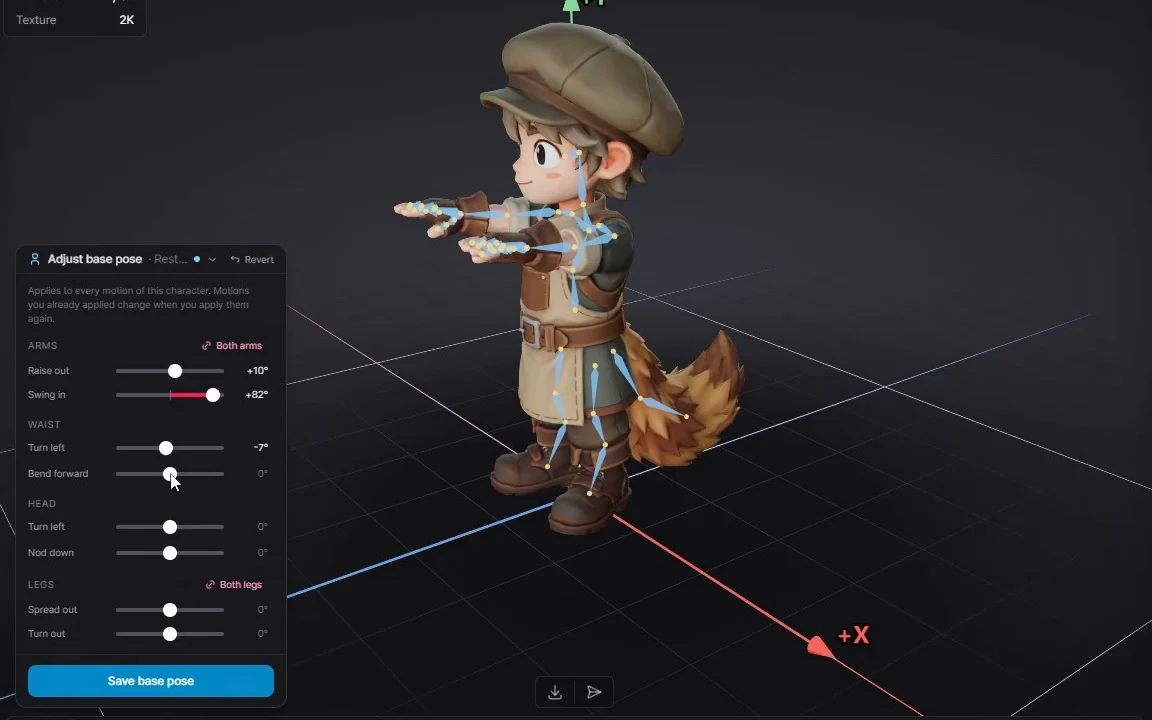
The Adjust base pose overlay with arm, waist, head and leg controls over the character.

Adjust base pose

Select the Rest pose chip on the rigged card and the Adjust base pose overlay opens over the viewport: raise or swing in the arms, turn or bend the waist, turn or nod the head, spread or turn out the legs. A four-legged rig adjusts its neck, front and hind legs and tail instead. Save base pose applies to every motion of that character; motions you already applied change when you apply them again.

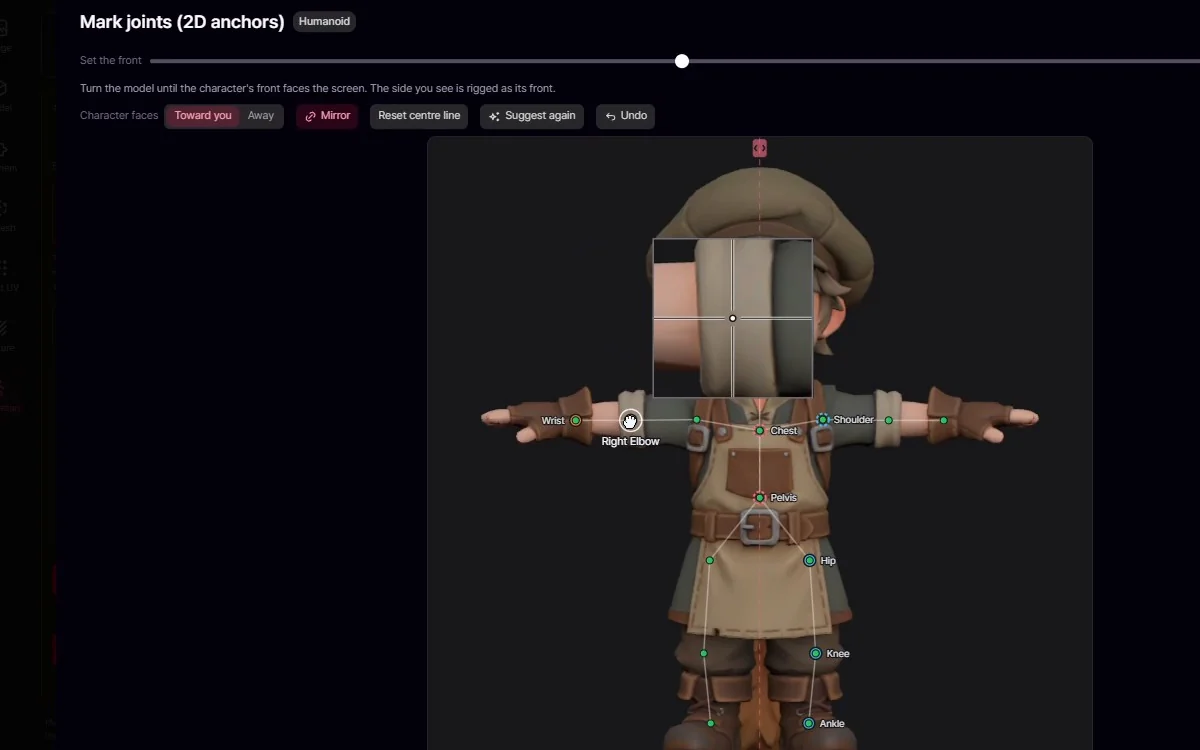
The Mark joints window with 2D anchor joints placed, Mirror enabled and a magnifying loupe while dragging.

Mark joints yourself

Rig (mark joints) opens Mark joints (2D anchors) with suggested joints already placed. Line up the front view (the side view for four-legged), move any joint that's off, and place the ones it flags as not found. Humanoids get Mirror and Depth, and a 3× loupe appears while you place a point. Marking joints isn't charged separately.

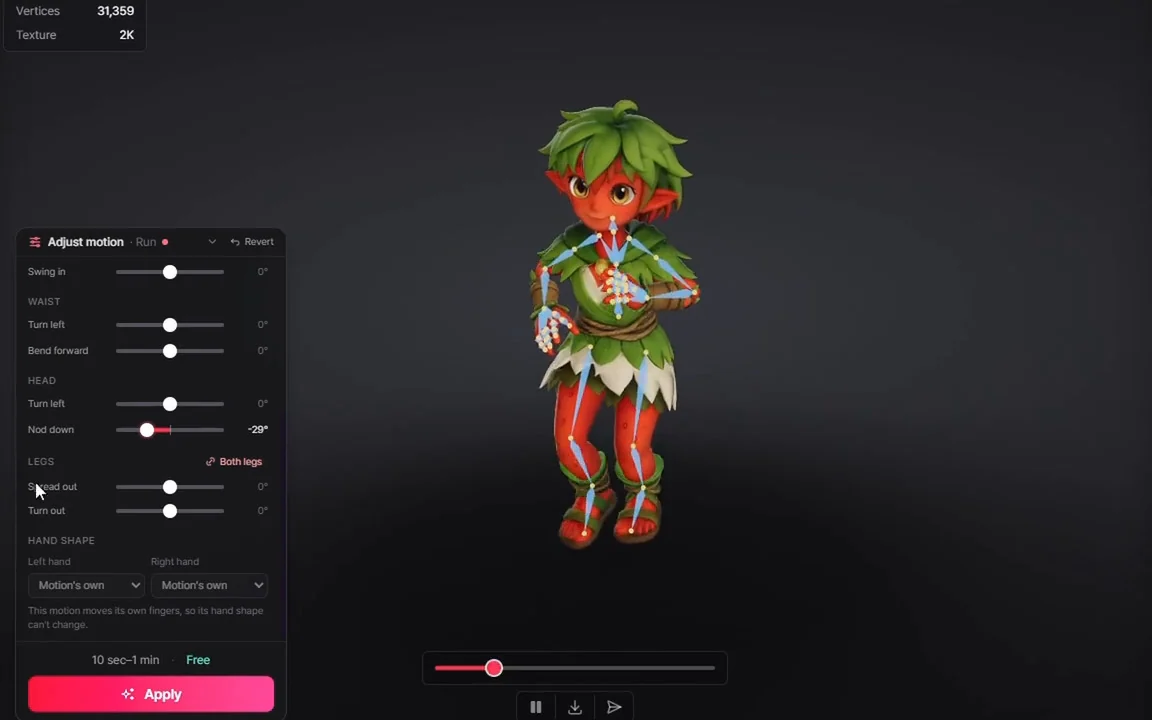
The Adjust motion panel on a playing Run clip, scrolled to the waist, head, legs and Hand shape controls, with “10 sec–1 min · Free” and the Apply button.

Adjust motion into a new clip

While a clip plays, Adjust motion changes its Speed (×0.25 to ×4) and Range and moves the arms, waist, head and legs. On a humanoid it also mirrors the clip and sets the Hand shape. Apply saves the result as a new clip on the card and keeps the original.

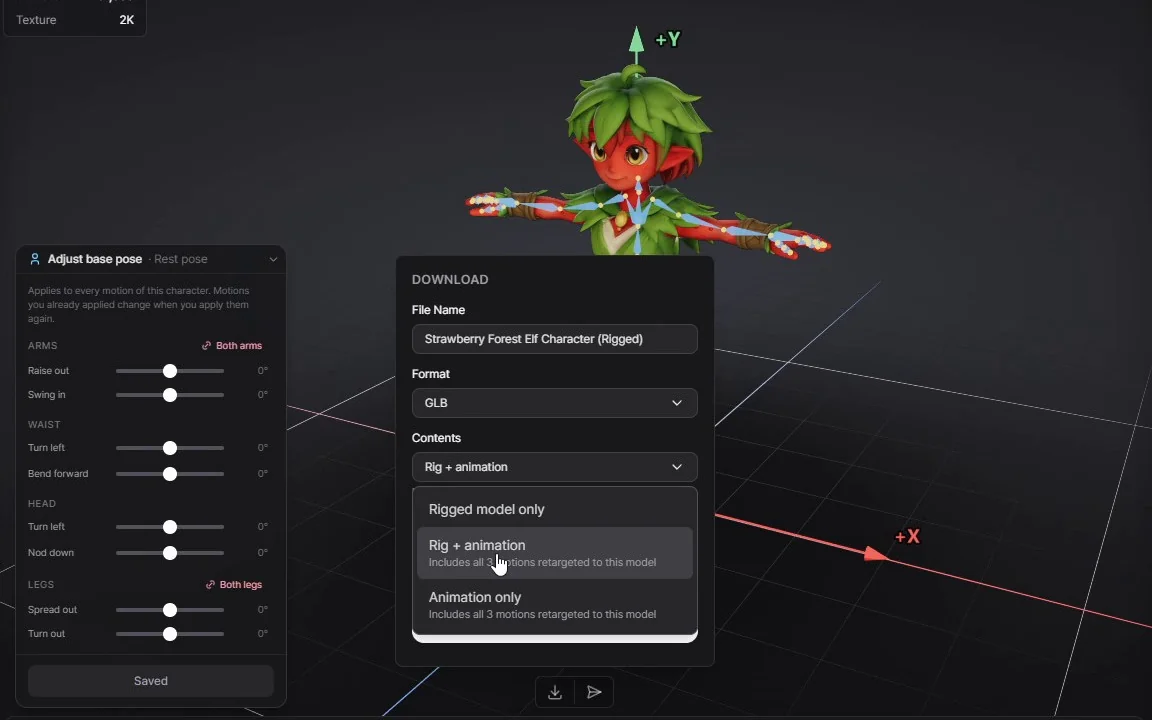
The Download popover for “Strawberry Forest Elf Character (Rigged)”: Format GLB, and the Contents list open on Rig + animation — “Includes all 3 motions retargeted to this model” — between Rigged model only and Animation only.

Export every motion in one file

Once a rig has a motion, GLB and FBX downloads show Contents: Rigged model only, Rig + animation (the default) or Animation only. Sending to Unity brings the whole card; Blender, Unreal and Godot receive the one clip you select.

What do PB Animation's four-legged and other rigs look like?

The two beta bodies from the video, each rigged on its original mesh.

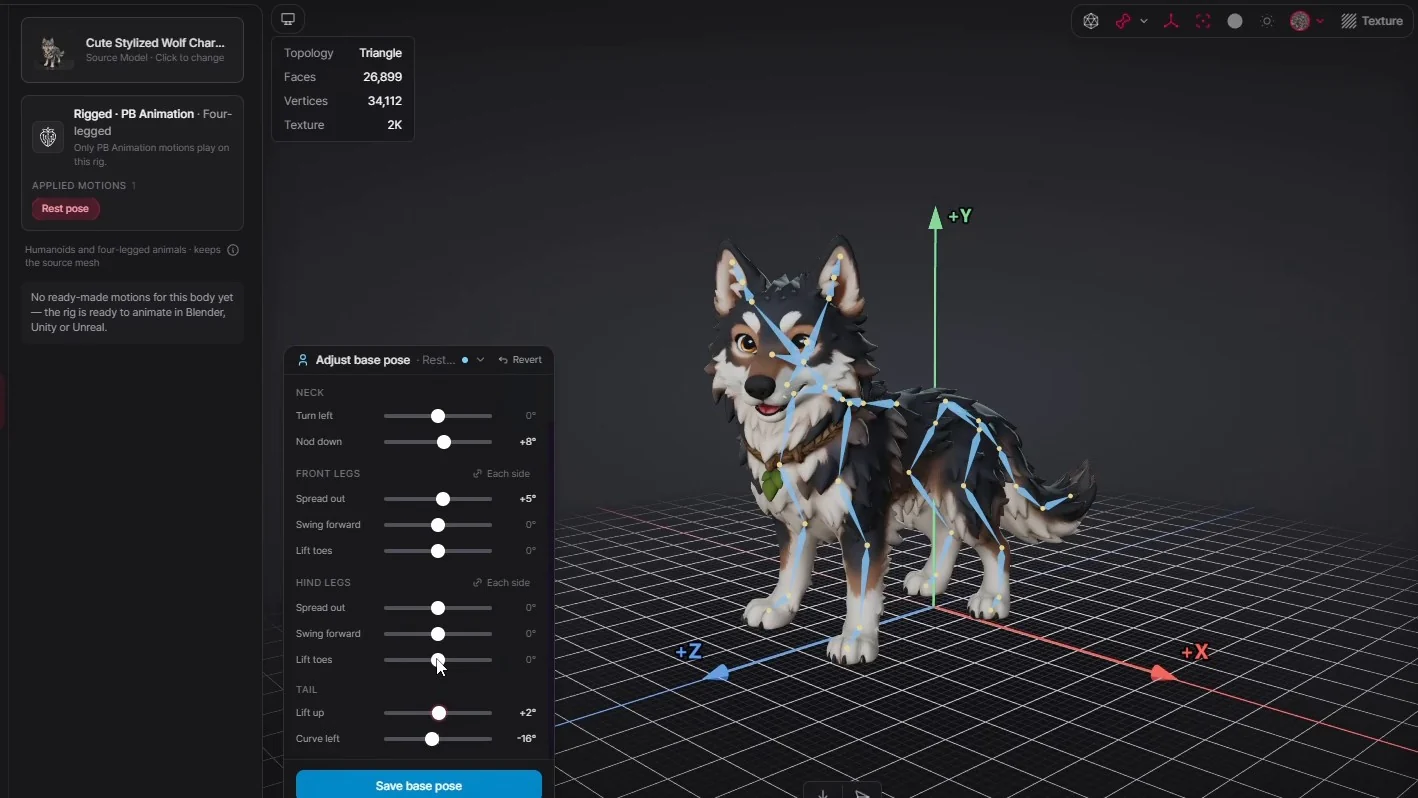
A four-legged character rigged with its skeleton visible, showing Neck, Front legs, Hind legs and Tail controls.

Four-legged (beta)

A four-legged (quadruped) rig with chains for the neck, front legs, hind legs and tail. There are no ready-made four-legged motions yet, so the rig is meant to be animated in Blender, Unity or Unreal.

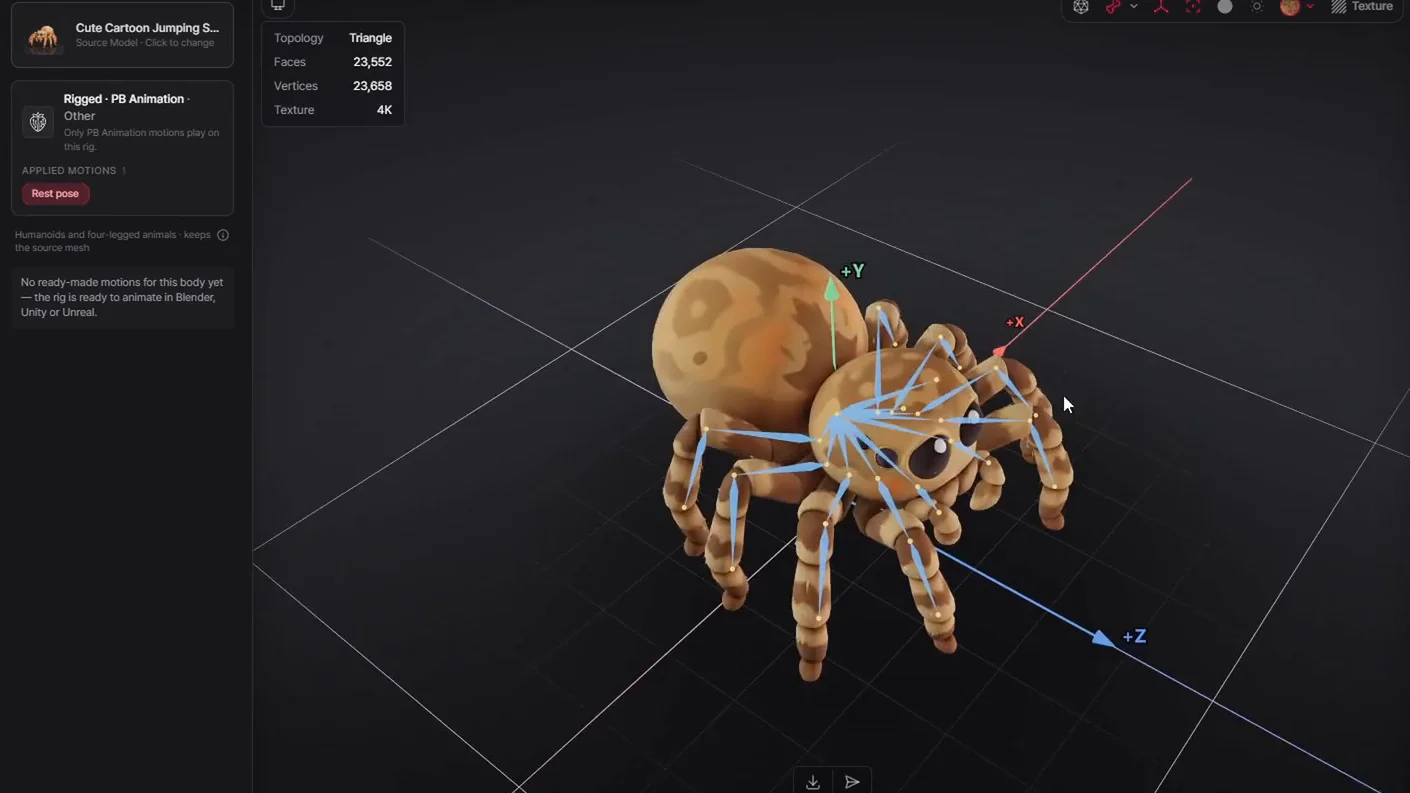
An eight-legged spider rigged with the Other body type, bones running down each leg, beside the panel reading “Rigged · PB Animation · Other” and “No ready-made motions for this body yet”.

Other (beta)

An eight-legged spider with its own bone chain down every leg, still on the mesh it was generated with.

Where does PB Animation fit — and what should you check?

It's strongest when the model is already the way you want it. A few limits are worth knowing before you rig.

Best on characters you've already finished

Humanoid characters you've already shaped, textured or cleaned up — stylized and chibi proportions included — where remeshing would throw that work away.

Beta bodies are rig-only

Four-legged and Other rigs have no ready-made motions yet, so you animate them in Blender, Unity or Unreal. Pick the body type yourself: if it doesn't match the model, rigging and motions come out wrong and the credits are still used.

Rig last, export on desktop

Remesh, UV unwrapping and Segmentation aren't available on a rigged model, so do them first. Downloads work on desktop only, and the Blender, Unreal and Godot bridges take one clip at a time.

Frequently asked questions

What is PB Animation?
PB Animation is PicoBerry's own rigging and motion engine. It sits in the Animation tool next to Meshy Ani and Tripo Ani, rigs a 3D model on its original mesh, applies motions from a library of more than 900 humanoid motions, and rigs four-legged and other bodies in beta.
Does PB Animation change my model's mesh, UVs or textures?
No. PB Animation keeps your mesh as it is — the rig is fitted onto the original geometry, UVs and textures. Meshy Ani and Tripo Ani remesh while rigging, so their results come back triangulated even from a quad source. Rigging with PB Animation creates a new card named “… (Rigged)” and leaves the original model in your library.
Which body types can PB Animation rig?
Humanoid characters, plus four-legged animals (quadrupeds) and Other bodies, both in beta. Other is for bodies that fit neither a humanoid nor a four-legged skeleton; the video rigs an eight-legged spider. The body type is never guessed from the model, so choose it before you rig — a mismatch gives wrong rigging and motions, and the credits are still used.
Are PB Animation's motions free, and how many are there?
PB Animation gives humanoid rigs more than 900 ready-made motions — free animations sorted into tabs such as Movement, Knight, Mage, Archer, Fighter, Walk, Run, Idle, Monster, Dance and Chibi, and searchable by name. Applying a motion costs no credits; rigging is the step that uses them. Four-legged and Other rigs have no ready-made motions yet.
Do I need to credit PB Animation's motions when I publish a game?

For some of them, yes. The Animation tool lists two sources:

Most walks, runs and idles are adapted from 100STYLE by Ian Mason, Sebastian Starke and Taku Komura, licensed under CC BY 4.0. If you publish them in a game, video or other work, credit 100STYLE there too.

The martial arts moves and many movement transitions (starts, stops, turns) are adapted from the Open Motion Project by ACCAD, The Ohio State University, licensed under CC BY 3.0. Credit ACCAD there too when you publish them.

Can I place the joints myself in PB Animation?
Yes, for Humanoid and Four-legged rigs. In PB Animation, Rig (mark joints) opens Mark joints (2D anchors) with suggested joints already in place; joints it couldn't find are flagged with the reason. Humanoids have Mirror (on by default) and Depth for moving a joint forward or back, and with Tail on you mark the tail's base and tip in the Side (tail) view. Then press Rig with N anchors. The joints themselves aren't charged — you pay only for the rig.
Can I change a PB Animation motion after applying it?
Yes. In PB Animation, play the clip and open Adjust motion to change its speed (×0.25 to ×4), trim its range, mirror it on a humanoid, adjust the arms, waist, head and legs, or change the hand shape. Apply adds the result to the rigged card as a new clip and keeps the original. Adjust motion isn't available for Other rigs.
How do I export a PB Animation character with all of its motions?
In PicoBerry, download on desktop, choose GLB or FBX, and keep Contents on Rig + animation — the file then includes every motion retargeted to that model. Rigged model only and Animation only are the other two choices. If you send the card instead, Unity receives all of it, while Blender, Unreal and Godot receive the single clip you pick.
Can I remesh, unwrap UVs or segment a model after rigging it in PicoBerry?
No. In PicoBerry, Remesh, UV unwrapping and Segmentation aren't available on a rigged model, so run them first and rig last. For characters with lots of accessories — armour, a skirt, a cape — the Animation tool suggests fixing them in Segmentation before you rig with PB Animation.
Can I rig a character I made in another program with PB Animation?
Yes. On a paid plan, upload the model to PicoBerry and rig it with PB Animation like a generated one — its mesh, UVs and textures stay as they are, and any skeleton it already had is replaced with the new one. On the Free plan, PB Animation rigs the models you make in PicoBerry. Plans are compared on the Pricing page.
Rig the character you already made — and keep it intact.

Pick a body type, rig on your own mesh, and try motions from the free library before you export.